40
8.00 MAIN MENU: ROUTES MENU
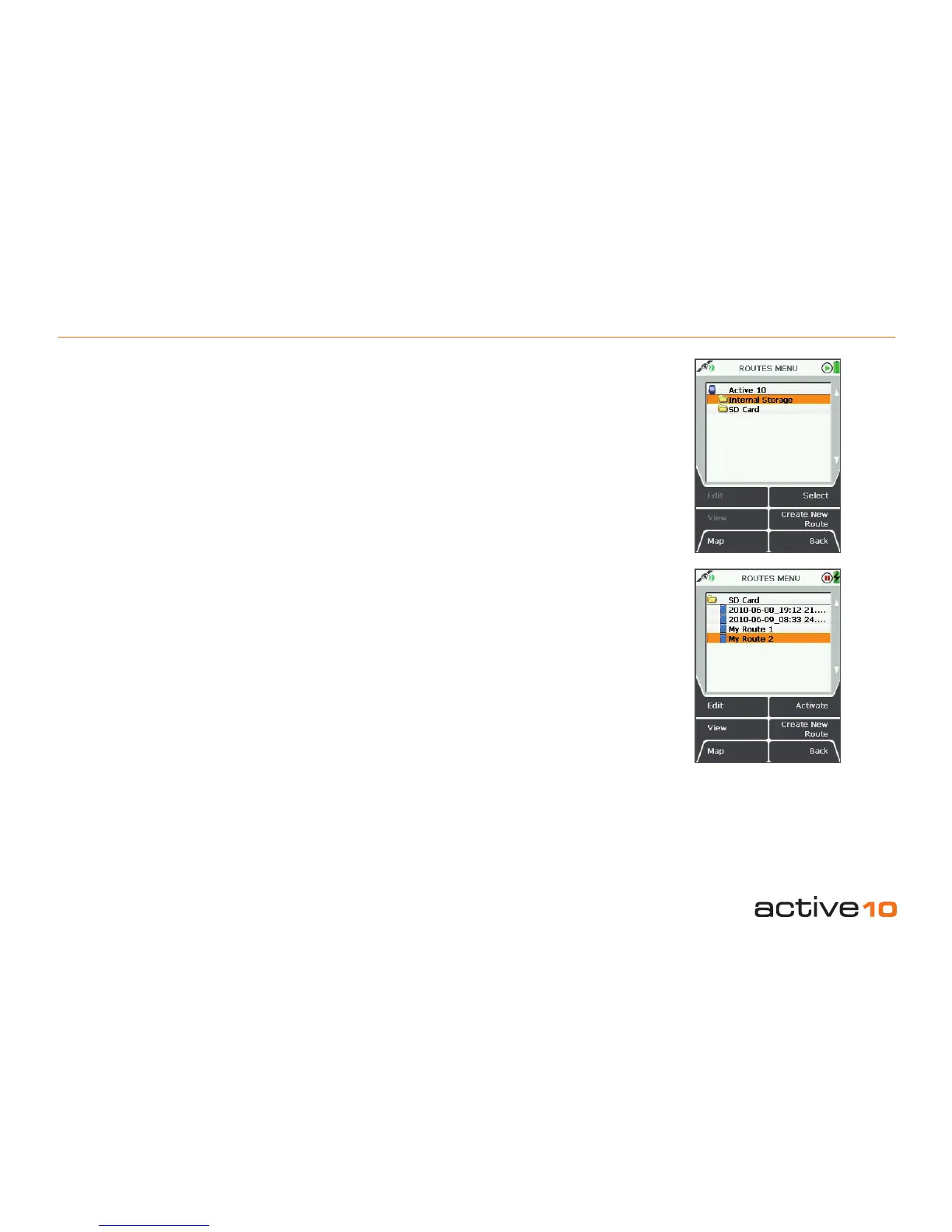
8.00 ROUTES MENU Screen
(GPS MAP → MAIN MENU → ROUTES
MENU)
Alternative access:
GPS MAP → PLANNING → ROUTES MENU
via lower left button
The ROUTES MENU contains the listing of
routes, stored in a series of folders.
By default, the rst route created is entitled
‘My Route 1’. The routes following are titled
in numerical order, i.e. 'My Route 2', (unless
you have imported a prenamed route to your
unit from an external mapping system). You
can rename the title of your route via the Edit
button (section 8.02).
When a trail is converted to a track it is also
saved in the ROUTES MENU and is allocated
a default title including the year, month, day,
time and distance (e.g. 2010-08-14_16:35
15.6km). A track is a route derived from a trail
that has already been made.
Buttons:
Edit
Go to ROUTE EDIT screen (section 8.02)
View
Go to ROUTE MAP screen (section 8.03)
Map
Return to GPS MAP screen
Up folder / Select / Activate / No route active
Move up to a higher level folder, or when a
route is highlighted, toggle between activating
it and selecting no route active.
Create New Route
Go to CREATE ROUTE (section 8.01)
Back
Return to MAIN MENU (section 6.01)
Accelerated scrolling: If you have several
routes in one folder you are able to scroll
quickly by holding the joystick up/down. Keep
the joystick pressed up/down until you reach
the le you are looking for.
Figure 8.00



 To Next Page