20
6.04 TRIP LOG: Convert Trail to Track
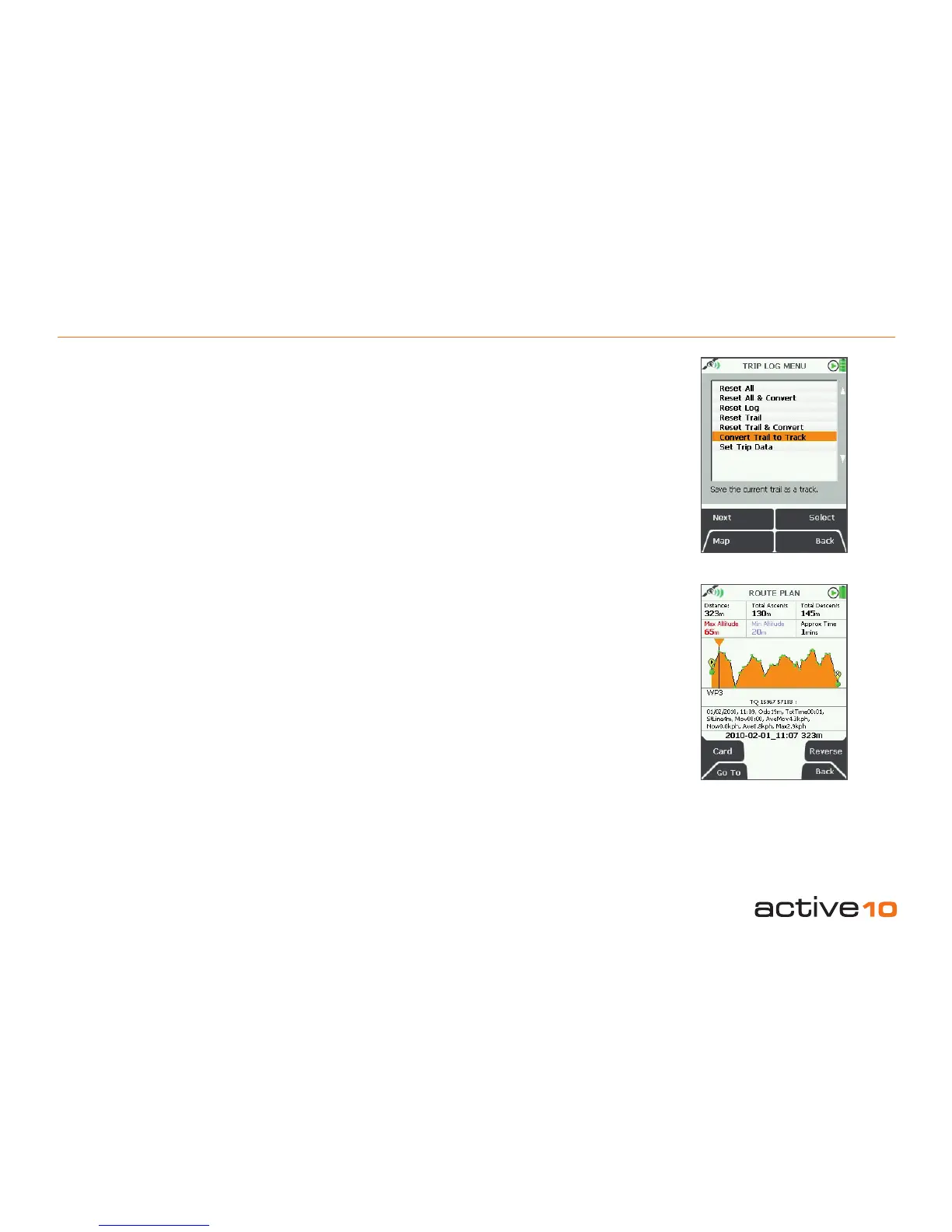
6.04 Convert Trail to Track
(GPS MAP → MAIN MENU → COMPASS →
TRIP LOG → Menu → Convert Trail to Track)
When a route has been completed it can
be saved for reference, future use, or for
swapping with others on the Route Share
Network (section 21.08). Select the Convert
Trail to Track option to convert the snail trail
of red dots into a track.
Waypoints will automatically be added at key
points on the map. As these are computer
generated, the positions should be checked
and where appropriate, amended to ensure
they are practical from a user’s point of view.
When the track has been created, this can be
viewed on the unit in the Routes Menu, or
can be shared using the SatSYNC program
(free download from www.satmap.com).
The terms trail, route and track are used to
describe different stages of a recorded route:
Trail: The path that has been taken, shown as
a series of red dots (‘snail trail’).
Route: The planned path users intend to take.
It has waypoints laid down at key turning
points, and can be created on the unit, or on
a mapping system such as the Online Route
Planner, Google Earth etc.
Track: The snail trail that has been saved and
converted to a track. It is called a track to
differentiate it from a route. A track is a route
derived from a recorded snail trial, and can
still be found in the Routes Menu like a route.
Figure 6.04
Note: At the bottom of the elevation prole
screen there is a list of all the trip data
attached to each waypoint on the route
(Figure 6.04).
6.05 Convert Trail to LOI/AOI
This feature is only available on SatSYNC.
After using one of the Convert Trail to Track
options, you can export the track as a .GPX
or .KMZ le to your computer. This can be
imported back as an LOI/AOI by selecting
the appropriate import settings in SatSYNC.
(Please refer to the SatSYNC 1.5 User Guide
for more information).
Note: KMZ/KML les give enhanced features
on Google Earth. GPX les are better for the
Online Route Planner/Route Share Network.
6.06 Geotag Photos with Trip Log Data
This feature is only available on SatSYNC.
Photos are labeled or 'tagged' indicating
where they were taken. Date/time information
from your camera is synchronized with the
GPS local time. After recording your trip log
data, it can be used to geotag your photos via
SatSYNC. This adds longitude and latitude
information to the photos, which can then be
viewed in the correct location on Google Earth
or similar applications. This allows you and
other to see where the pictures were taken.
(Please refer to the SatSYNC 1.5 User Guide
to nd out more on how to use the geotagging
application within SatSYNC to geotag your
photos).



 To Next Page