44
8.02a ROUTES MENU: ROUTE EDIT
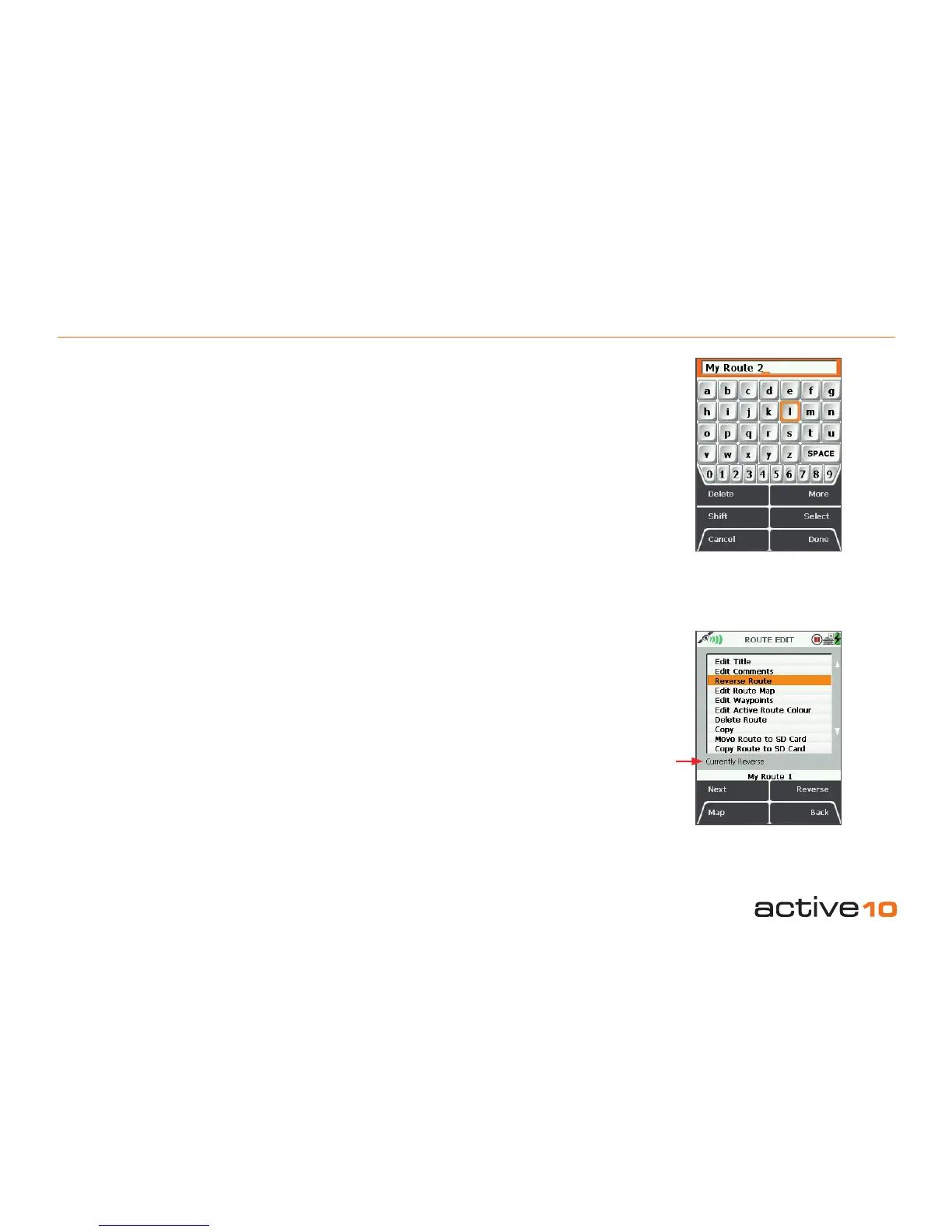
8.02a Edit Title
(GPS MAP → MAIN MENU → ROUTES
MENU → (folder/route) → Edit → Edit Title)
When a route is created it is called 'My Route
1' by default (or similar, depending on the
number of existing routes). To rename it, use
Edit Title.
Highlight Edit Title, then either press the Edit
button or center press the joystick to access
the keypad (section 9.00).
8.02b Edit Comments
(GPS MAP → MAIN MENU → ROUTES
MENU → (folder/route) → Edit → Edit
Comments)
Highlight Edit Comments, then either press
the Edit button or center press the joystick to
access the keypad.
Operate the keypad to input comments
describing the route (section 9.00) and press
Done when nished. The screen will return to
the ROUTE EDIT screen.
Figure 8.02a/b
Figure 8.02c
8.02c Reverse Route
(GPS MAP → MAIN MENU → ROUTES
MENU → (folder/route) → Edit → Reverse
Route)
Press Reverse to reverse the route. Press
again to go back to the original direction of
travel. There is an on-screen statement which
says either Currently Forward or Currently
Reverse.
Alternative ways to reverse the route are via
the ROUTE PLAN screen (section 8.03a) or
the ROUTE CARD screen (section 8.03b).
Currently
Reverse
or
Currently
Forward



 To Next Page