46
8.02g ROUTES MENU: ROUTE EDIT
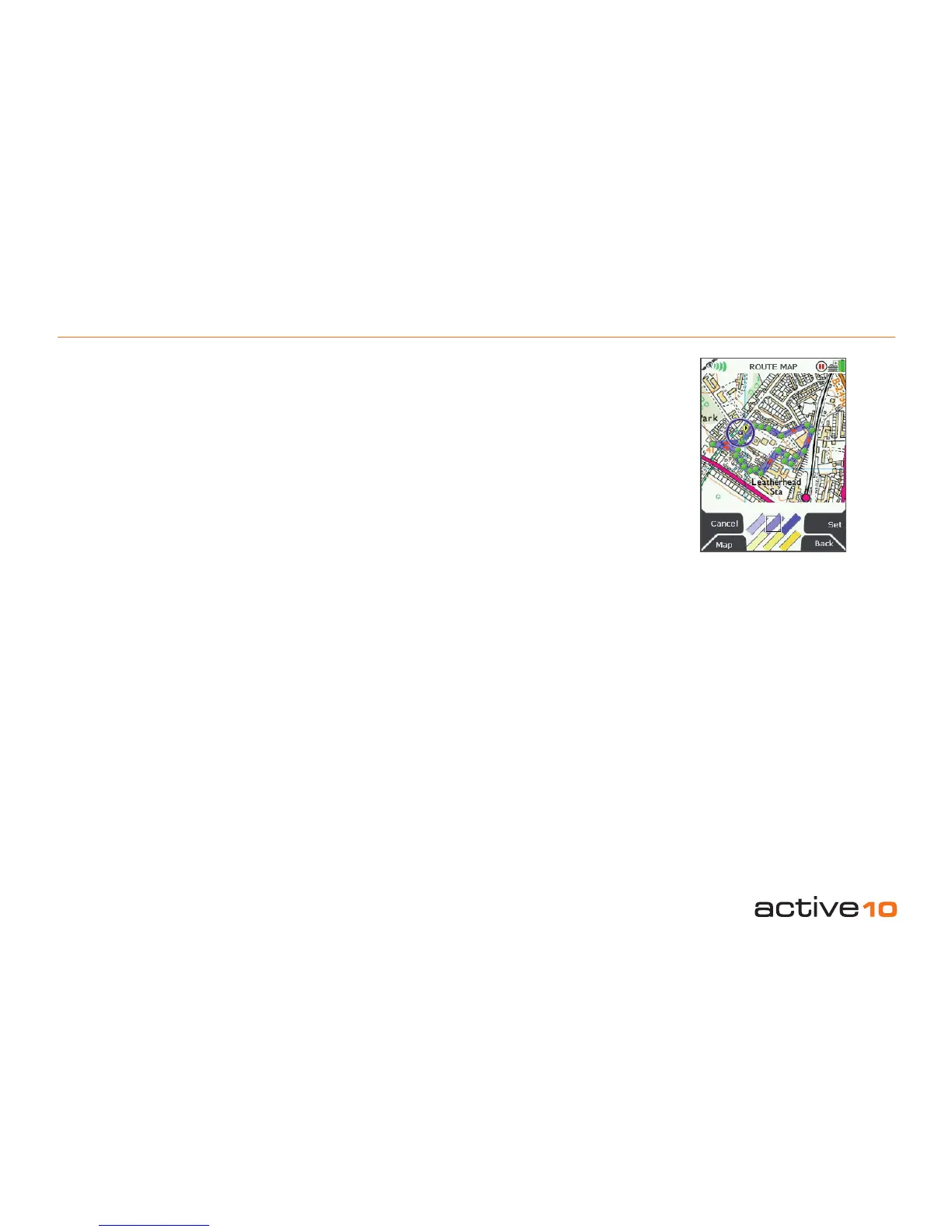
8.02f Edit Active Route Color
(GPS MAP → MAIN MENU → ROUTES
MENU → (folder/route) → Edit → Edit Active
Route Color)
Highlight Edit Active Route Color, press
Edit or center press the joystick to access
the ROUTE MAP screen. Here you will be
able to customize the color of your route.
You are able to choose from 6 options that
range between the two colors blue and yellow
with varying degrees of transparency. You
can make the appropriate selection to avoid
obscuring map details.
Use the joystick to move across the colors.
Once you are happy with the selection, press
Set or Back to go back to the Route Edit
menu.
8.02g Delete Route
(GPS MAP → MAIN MENU → ROUTES
MENU → (folder/route) → Edit → Delete
Route)
Highlight Delete Route, then press Delete to
access a screen showing the option to delete
the route. When either Delete or Cancel
is selected, the screen will return to the
ROUTES MENU (section 8.00).
8.02h Copy
(GPS MAP → MAIN MENU → ROUTES
MENU → (folder/route) → Copy)
Press Copy to create a copy of the current
route which will appear in the same folder.
8.02i Move Route to SD Card
(GPS MAP → MAIN MENU → ROUTES
MENU → (folder/route) → Edit → Move Route
to SD Card)
(Only available if an SD card has been
inserted).
Highlight Move Route to SD Card and either
press Move or center press the joystick.
(Subsequently this option becomes Move
Route from SD Card). The screen will go
to the ROUTES MENU and your route will
appear in the SD Card folder. It will no longer
exist in its previous location.
8.02j Copy Route to SD Card
(GPS MAP → MAIN MENU → ROUTES
MENU → (folder/route) → Edit → Copy Route
to SD Card)
(Only available if an SD card has been
inserted).
Highlight Copy Route to SD Card and either
press Copy or center press the joystick.
(Subsequently this option becomes Copy
Route from SD Card). The screen will go to
the ROUTES MENU and you can nd a copy
of the route in the SD Card folder.
Figure 8.02f
The default color for a route
is the medium blue option.



 To Next Page