13
5.01 Toggleable Maps
Map toggling is a feature available on
software version 1.4 and later (free download
from satmap.com). Toggle-enabled map cards
allow you to switch between different map
layers at a particular point on the same zoom
level. For example, you can ip between the
two scales (1:50k and 1:25k) and the base
map. It is also possible to toggle between
different map types and map providers.
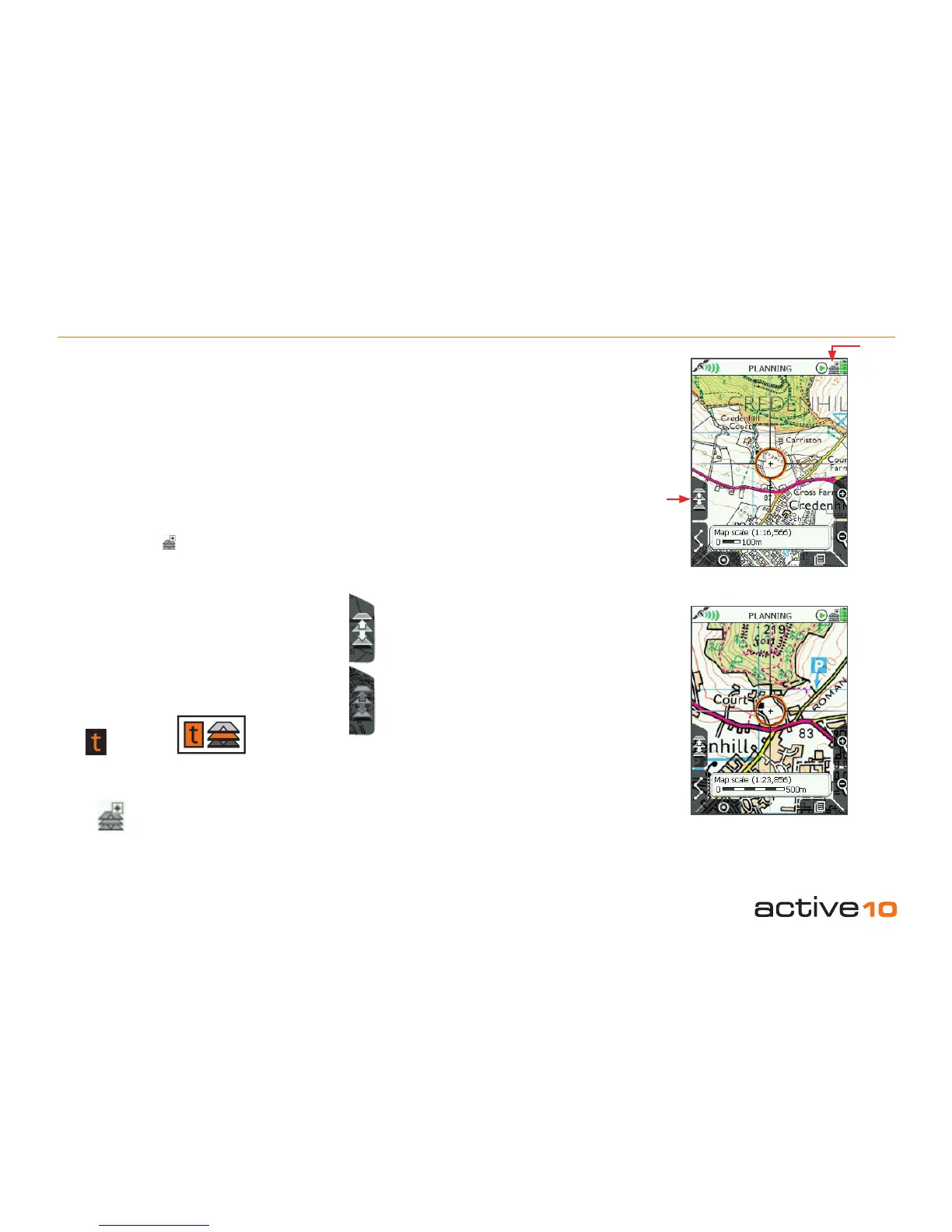
If a toggle-enabled map card is loaded, a
mini toggle symbol appears next to the
Stop/Record icon on the GPS screen in the
status bar, indicating the map inserted can be
toggled. This enables the toggle maps button
on the left.
Note: Not all maps are toggleable. Look for
the toggle icon or logo on all of our toggle-
enabled products. The toggle function
can also be added to existing map cards
(see satmap.com for further details on this
service).
Getting Started:
• Insert your SD card. This will load your Map
Packs screen.
• Use the joystick to ip between maps, and
select View Map to access the desired GPS
MAP screen.
• To access the Map Packs screen at any
point, center press the joystick and select
Map Packs using the lower left-hand side
button.
Toggle between maps by pressing the upper
left-hand side button (Toggle maps) and
switch seamlessly between different maps
without having to zoom in or out.
5.01 GPS Map Screen: Toggleable Maps
Toggle icon
Toggle Symbol
(shown on screen)
Toggle logo
Toggle maps button appears bold when
suitable map card is loaded and map
areas and zoom levels overlap.
Toggle maps button appears gray when
toggle function is not available.
1:25 000
1:50 000
Toggle
maps
Toggle
icon



 To Next Page