22
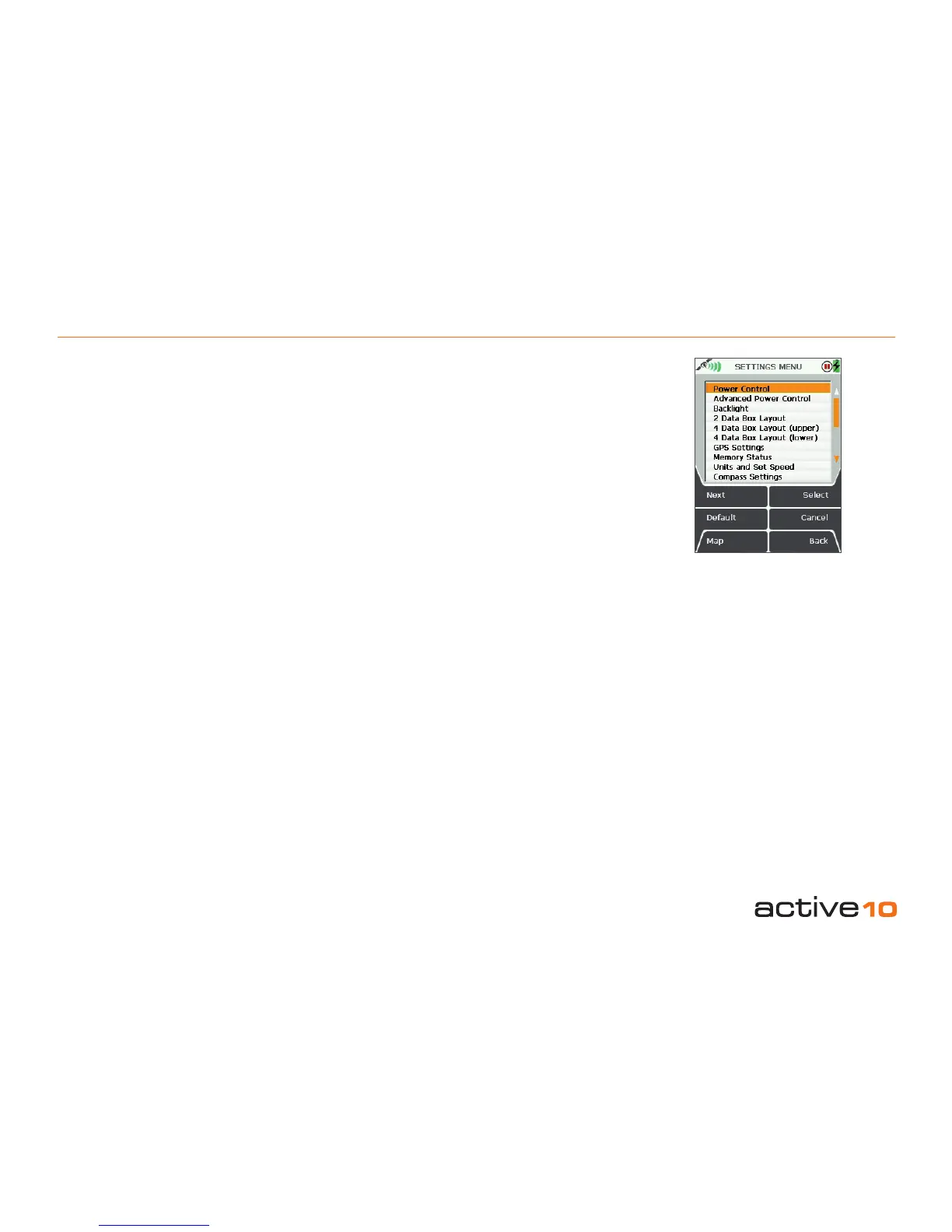
7.00 SETTINGS MENU Screen
(GPS MAP → MAIN MENU → Settings)
The SETTINGS MENU screen gives you
access to a wide range of settings options. Of
these the most signicant are Power Control,
Advanced Power Control and Backlight.
It is recommended that all users acquaint
themselves with these three options in order
to maximize battery life.
In addition, use Memory Status to nd out
how much RAM/operating memory you are
using. If the consumption is too high, you can
reduce it by adjusting Set Trip Data to 'Hide
Inactive Routes' or only show the start point of
an inactive route ('Show Inactive Routes SP').
The full list of settings options are:
• Power Control
• Advanced Power Control
• Backlight
• 2 Data Box Layout
• 4 Data Box Layout (upper)
• 4 Data Box Layout (lower)
• GPS Settings
• Memory Status
• Units and Set Speed
• Compass Settings
• Calibrate Compass
• Set Trip Data
• Volume Control
• Buttons Control
• Screen Data Options
• Time Offset
• Languages
• About
At any point, should you wish to exit a settings
screen, either press Map (front left button) to
go to the GPS MAP screen, or press Back
(front right button).
Buttons:
Next
Scroll through menu options. Alternatively use
the joystick to highlight an option.
Default
Takes you to the Default Settings screen
with the option to choose Yes or No. Pressing
Yes takes you to the Default Options screen:
• Choose Clear All to reset all the user
dened settings, trail and GPS data,
(including OOIs and routes) to the factory
set defaults. The unit will then turn itself off.
• Choose Reset Settings to reset only the
settings data to the factory set defaults.
(If you choose Yes you will not be able to go
back without choosing one of these options).
Choose No to retain all current settings and
return to the SETTINGS MENU.
Map
Return to last map screen
Select
Either press Select or center press the
joystick to select the highlighted option
Cancel
Return to MAIN MENU
Back
Return to MAIN MENU
7.00 MAIN MENU: SETTINGS MENU
Figure 7.00



 To Next Page