75
17.05 OOI Menu: Edit AOIs Within A Grid
17.05 Edit AOIs Within a Grid
(GPS MAP → MAIN MENU → OOI Menu →
OOI Folders → Select Grid → Select AOI →
Edit)
Alternative access:
(GPS MAP/PLANNING → click on AOI →
Choose Information Type → select AOI via
center press → AOI details → Edit)
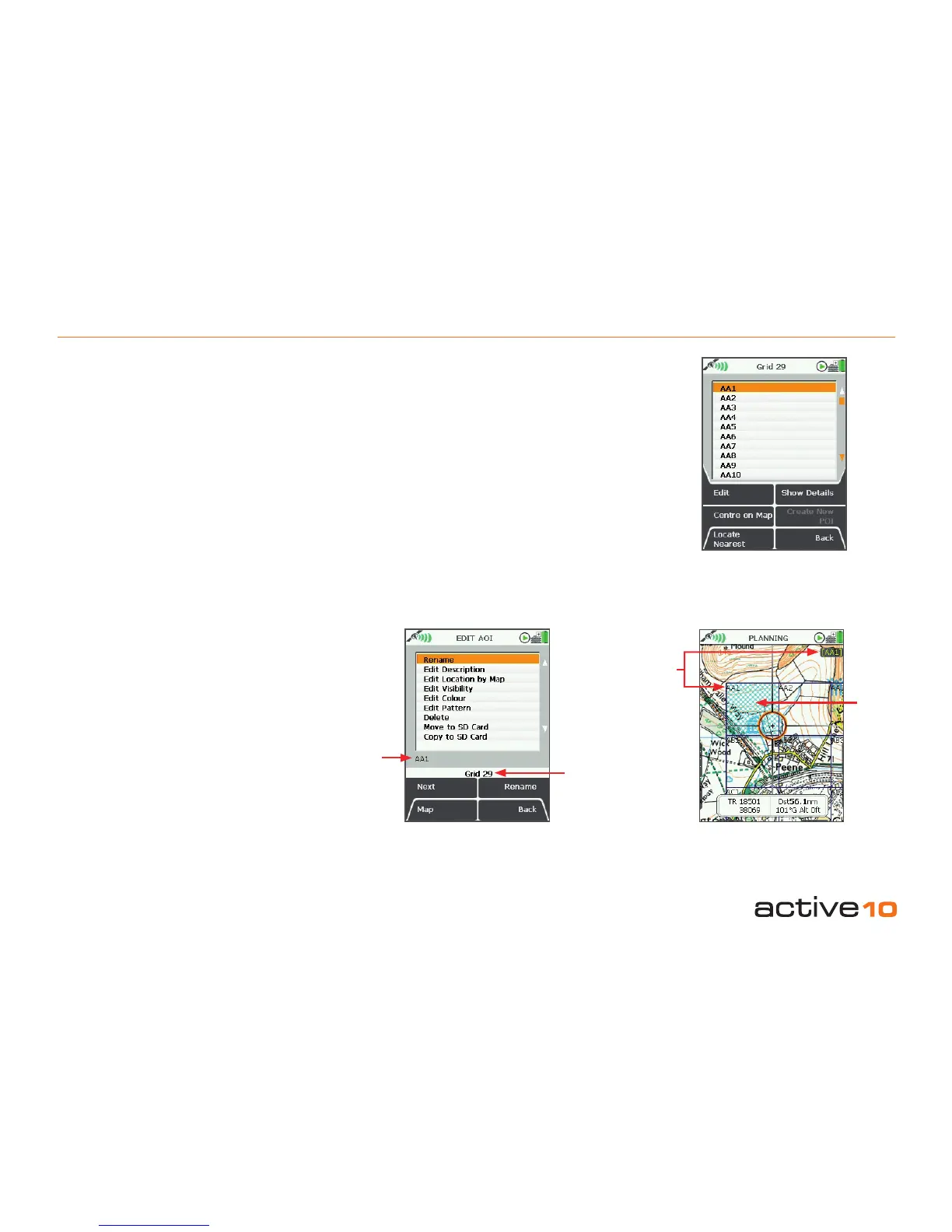
Individual AOIs within a grid can be edited
in the same way as regular AOIs. Go to the
OOI Folders, highlight the grid and press
Select to list the AOIs that make up the grid.
By pressing Edit you will be taken to the EDIT
AOI menu. Here you will be able to change
the color and pattern of individual AOIs within
a grid. (Please refer to section 15.04 for more
information on the EDIT AOI menu options).
From the grid screen you will also be able
to center an AOI on the map or locate the
nearest AOI to your current location. Pressing
the Show Details button will give you a
description of the AOI selected (section
15.03). You can also access the edit options
from this screen. (Please refer to section
11.00 for more on the Choose Information
Type window).
Note: Only individual AOIs within a grid can be
made visible or invisible. An entire grid cannot
be made visible or invisible, unless you set
the visibility options of a folder containing the
grid.
Figure 17.05
Grid
Name
Edited
AOI
within
a grid
AOI
Name
AOI
Name
Buttons:
Edit
Go to EDIT AOI screen (section 15.04c)
Center on Map
Go to PLANNING screen with the AOI in the
center
Locate Nearest
Go to PLANNING screen and show nearest
AOI to current location
Show Details
Go to AOI details screen (section 15.03)
Back
Return to the OOI Menu (section 12.00)



 To Next Page