57
14.04 Add POI in a Specic Folder
(MAIN MENU → OOI Menu → OOI Folders
→ specic folder → nal subfolder → Back
→ Add POI by Map or Add POI by Grid
Reference or Add POI by Postcode)
This will add the POI to the last visited folder.
Note: Folders are created using SatSYNC
and must contain at least one OOI or route
to be visible on the unit. (See SatSYNC User
Guide for more information).
14.05 POI Details Screen
(GPS MAP → MAIN MENU → OOI Menu →
OOI Folders → Select POI → Show Details)
Alternative access:
(GPS MAP/PLANNING → click on POI →
Choose Information Type → select POI via
center press → POI details)
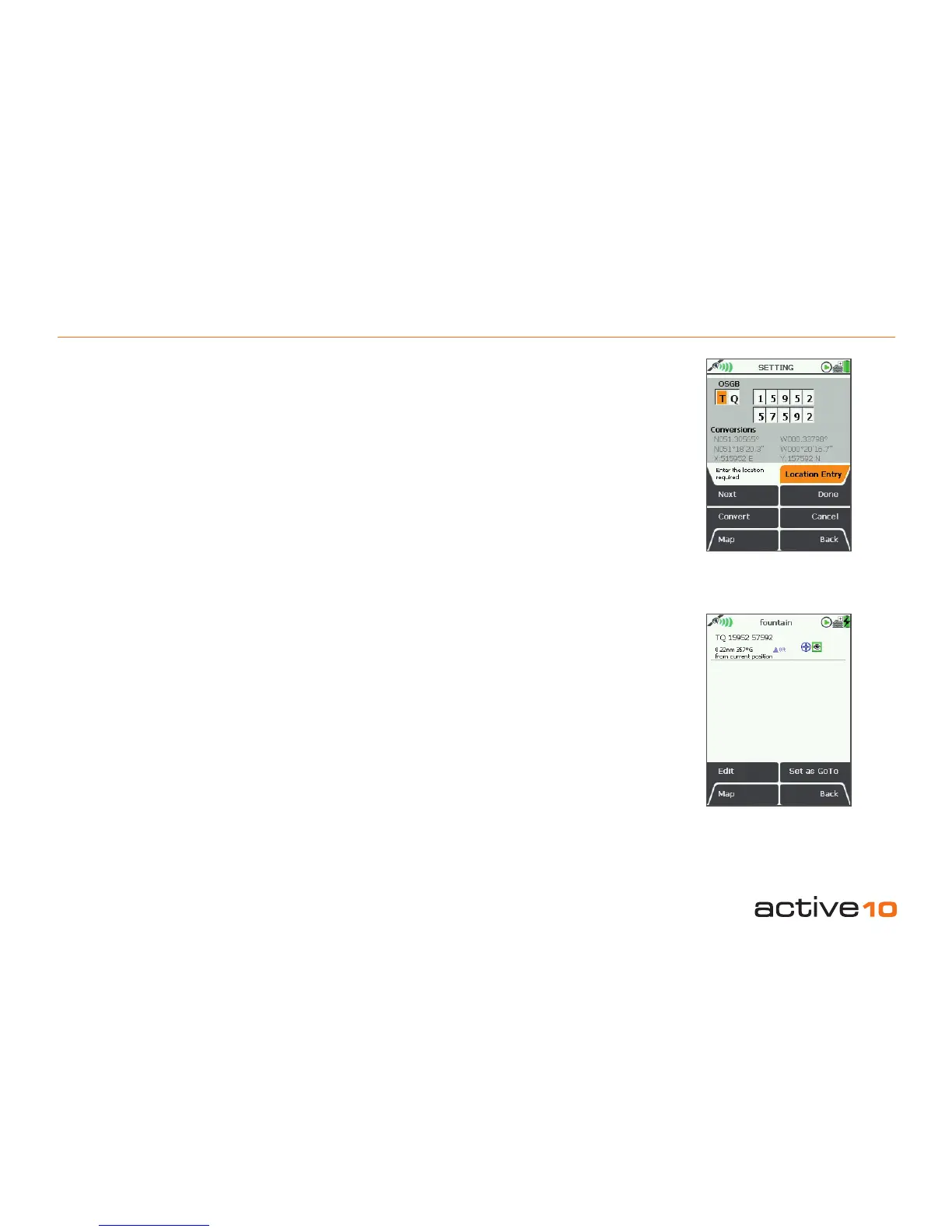
This screen summarises details of the POI
and is titled by the current POI name. POIs
are date and time ‘stamped’, and the following
information is given:
• Name of the POI
• Grid reference
• Distance and bearing from current location
• Elevation
• POI icon
• POI description (if added)
The highlighted green 'eye' icon indicates the
POI is visible on the map. When invisible, the
'eye' icon is highlighted in red with a red line
through it (section 11.00).
14.02 OOI Menu: POIs (Points of Interest)
14.02 Add POI by Grid Reference
(GPS MAP → MAIN MENU → OOI Menu →
Add POI by Grid Ref)
To create a POI by grid reference, select Add
POI by Grid Ref from the OOI Menu and
press Select or center press the joystick. This
will take you to the SETTING screen where
you will be able to create a POI using a grid
reference.
To add a location entry, move the joystick
left/right to toggle between boxes. Move the
joystick up/down to change the box entries.
Under the grid reference boxes are the
'conversions' showing the initial grid
references. Once you begin changing the
grid reference (i.e. moving the joystick up/
down to change the entries), these conversion
gures are grayed out and the Convert button
becomes bold. Pressing Convert will update
the conversions.
14.03 Add POI by Postcode (UK only)
(GPS MAP → MAIN MENU → OOI Menu →
Add POI by Postcode)
POIs can be added by postcode for some
units in the UK. Select Add POI by Postcode
from the OOI Menu and press Select or
center press the joystick. This will take you to
the keypad. Enter the desired postcode and
press Done to go to the Add POI screen.
Follow the steps as described in section 14.01
('Add POI by Map') to create your POI on the
map.
Figure 14.02
Figure 14.05



 To Next Page