64
15.04a OOI Menu: Edit AOI (Areas of Interest)
15.04a Rename AOI
(GPS MAP → MAIN MENU → OOI Menu
→ OOI Folders → Select AOI → Edit →
Rename)
When an AOI is created it is called 'AOI 1' by
default (or similar, depending on the number
of existing OOIs).To rename it, highlight the
AOI in the OOI Folders, press Edit, then
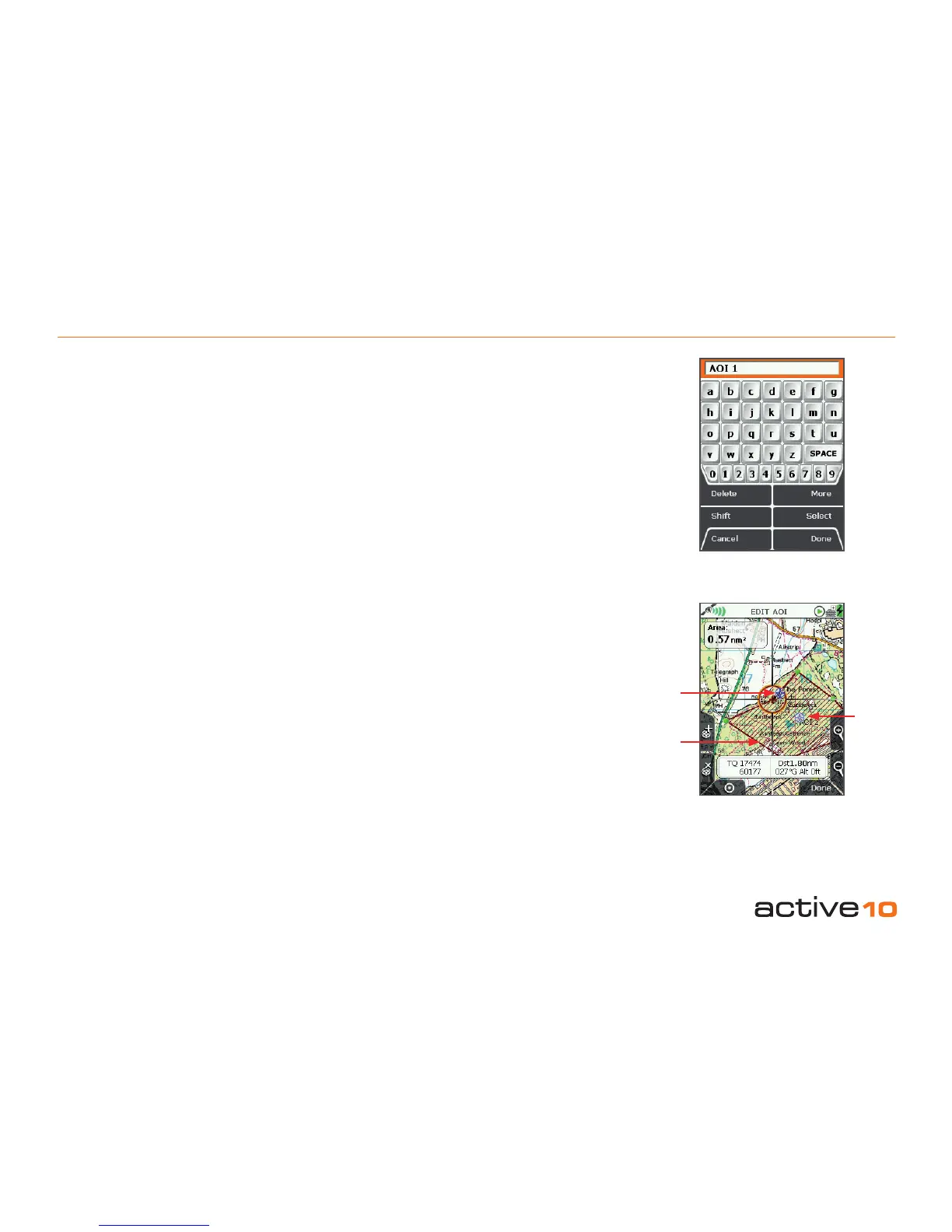
Rename. The keypad appears. Use the
joystick to rename the AOI (section 9.00).
15.04b Edit Description
(GPS MAP → MAIN MENU → OOI Menu
→ OOI Folders → Select AOI → Edit → Edit
Description)
Highlight Edit Description, then either press
the Edit button or center press the joystick to
access the keypad (section 9.00).
Operate the keypad to input comments
describing the AOI and press Done when
nished. The screen will return to the EDIT
AOI menu.
Note: The 'Edit Description' option is only
available if the existing description has 128
characters or less (e.g. externally imported
descriptions from geocaches etc. with more
than 128 characters cannot be edited).
15.04c Edit Location by Map
(GPS MAP → MAIN MENU → OOI Menu
→ OOI Folders → Select AOI → Edit → Edit
Location by Map)
You are in edit mode when a red cross
appears inside the orange locator circle.
Use the joystick to move the locator circle
over individual AOI points and center press
the joystick to select them. A blue POI icon
appears just inside the locator circle which
means you can then drag the AOI point to
a new location. Center press the joystick to
conrm the placement.
If you wish to add another AOI point, press
the '+' button. To remove an existing AOI
point, press the 'x' button.
Press the GPS Map button to return to the
last map screen.
15.04d Edit Visibility
(GPS MAP → MAIN MENU → OOI Menu
→ OOI Folders → Select AOI → Edit → Edit
Visibility)
On selecting Edit Visibility you are taken to a
menu where you can hide or show your AOIs
by setting them as 'visible' or 'not visible' on
your map. Pressing Select takes you back to
the edit menu.
Note: This is only respected if the global
visibility is set to 'Default' (GPS MAP → MAIN
MENU → OOI Menu → 'Visibility - Default').
Figure 15.04a
Figure 15.04c
POI icon
AOI
AOI
reference
point
(section
15.03)



 To Next Page