19
6.03 TRIP LOG Screen
(GPS MAP → MAIN MENU → COMPASS →
TRIP LOG)
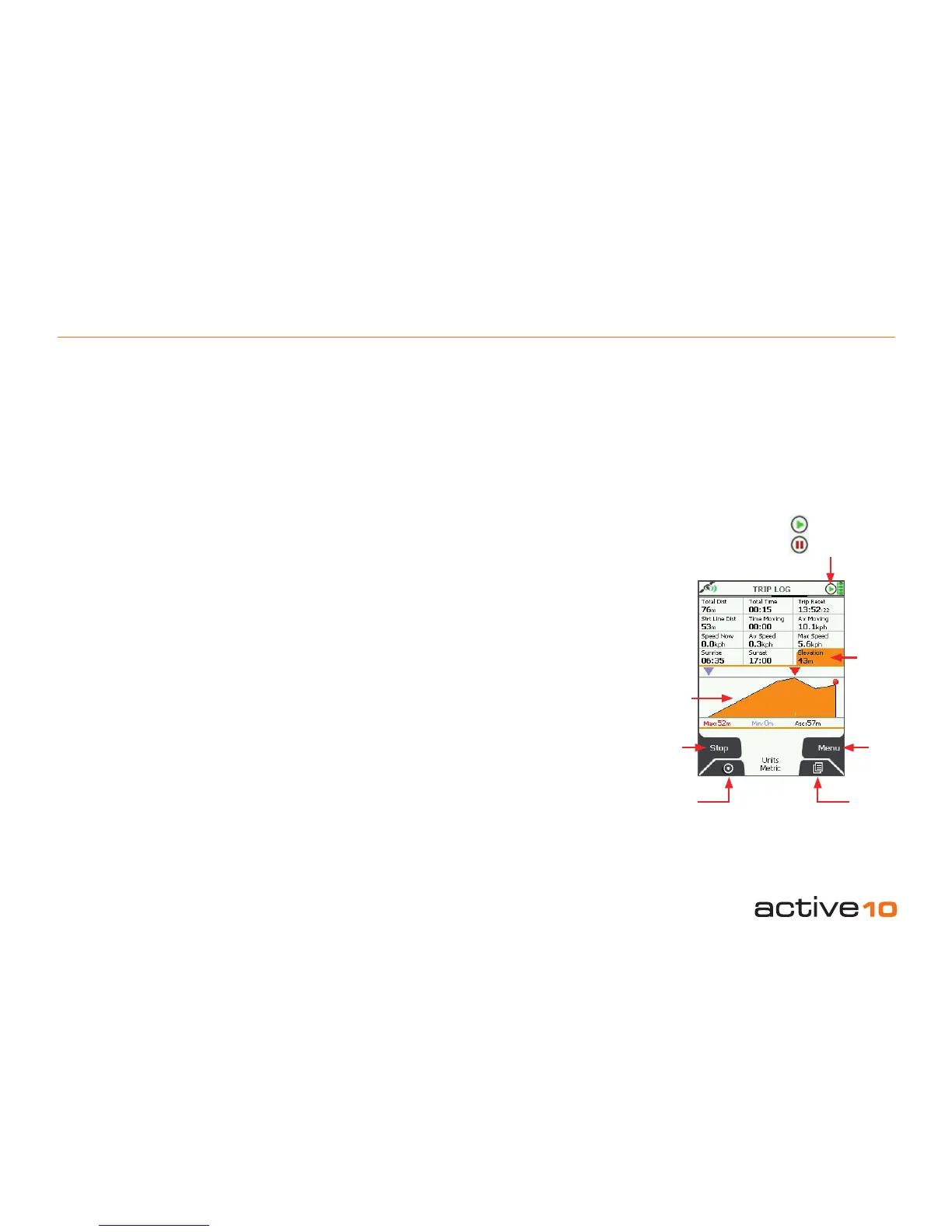
The upper half of the TRIP LOG screen is
split into 12 data elds:
• Total distance travelled (Total Dist)
• Total time (Total Time)
• Time of last reset (Trip Reset)
• Straight line distance: from start position to
end position (Strt Line Dist)
• Time moving (Time Moving)
• Average moving speed (Av Moving)
• Speed now (Speed Now)
• Average speed (Av Speed)
• Maximum speed (Max Speed)
• Sunrise time (Sunrise)
• Sunset time (Sunset)
• Altitude above sea level (Elevation)
All units can be given in metric or imperial.
(section 7.11).
The lower half of the TRIP LOG screen
shows a graph of the elevation prole of
your journey. Above the graph, a red pointer
indicates the maximum height and a blue
pointer indicates the minimum height. Figures
for these heights are given below the graph.
Also shown is the abbreviation ‘Asc:’ for
ascended height.
Buttons:
Start/Stop
Press to start/stop data logging.
(Note: remember that if Stop is showing,
it means Start was the button pressed
previously and the GPS is logging data).
The unit’s data logging functions are intended
to register a single trip. The log should be reset
before starting the next trip. Using the Start/
Stop button allows you to pause data logging
during a journey, e.g. pausing for a lunch break.
When Stop has been pressed, the unit stops
all data logging. If you switch to the GPS MAP
screen and continue moving, no snail trail is
left.
GPS Map
Return to GPS MAP (section 5.00)
Primary Screens
Go to GPS STATUS screen (section 6.07) and
scroll through primary screens (section 4.00)
Menu
Access the following range of options:
• Reset All
• Reset All & Convert
• Reset Log (keeps the snail trail and elevation
prole)
• Reset Trail (also resets elevation data)
• Reset Trail & Convert
• Convert Trail to Track (section 6.04)
• Set Trip Data (section 7.14)
There are on-screen descriptors for each
option. If you would like to save your data
before resetting, choose one of the ‘Convert’
options in the menu.
As the trip log data uses up memory on your
unit, make sure you reset the trip log regularly
to maintain optimum performance.
6.03 Primary Screens: TRIP LOG
Figure 6.03
GPS Map
Primary
Screens
Note: If you transit between trips and press
Start without resetting the log, the transit
is shown as a straight line snail trail to your
present location and will be incorporated into
subsequent data logging.
Elevation data:
• Elevation data is obtained from maps or the
GPS. See GPS Settings for more details
(section 7.09).
Elevation
data
Access
Menu
options
Elevation
prole
Stop
Trip Log
has started
Trip Log Active
Trip Log Inactive
Trip Log Status:
Note: Trip log data is not stored in hibernate
mode.
(Stop/Record Icon)



 To Next Page