47
8.03 ROUTES MENU: ROUTE MAP
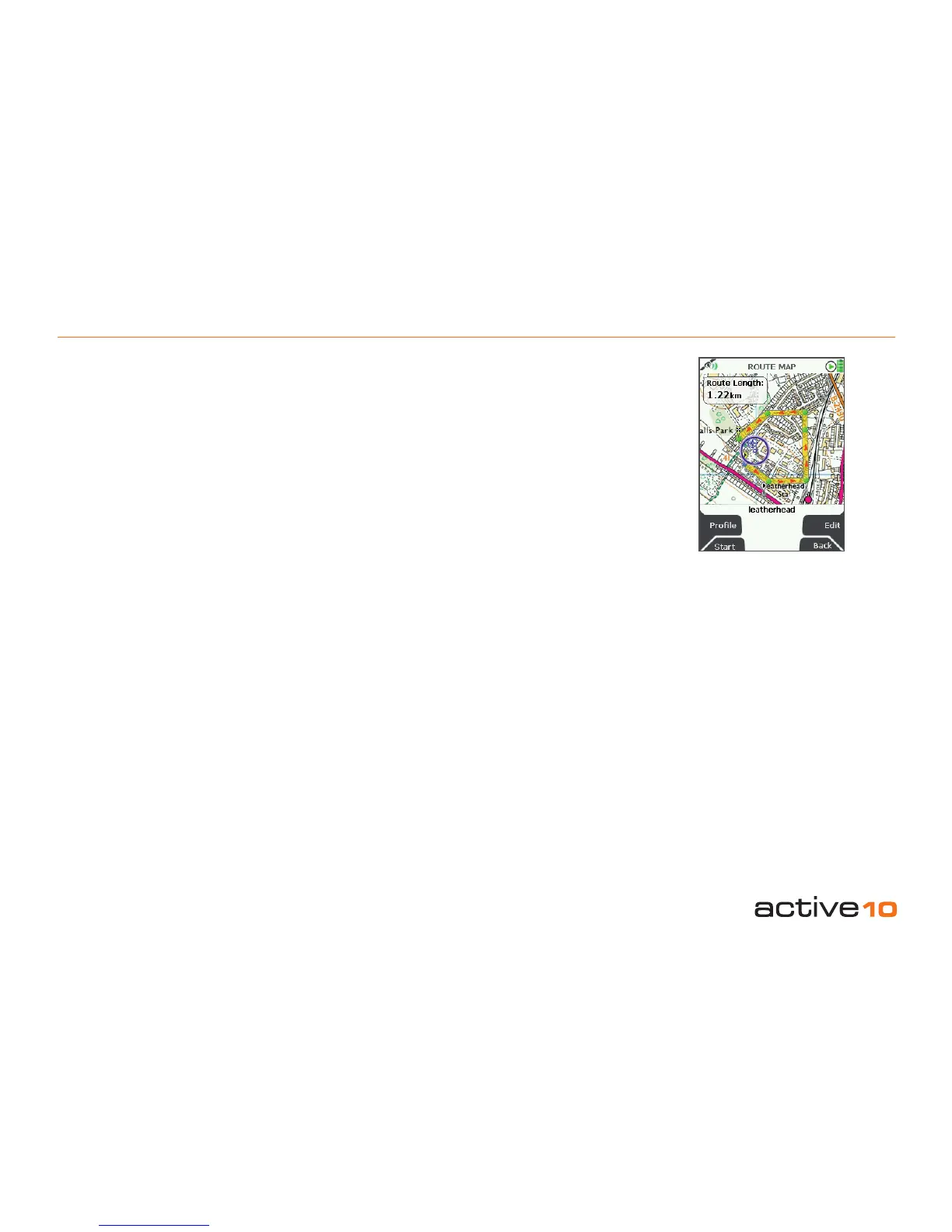
8.03 ROUTE MAP Screen
(GPS MAP → MAIN MENU → ROUTES
MENU → (folder/route) → View)
Alternative access:
(GPS MAP/PLANNING → click on activated
route → Choose Information Type → select
route via center press → ROUTE MAP)
A map showing the entire planned route
is shown. An appropriate scale is used to
ensure the whole route can be displayed on
the screen.
Note: If you see your route on a blue
background, this means there is no suitable
map at that scale to incorporate the entire
route.
The route length is given in a window. From
this screen you can either examine details of
the route via the Prole button, or edit the
route via the Edit button (section 8.02). You
can also view the start of a route by pressing
Start.
To return to the PLANNING screen, either
press Back or center press the joystick.
Figure 8.03
Buttons:
Prole
Go to ROUTE PLAN screen (section 8.03a)
Start
Go to the start of the route on the PLANNING
screen (section 6.00)
Note: This is useful to locate a route on your
screen when it is not visible.
Edit
Go to the ROUTE EDIT screen (section 8.02)
Back
Go to PLANNING



 To Next Page