58
INFORMATION ON THE MAP DISPLAY
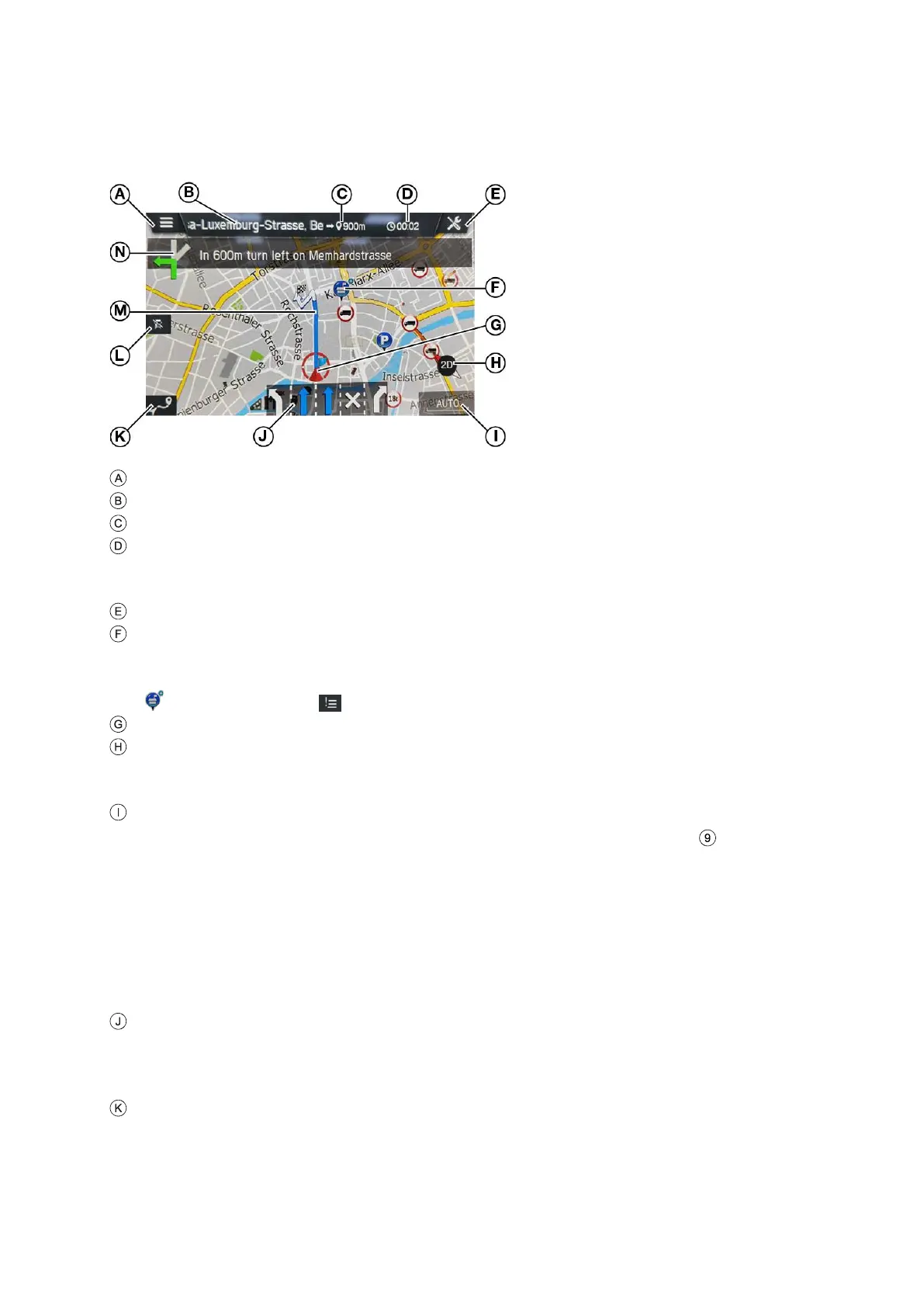
If the navigation system is activated, the following information is displayed:
Switch to open the menu MAP OPTIONS
Destination/ next stopover
Remaining distance to the destination/ next stopover
Estimated time of arrival or remaining travel time to destination/ next stopover.
Tap the time display to toggle between the arrival time and the remaining travel
time.
Button for navigation settings
Specific POIs, e.g. petrol stations, car parks or restaurants, are shown by the
corresponding icons.
Several POIs at one place are identified by the following icon. If you tap the icon
and then the icon , the corresponding POIs are displayed in a list.
Current vehicle position
Compass
Red arrow pointing to the north.
Adjustment and display of the map view: 2D, 2,5D or 3D
The currently selected map scale
- To change the scale on the map, rotate the right rotary encoder or use
the touch screen.
Pinch gesture:
Touch surface with 2 fingers and bring them closer together.
Spread gesture:
Touch surface with 2 fingers and move them apart.
- When the auto-zoom mode is activated, the map scale is adjusted
automatically by the navigation system (increases/decreases).
Lane recommendation
Shows all lanes of the current street. The lanes you must take to follow the
calculated route are shaded in blue.
Button to open the ROUTE OVERVIEW menu
The Route Overview button opens a screen which shows the entire route on
the map. This screen is zoomable and scrollable. Pressing the Resume
button goes back to the normal map view.


 To Next Page