82
SETUP BUTTON AND MENU NAVIGATION AND TRAFFIC
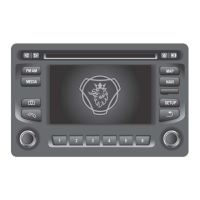
• Press on the
SETUP
button to open the SETTINGS menu.
• Tap on the icon .
• Tap on Navigation and Traffic.
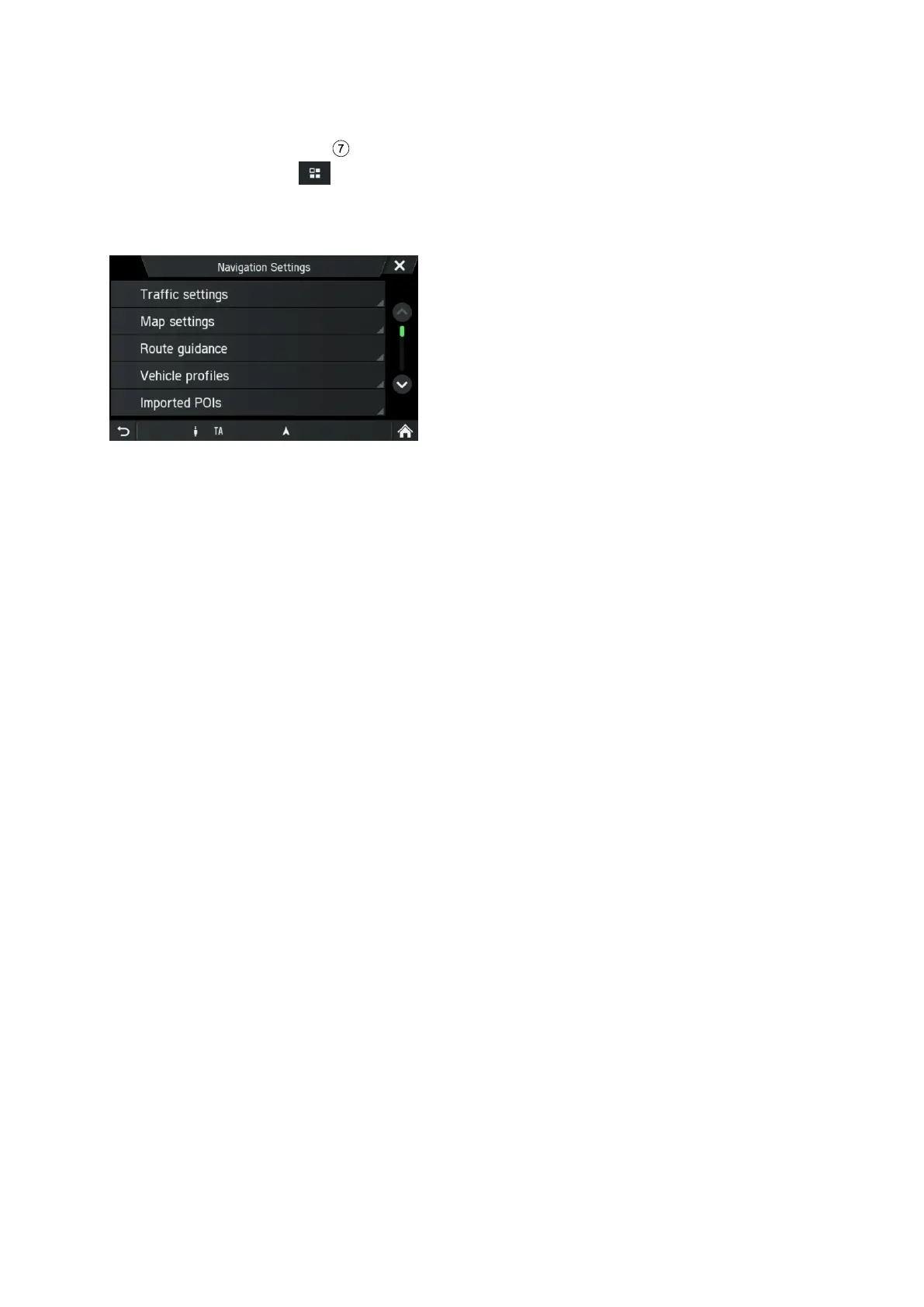
The NAVIGATION SETTINGS menu is displayed.
The NAVIGATION SETTINGS menu offers several settings for adjusting the
navigation system.
The following settings/options are available:
- Traffic settings
- Map settings
- Route guidance
- Vehicle profiles
- Imported POIs
- Map version
Traffic Settings
Under Traffic settings you can change the traffic settings.
For more information, refer to the “Traffic information Menu*” on page 88.
Map settings
The following settings/options are available under Map settings:
- Show traffic info
Use this checkbox to enable or disable traffic messages.
- Map display mode
Use this option to switch the back light between Light (day), Dark (night) and
Automatic (automatic switching).
- Map view
2D North up / 2D Direction up
The angle between the camera and the terrain is always a right angle (90
degrees), no height/elevation-data is used for rendering the map. Whenever this
mode is active, changing the angle of the camera is not allowed.
2,5D Direction up
The angle of the camera can go under 90 degrees. It gives the illusion of having
a 3D map.
3D Direction up


 To Next Page