70
SELECT A POINT ON MAP
If no route guidance is active:
• Select any point in map by touching the desired destination for 2 seconds.
The map gets centred to this position.
The confirm destination screen for the selected position is shown.
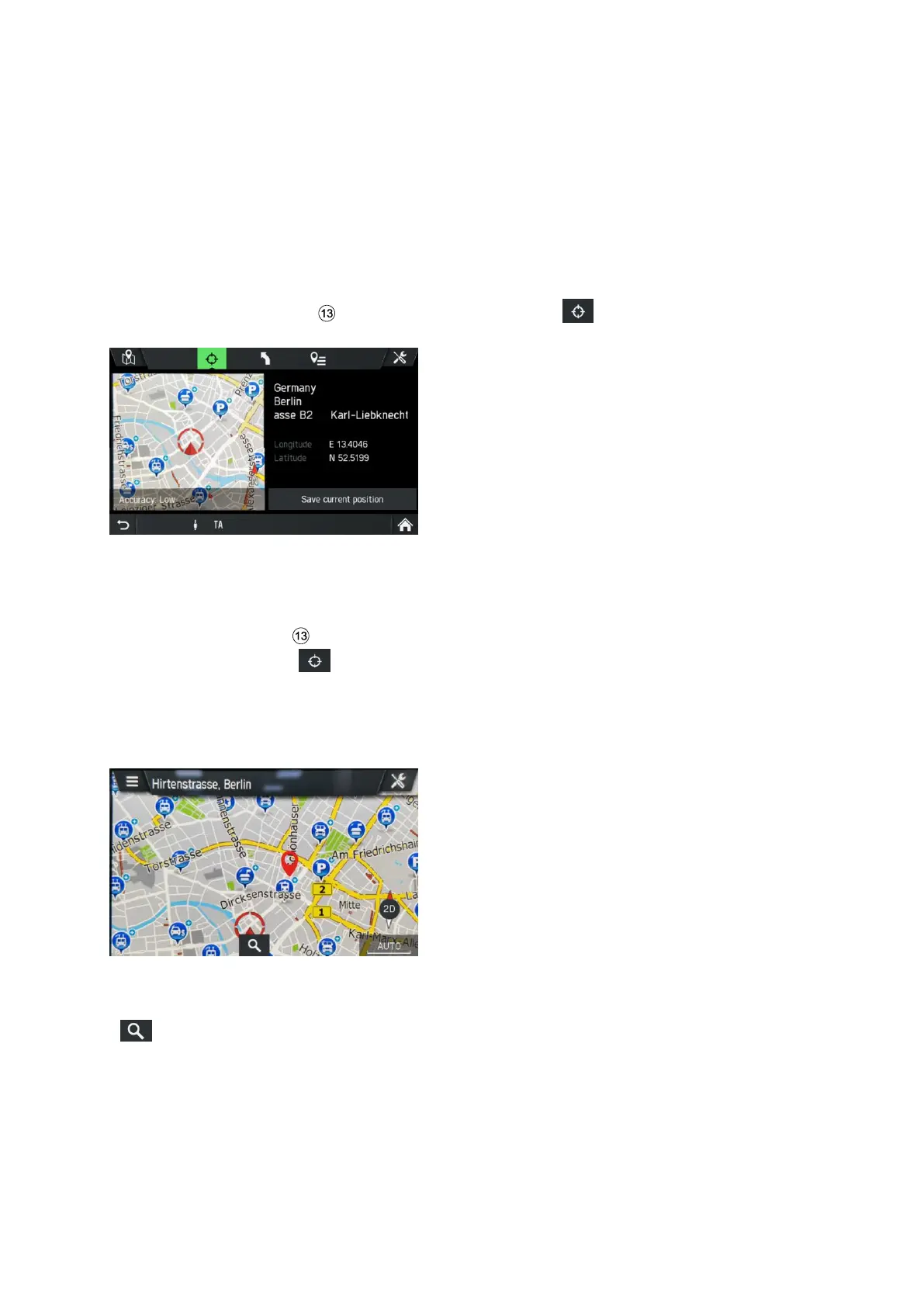
Display location information
Select this option to display the address/GPS coordinates of the current position.
• Press on the
NAVI
button and tap on the icon .
Save position information
Select this option to store the address/GPS coordinates of your current position.
• Press the
NAVI
button.
• Tap on the icon .
• Tap on Save current position.
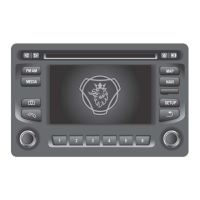
Map view when route guidance is inactive
The following elements are shown on the map when no route guidance is active:
- Name of the current street
- button: Search for cities, streets and POIs next to the entered search keyword
- An icon representing the current map view, the icon works as a compass for
heading up map views
- An icon representing the current zoom level.



 To Next Page