Operator control and monitoring
9.2 Working with the user interface
SIMATIC MV420 / SIMATIC MV440
Operating Instructions, 04/2013, A5E02371045-06
163
Controlling the reader via an automation system
If the reader is controlled via an automation system, i.e. with the DISA bit set, you will need
to log on to the reader as follows:
1. Make sure that only one PC is accessing the reader (padlock with red/gray markers).
2. Place the mouse pointer on the currently logged-on user (top right) and click. This brings
you to the "Security" tab on the "Options" page.
3. To control the reader, log on as "User1" or "Service" user. This is only possible if the
"Take control" check box is selected for the relevant user.
Remember that, by logging on, you intervene in reader control by the automation system.
This is only relevant for functions that require the DISA bit, for example program changes
and saving programs.
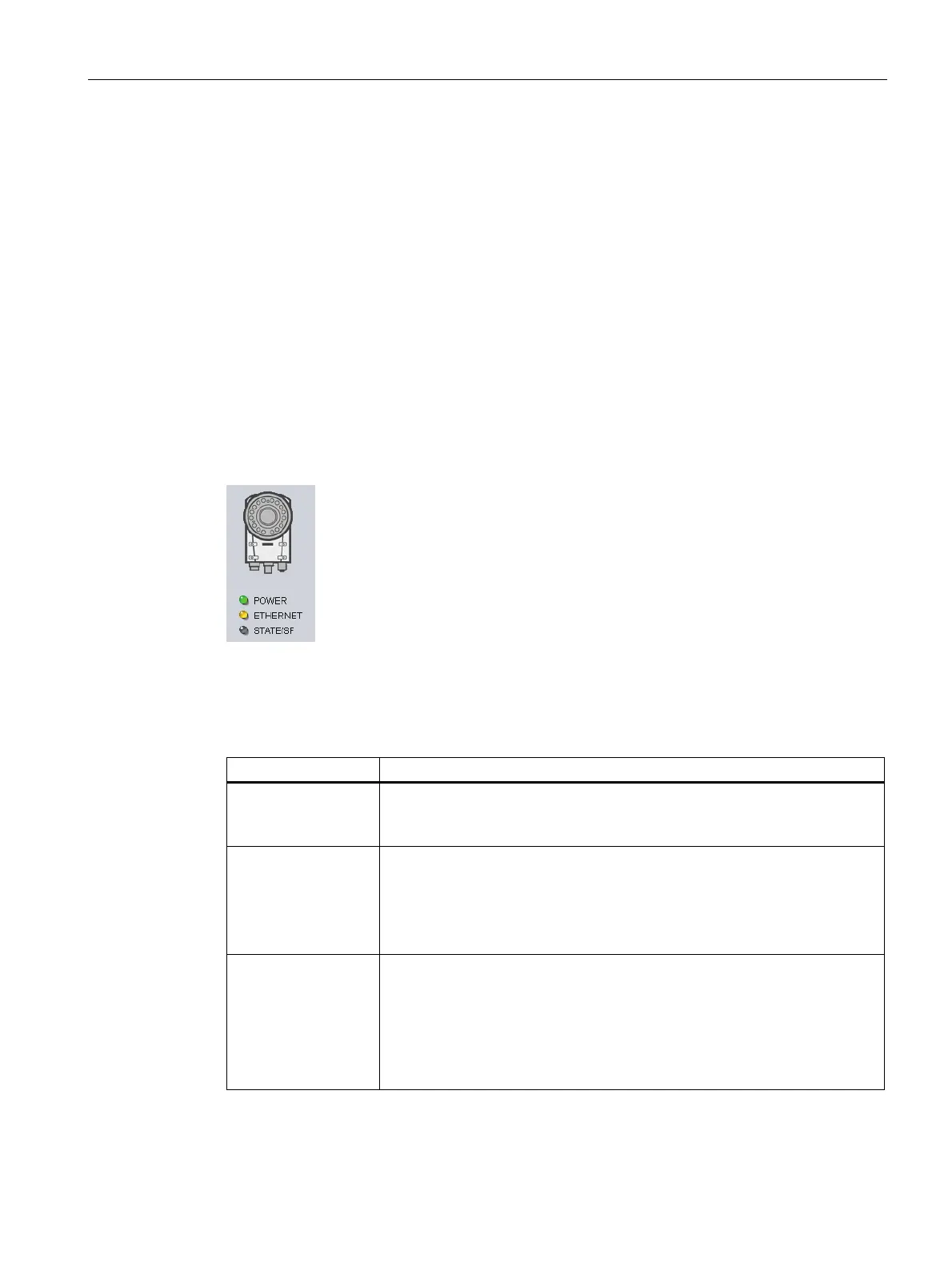
Status display
Figure 9-3 Status display (SIMATIC MV440)
The reader and its three status LED displays appear below the task buttons. The status
LEDs indicate the current status of the reader.
LED designation Meaning
POWER GREEN, permanently on
The reader must be switched on before it can be accessed via the user
interface. This LED therefore lights up a constant green.
ETHERNET Permanently off
The reader is not connected to the Ethernet. Either the reader is off or the
Ethernet cable has been disconnected.
Flashing YELLOW
There is an active connection to the user interface.
STATE/SF Permanently off
The reader is in "Stop" mode, i.e. there are no errors
GREEN, permanently on
The reader is in RUN mode, i.e., there are no errors
RED, permanently on
The reader is in "Group error" mode.



 To Next Page