Paramount ME User’s Guide
83
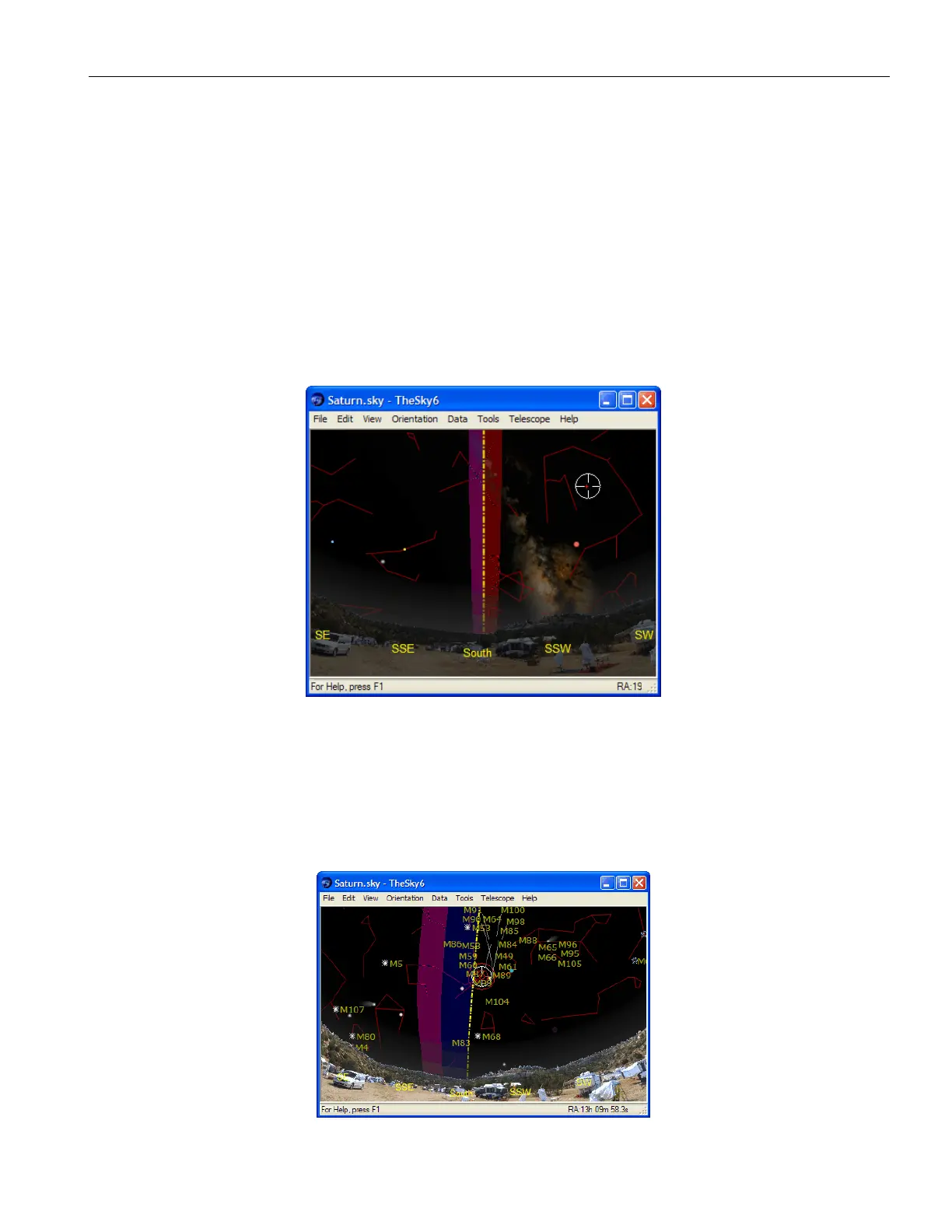
Purple Region
When the optical tube assembly is on the east side of the mount (pointing to the west), the
purple region (that is, the region on the east side of the meridian) indicates the area where
the mount can be slewed beyond the meridian without flipping sides. If the OTA is on the
east side, and you attempt to slew beyond this region, the mount automatically flips sides.
Red Region
When the optical tube assembly is on the west side of the mount, the red region indicates
how far past the meridian the mount can track before encountering a software or hardware
limit. If the OTA remains on the west side and the mount tracks to the tracking limit, then
tracking is turned off. The red region also indicates the area where, when the OTA is on
west side, the mount can be slewed past the meridian without flipping sides.
Figure 53: If you’ve successfully synchronized the Paramount ME, the shaded regions will be
centered on the meridian.
To turn on the Meridian Line, click the Display Explorer command from the View menu,
and then mark the Meridian option on the Reference Objects > Reference Lines node.
XFigure 53X represents a normal-looking synchronization, with the shaded regions centered
on the meridian.



 To Next Page