Paramount ME User’s Guide
89
The amount of drift (movement) from the base position, in
encoder counts or “tics.”
The absolute time when ProTrack was activated.
The number of minutes since ProTrack was activated.
Tracking Satellites
The Paramount ME and TheSky6 Professional Edition make the normally daunting task of
finding, slewing to, and tracking satellites (and other objects that move at a non-sidereal
rate) easier.
For example, in order to track a satellite using a Paramount ME, TheSky6 Professional
Edition can download the latest two-line element data (TLEs) from the world-wide web, and
then all you need to do is find a satellite that is above the horizon using TheSky6’s Find
command on the Edit menu, and then click the Track Satellite button on the Telescope tab
of the Object Information dialog box. The Paramount ME will automatically slew to the
satellite, then slew again to get close to the object, and then continuously update the
tracking rates for each axis so that the satellites remains centered on your detector.
To Track a Satellite
1. From TheSky6 Professional Edition, click Telescope > Link > Establish.
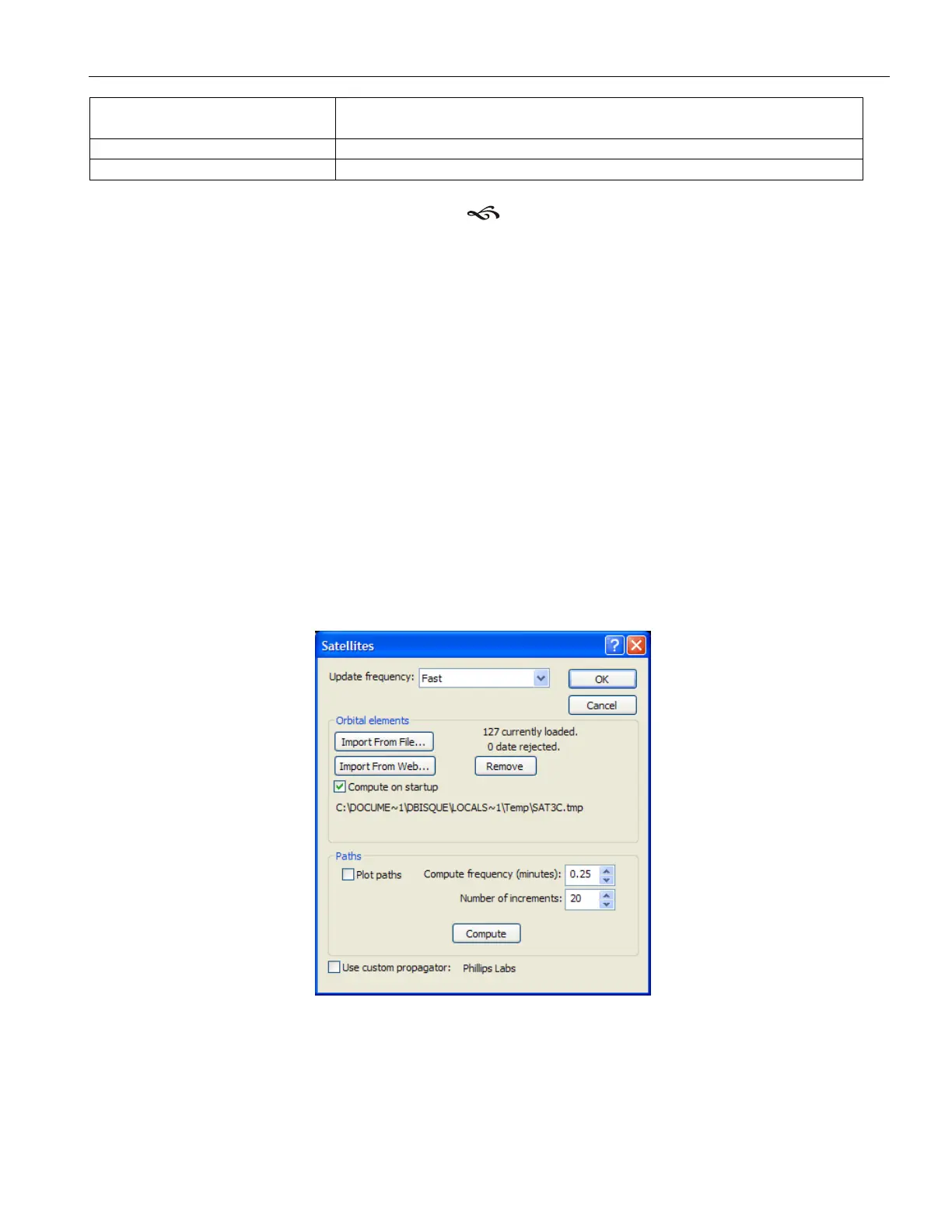
2. Click Data > Satellites, and then load the TLE of the desired satellites using the
Import From Web button and then click OK.
Figure 57: Satellites dialog box
3. To make the satellites more easily visible on the Virtual Sky, click View > Display
Explorer, navigate to the Solar System > Satellites > Labels node, and then mark
the ID check box. The satellites’ name will now appear next to the satellite.



 To Next Page