6-6 Operation
Operating the System Using the GUI Control Software
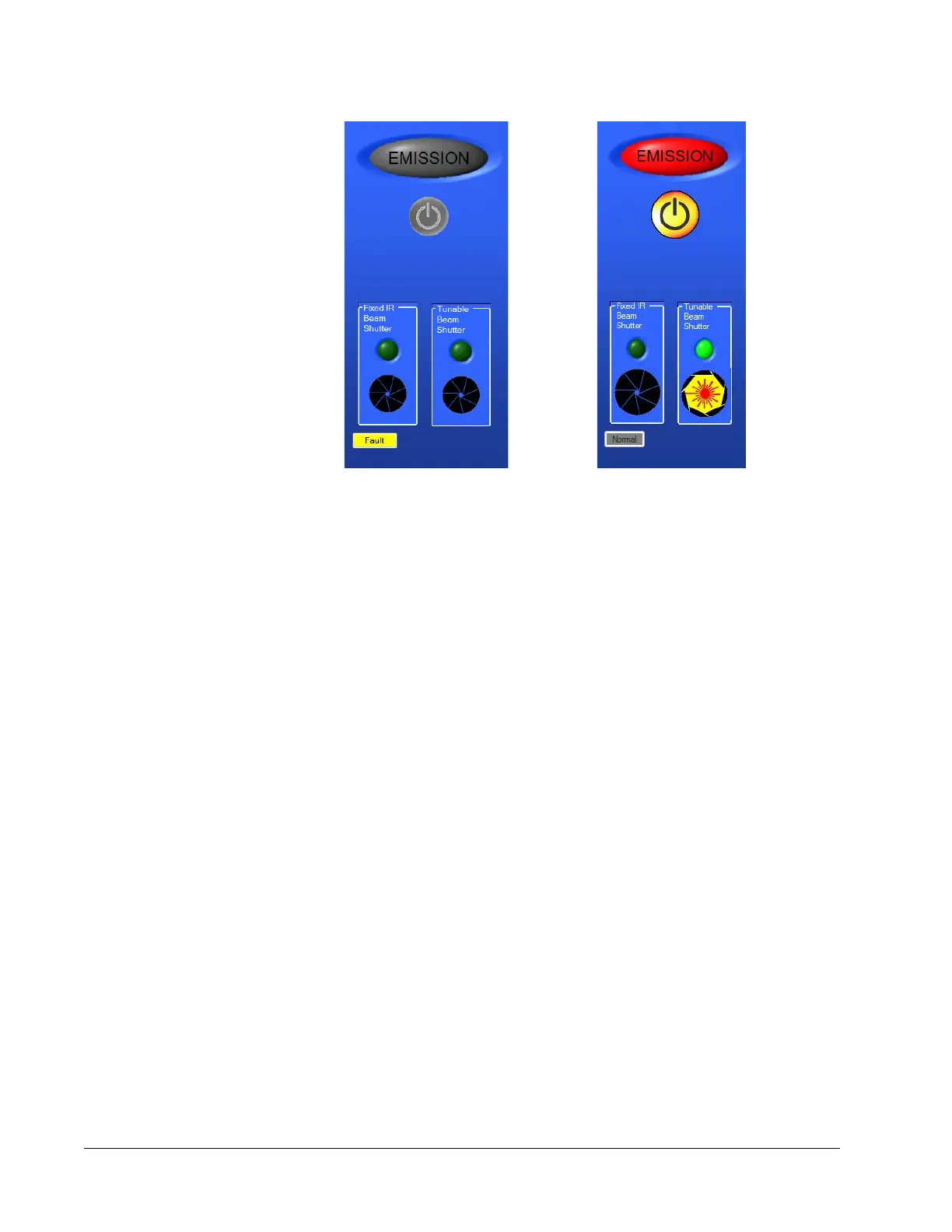
Figure 6-3 Left panel: standard system showing a fault (left), IR option system
(right)
EMISSION indicator —When red, it signals that the laser diode is on and that laser output
is imminent or available (the shutter must be open for actual emission); when gray, the
laser diode is off. For safety, this indicator turns on at least 3 seconds before laser output
is possible.
On/Off button—Turns the laser diode on and off. Click and hold down the button 3 to
5 seconds until the emission light turns on. There is a second 3-second safety delay
before the diode is energized. Click the button again to turn the laser diode off
immediately.
NOTE: Actual emission occurs only when the shutter is open.
Fixed IR beam shutter control—Opens and closes the fixed IR beam shutter on the
1045
nm option, which provides IR output from a second output port. To open the
shutter, click the aperture icon and hold it down until the icon opens (turns yellow, about
3 to 5 seconds). To close the shutter, click the aperture icon again and this shutter closes
immediately (turns black), blocking the IR laser beam. The aperture icon also closes.
Tunable beam shutter control —Opens and closes the tunable beam shutter. To open
the shutter, click the aperture icon and hold the button down until the icon opens (turns
yellow, about 3 to 5 seconds). To close the shutter, click the aperture icon again and the
shutter closes immediately, blocking the laser beam. The aperture icon also closes (turns
black). Closing this shutter does NOT automatically close the fixed IR beam shutter (if
present).
Fault indicator—Appears gray and displays Normal when there is no fault, and turns
yellow and displays Fault when a fault occurs. When there is a fault, click the display
box to bring up the Diagnostics tab to allow further diagnostics of the fault.


 To Next Page