37
If TAP is selected, there are several options that can be configured. This is referred to as the TAP Menu and is
shown below.
1. The first field that can be edited is Ignore Chksum. Press any key on the keypad to choose between Y or N
(Yes or No). Selecting Y ignores a message with an incorrect checksum and process the message
regardless.
2. Press the key to move along to the next field.
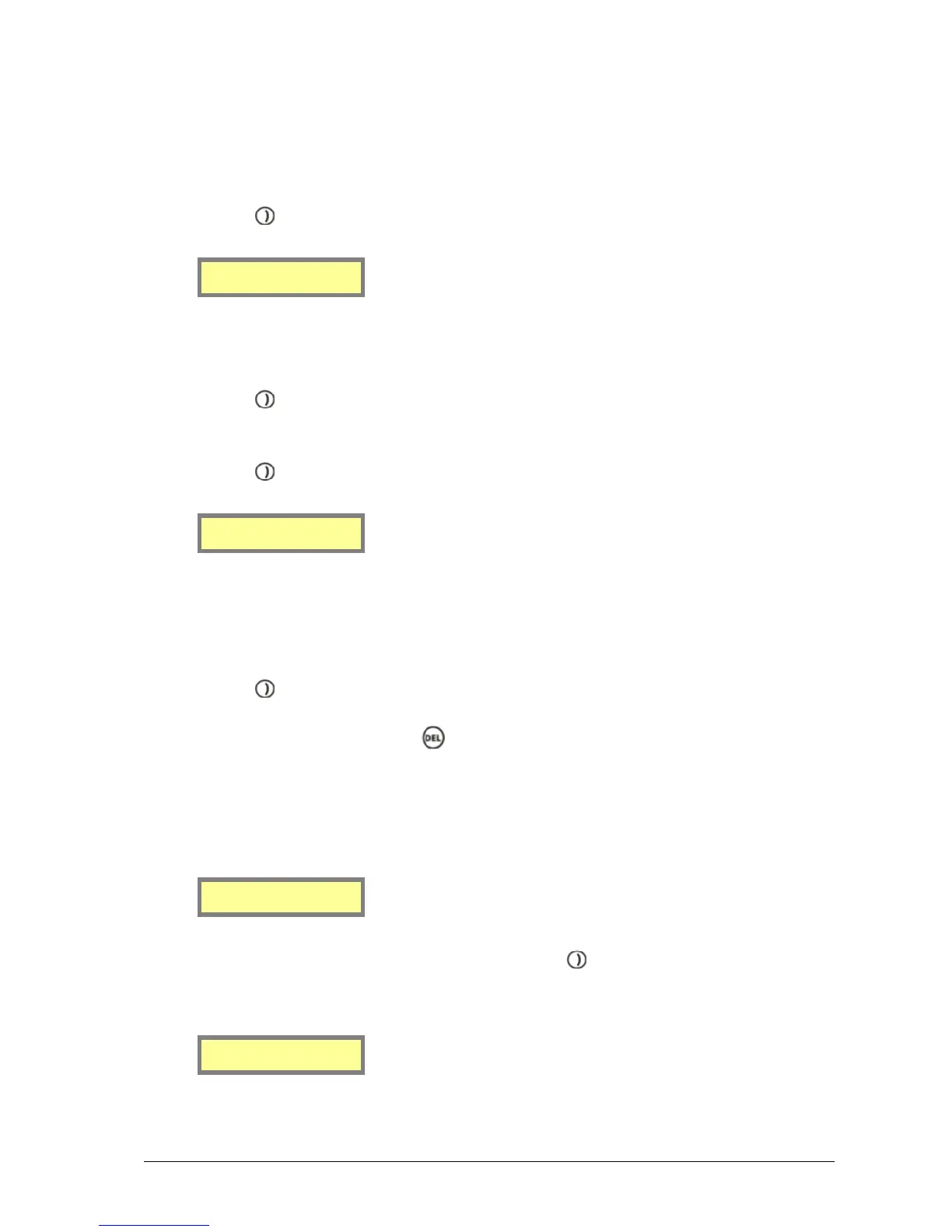
Ignore Chksum[Y]
Accpt invalid[N]
3. The next field along is Accpt invalid. Press any key on the keypad to choose between Y or N (Yes or No).
Selecting Y forces MAXPage to accept messages it deems invalid and attempt to process them. This means
that MAXPage is less strict with TAP protocol standards, as some devices use a very simple version.
4. Press the key to move along to the next screen when ready.
5. The first field of the next screen is Stay connectd. Press any key on the keypad to choose between Y or N
(Yes or No). Selecting Y forces MAXPage to stay connected to the device attached to it.
6. Press the key to move along to the next field.
Stay connectd[Y]
Send ‘ID=’ [Y]
7. The next field is Send ID=. Press any key on the keypad to choose between Y or N (Yes or No). Some
paging systems require MAXPage to indicate its readiness to receive messages, by outputting a prompt
‘ID=’ every 2 seconds. Consult the documentation that came with the TAP device you are attaching to
MAXPage for more information. By selecting Y, MAXPage sends ‘ID=’ every 2 seconds, otherwise select
N.
8. Press the key to move along to the next field and to save changes. You are taken back to the first screen
of the TAP Menu.
9. To return to Normal Mode, press the key four times to exit out of all menus. MAXPage resets and is
ready for use.
COMP1
1. If COMP1 is selected, there is only one option that needs to be configured. This is the target Pager ID that
receives any COMP1 messages that MAXPage receives. This is entered into the Target ID field.
Target ID
[ ]
2. Enter a valid Pager ID in this field. You may need to press the key to enter this ID if the ID is short.
Once a valid ID has been entered, the following screen is briefly displayed, to confirm it has been saved.
You are then returned to the RS232 Menu.
ID saved


 To Next Page