Using the NMI Button to Create a Dump File
Troubleshooting the Hardware
3-21
Using the NMI Button to Create a Dump File
To enable CAC or your authorized Stratus service representative to diagnose problems
with your system, you might need to create a snapshot, or
dump
file, of the system’s
memory while the system is running.
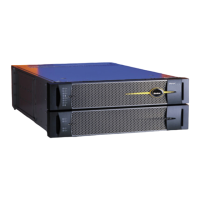
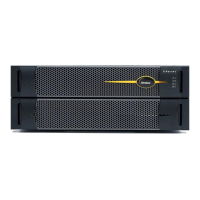
One way to create a dump file is to press the NMI button on the system’s active
CPU- I ⁄ O enclosure (the enclosure whose PRIMARY LED is lit). The NMI button is the
right-most button on the front of the enclosure (Figure 3-2).
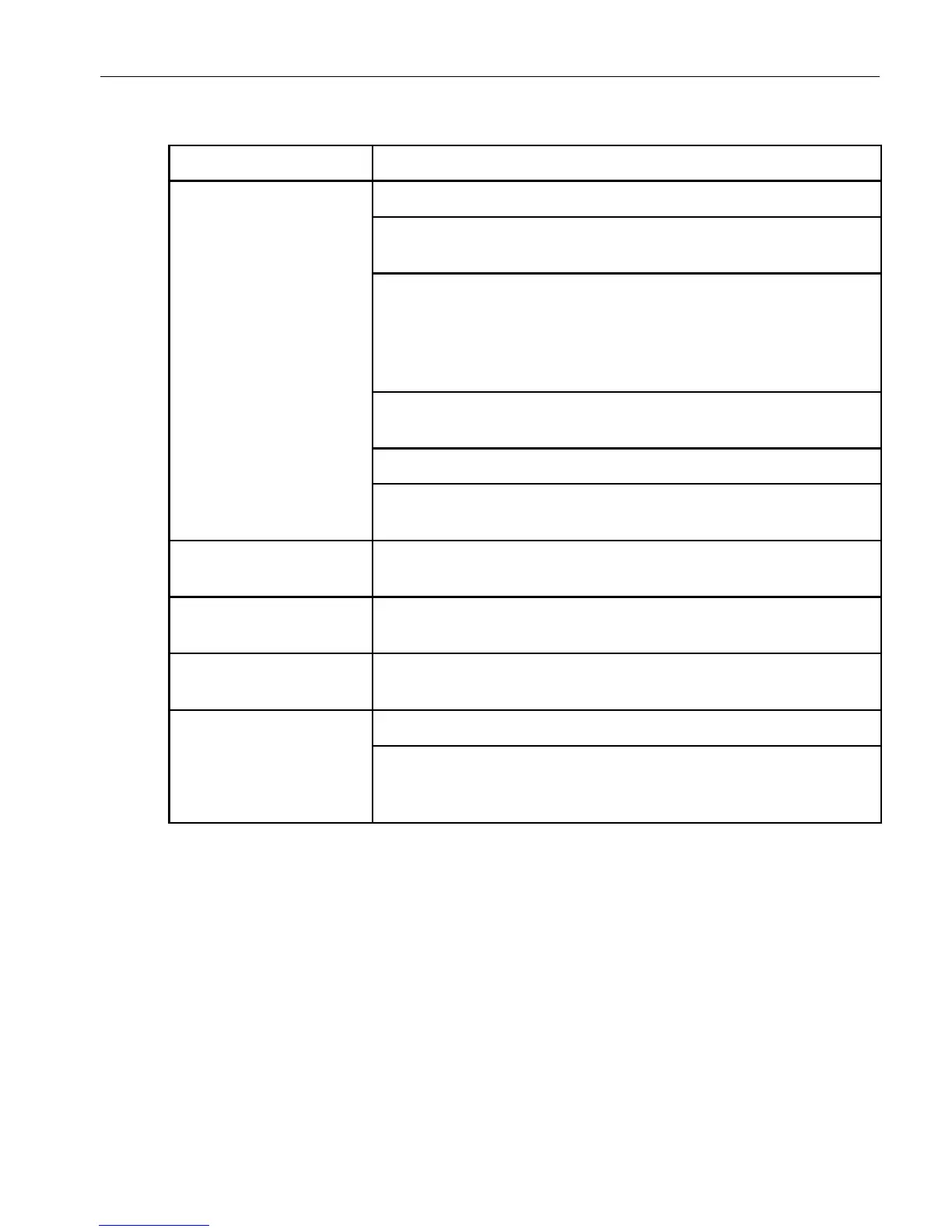
Table 3-10. Troubleshooting the DVD Drive
Problem Action
Drive is not working
properly
Ensure that the disc has been inserted correctly.
Ensure that the disc is in the correct drive, and that you are
accessing the correct drive.
Check for environmental problems that can damage DVD media
and drive heads. Environmental problems can result from
airborne contaminants (smoke, steam, dust, and ashes) or
radiated interference (hand-held receivers, communications and
radar installations, and radio/television broadcast transmitters).
Check that no paper or plastic label, or any residue, is attached to
the surface of the disc that is in use.
Ensure that the correct drivers are installed.
Ensure that the drive was installed correctly. See “Removing and
Replacing a DVD Drive” on page 5-46 for more information.
System cannot read
disk
Ensure that the disc is clean and does not contain any scratches.
Attempt to read a known good disk.
Disk drawer will not
open
Insert a straightened paper clip into the emergency eject hole.
System will not boot
from DVD drive
Ensure that booting from a disk drive is enabled in the BIOS
Setup program.
Busy Indicator stays on Ensure that the disc has been inserted correctly.
Ensure that the DVD drive is operating properly by attempting the
same operation with a different disc. If the second disc works, the
first one might be damaged.



 To Next Page