63
16
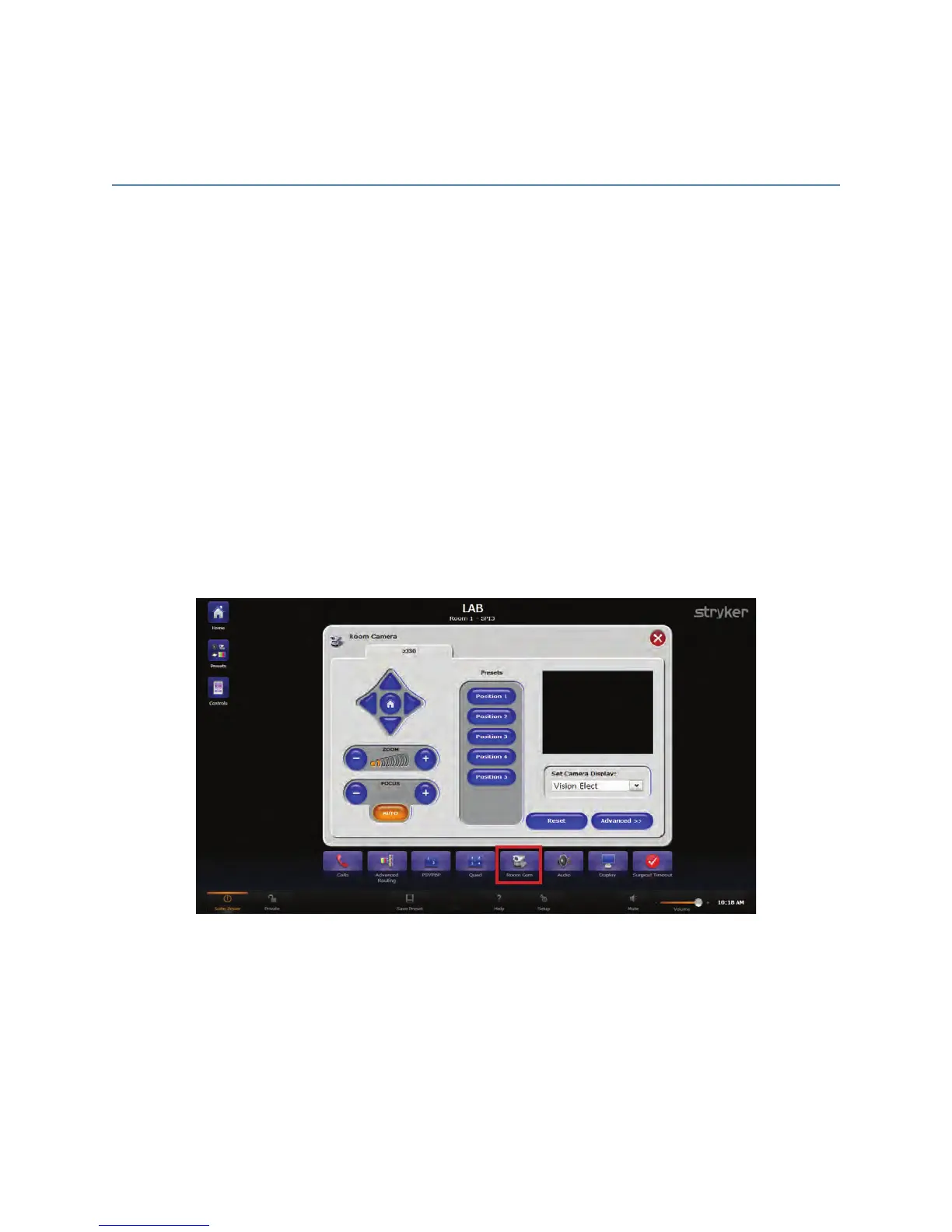
Room Camera
The Room Camera screen directs the operation of the wall-mounted pan/tilt/zoom
cameras in the OR. This screen allows the user to adjust the pan/tilt/zoom functions as
well as focus the camera to frame the action. Each camera can be panned left or right,
tilted up and down, and zoomed in and out. The Focus can be controlled automatically by
selecting the AAuuttoo FFooccuuss button, but can be adjusted manually for unusual lighting
conditions or camera angles.
To go to the Room Camera screen, press the RRoooomm CCaamm button in the Quick Button
Bar.
To access the pan/tilt/zoom camera controls:
1. Select one of the available room cameras from the sub tabs at the top of the screen.
2. Direct the camera by pressing and holding the button that corresponds to the desired
direction you want the camera to pan or tilt. For example, press and hold the left
arrow button to move the camera head from right to left. The Zoom and Focus
controls operate in the same manner.
FFiigguurree 4422.. RRoooomm CCaammeerraa SSccrreeeenn
Once the camera angles and zoom preferences have been established, it can be saved
as a preset by pressing and holding down one of the five preset buttons until the
message, “Position has been saved” appears just below the preset buttons.
To recall a saved camera position, press the numbered button (i.e., Position 1) that
corresponds to the camera preset. The camera will return to that position.


 To Next Page