69
20
Calibrating the Touch Panel
NNoottee:: CCaalliibbrraattiioonn iiss nnoott rreeqquuiirreedd ffoorr AAllll--IInn--OOnnee ssyysstteemmss.. RRuunnnniinngg ccaalliibbrraattiioonn ffoorr
AAllll--IInn--OOnnee ssyysstteemmss iiss ffoorr aa sseeccoonnddaarryy ttoouucchh ppaanneell oonnllyy..
It may become necessary to calibrate the Touch Panel at some point, such as when
replacing it. Calibration is also necessary when the monitor responds incorrectly to touch.
NNoottee:: TThhee ccaalliibbrraattiioonn ssccrreeeennss mmaayy llooookk ddiiffffeerreenntt tthhaann tthhee ffiigguurreess iinn tthhiiss sseeccttiioonn..
To calibrate the Touch Panel:
1. Press CCTTRRLL + AALLTT + CC.
2. A DOS window will appear, and the calibration session will begin.
CCaauuttiioonn:: DO NOT close the DOS window, as this will interrupt the calibration
process and can cause the calibration to fail. If this occurs, the system will need to
be rebooted.
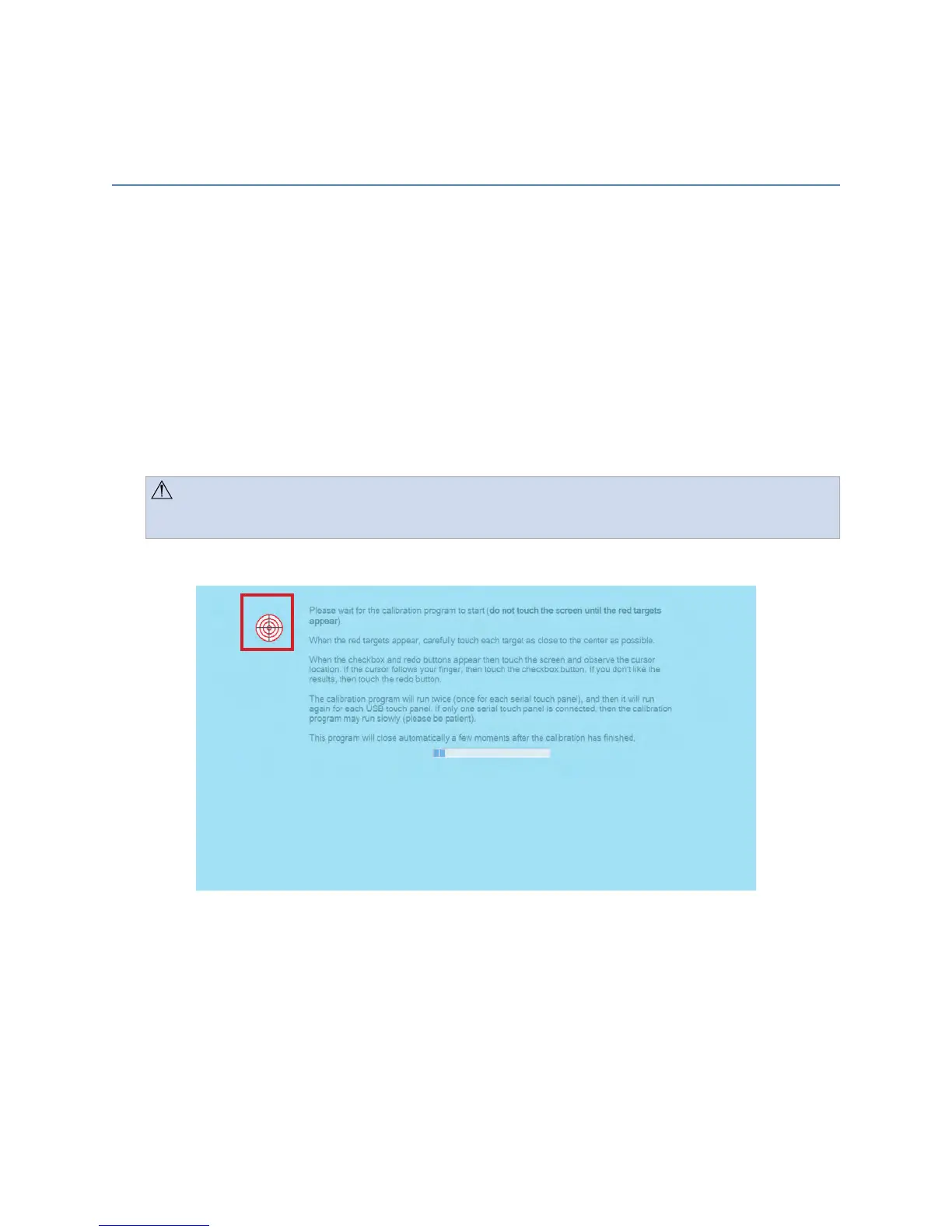
3. Press the center of each target that appears on the screen.
FFiigguurree 4477.. IInniittiiaall CCaalliibbrraattiioonn SSccrreeeenn
4. Once the first calibration screen is complete, the targets will disappear. Touch a few
areas on the screen to ensure the cursor accurately follows your finger, and then
press the green check mark to complete the calibration. Press the blue arrow to
repeat the test.
5. After the first calibration is complete, a second round of calibration targets are
presented. If you have a second touch panel connected, perform steps 3 and 4 on
that touch panel. If you have only one touch panel, perform the calibration again on
that panel.


 To Next Page