Using To Do List
Setting To Do List priorities
Using Your Zodiac Handheld 108
Setting To Do List priorities
You can set priorities for tasks in your To Do List according to their importance
or urgency. By default, items appear by priority and due date, with 1 as the
highest priority. Changing an item’s priority may move its position in the list.
New To Do List items automatically have a priority of 1. If you select another
item first, before creating a new item, the item you create appears beneath
the selected item with the same priority as the selected item.
1. If priorities aren’t visible in To Do List, tap Show at the bottom of the list,
tap Show Priorities, and tap OK.
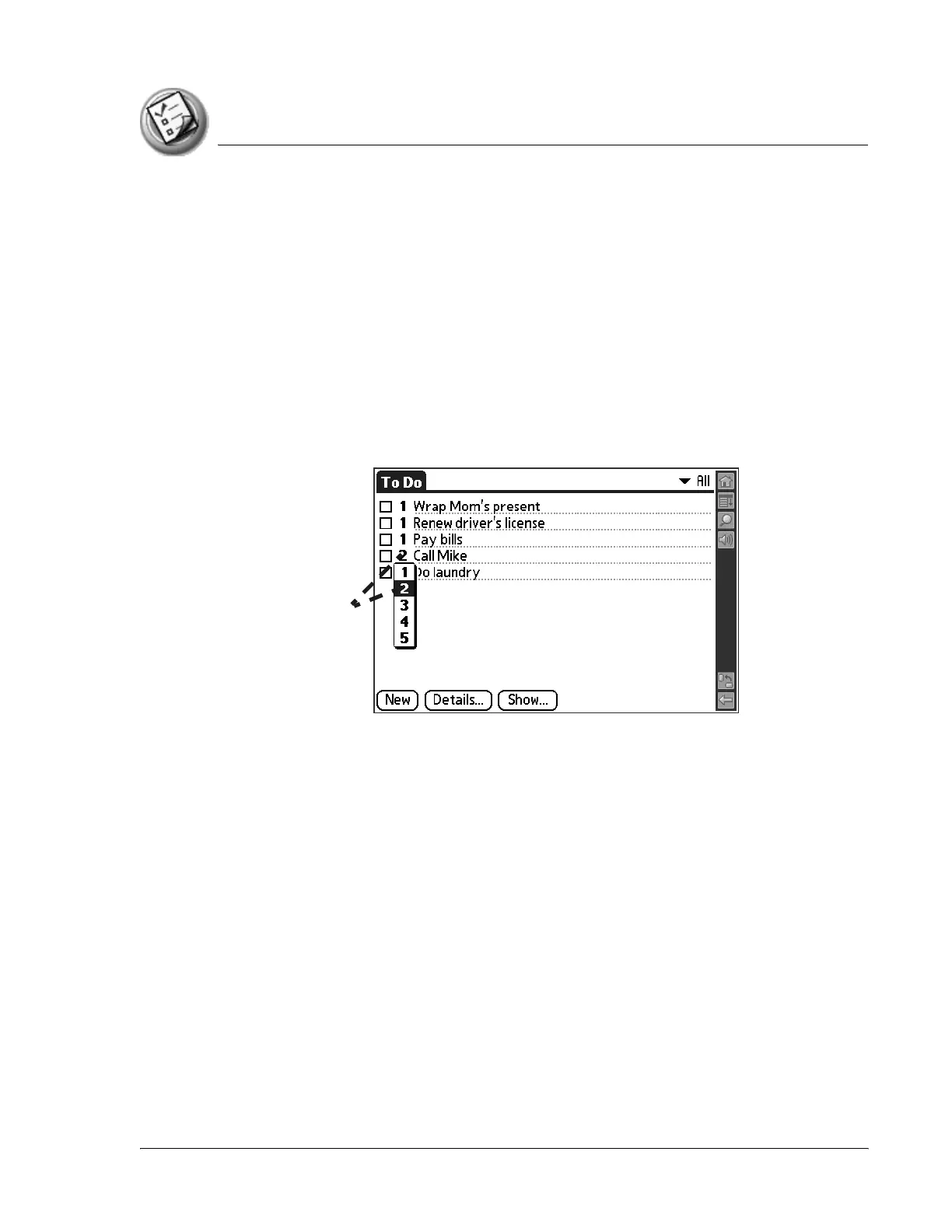
2. Tap the Priority number on the left side of the To Do List item.
3. Tap the Priority number that you want to set. 1 is the most important and
5 is the least important.
Tap to
select
priority



 To Next Page