Synchronizing Data
IR HotSync operations
Using Your Zodiac Handheld 143
Configuring HotSync Manager for infrared communication
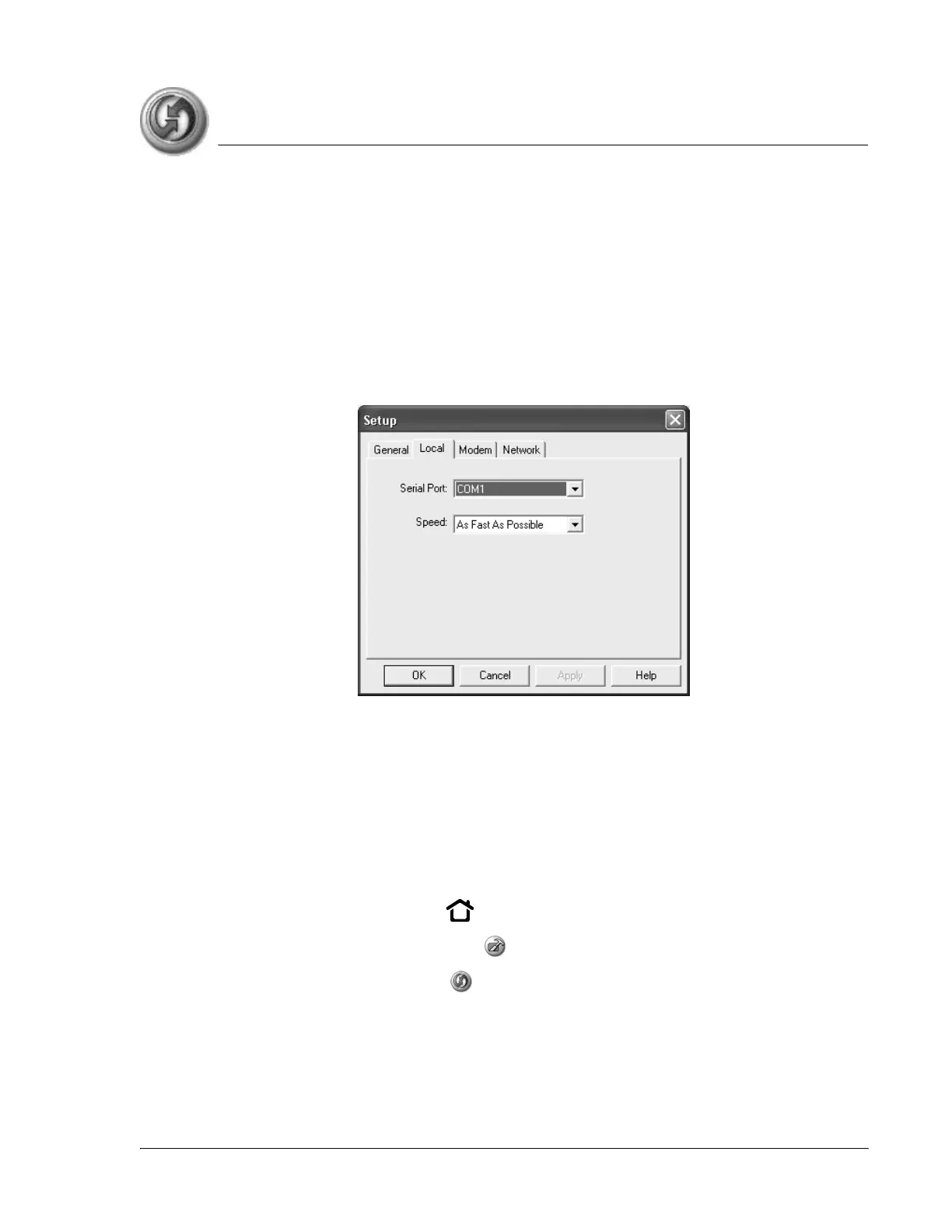
Next you need to go to HotSync Manager and specify the that the infrared
port should be used for the HotSync operation.
1. Click the HotSync Manager icon in the Windows system tray.
2. Make sure Local is checked on the menu.
3. Choose Setup.
4. Click the Local tab.
5. In the Serial Port drop-down box, select the COM port that was given as
the simulated port in the Options tab of the Infrared Monitor.
6. Click OK.
Performing an IR HotSync operation
After you complete the steps to prepare for an IR HotSync operation it is easy
to perform the actual operation.
1. Press the Home button .
2. Select the Utilities category .
3. Select the HotSync icon .
4. Tap Local.
5. From the pick list below the HotSync icon, select IR to a PC/Handheld.



 To Next Page