Using Date Book
Scheduling events
Using Your Zodiac Handheld 89
Scheduling a timed event for another date
1. Select the date you want in one of the following ways:
• Tap the desired day of the week in the date bar at the top of the screen.
If necessary, tap the scroll arrows in the upper-right corner to move to
the next or previous week.
• Move the analog controller to scroll between days. Move Left to
display the previous day and Right to display the next day.
• Tap Go To at the bottom of the screen to open the Go to Date dialog
box. Select a date by tapping a year, month, and day in the calendar.
2. After locating the desired date, follow the steps for scheduling an event
for the current day.
Scheduling untimed events
You can schedule untimed events for any date. Untimed events appear at the
top of the list of times marked with a diamond.
1. Select the event date you want (see page 86).
2. Tap New.
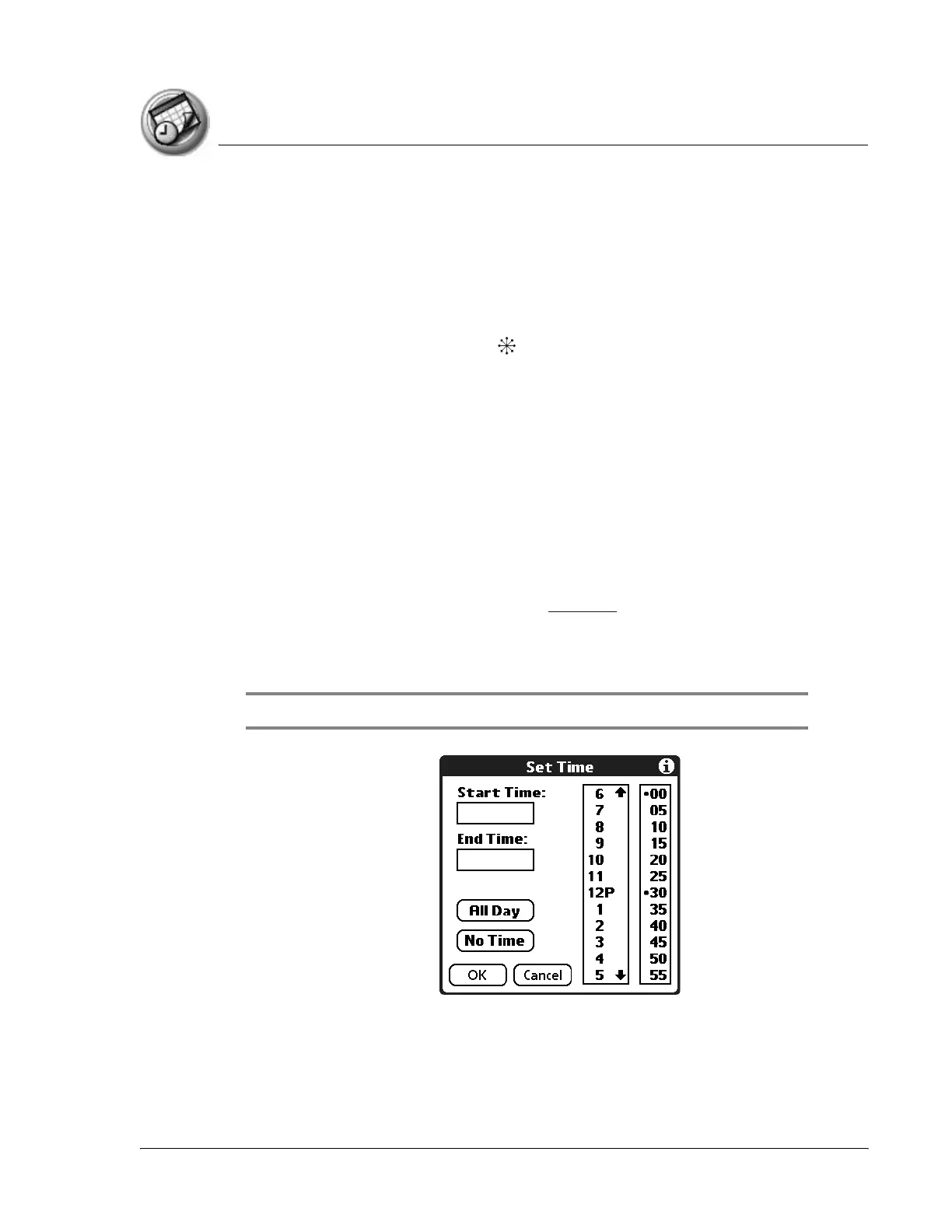
3. In the Set Time dialog box, tap No Time.
NOTE: You can tap OK instead but make sure nothing is entered for start or end time.



 To Next Page