Managing Applications
Customizing the Home screen display
Using Your Zodiac Handheld 45
Deleting a category
1. Press the Home button .
2. Tap your user name in the title bar to open the menus.
3. From the App menu, select Category.
4. Tap Edit Categories.
5. Select a category, and then tap Delete.
6. Tap Yes to confirm deletion.
7. Tap Done.
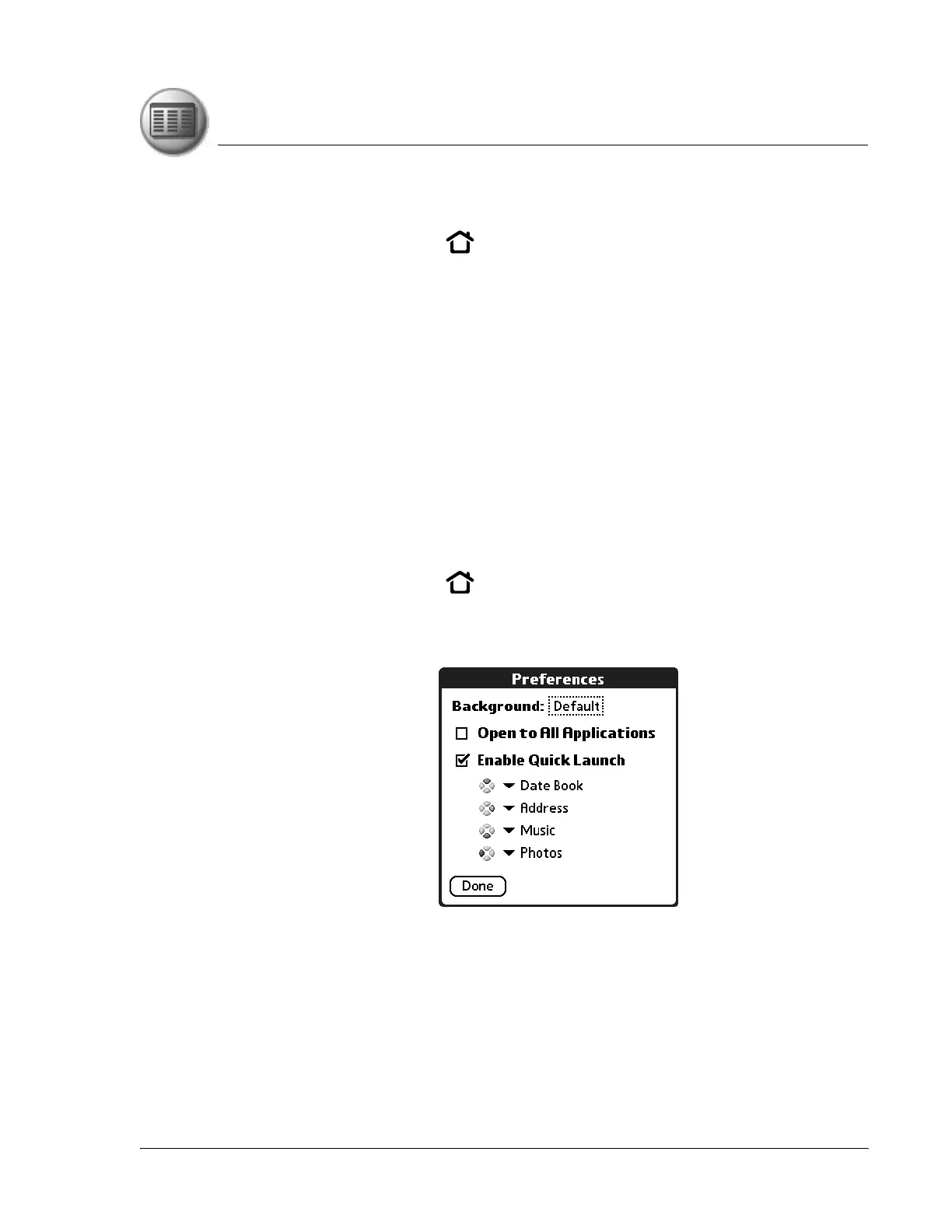
Setting Home screen preferences
You can use the Home screen Preferences settings to change the background
graphic, display all your applications in an alphabetical list, and map
applications to the action buttons.
1. Press the Home button .
2. Tap your user name in the title bar to open the menus.
3. From the Options menu, select Preferences.
4. Set any of the following options:
• Background. Replace the background with any JPEG picture available
in the Photos application on your handheld.
• Open to All Applications. Display all of your application icons in an
alphabetical list (instead of radial menus) whenever you open the
Home screen.



 To Next Page