Setting Preferences
ShortCut
Using Your Zodiac Handheld 133
ShortCut
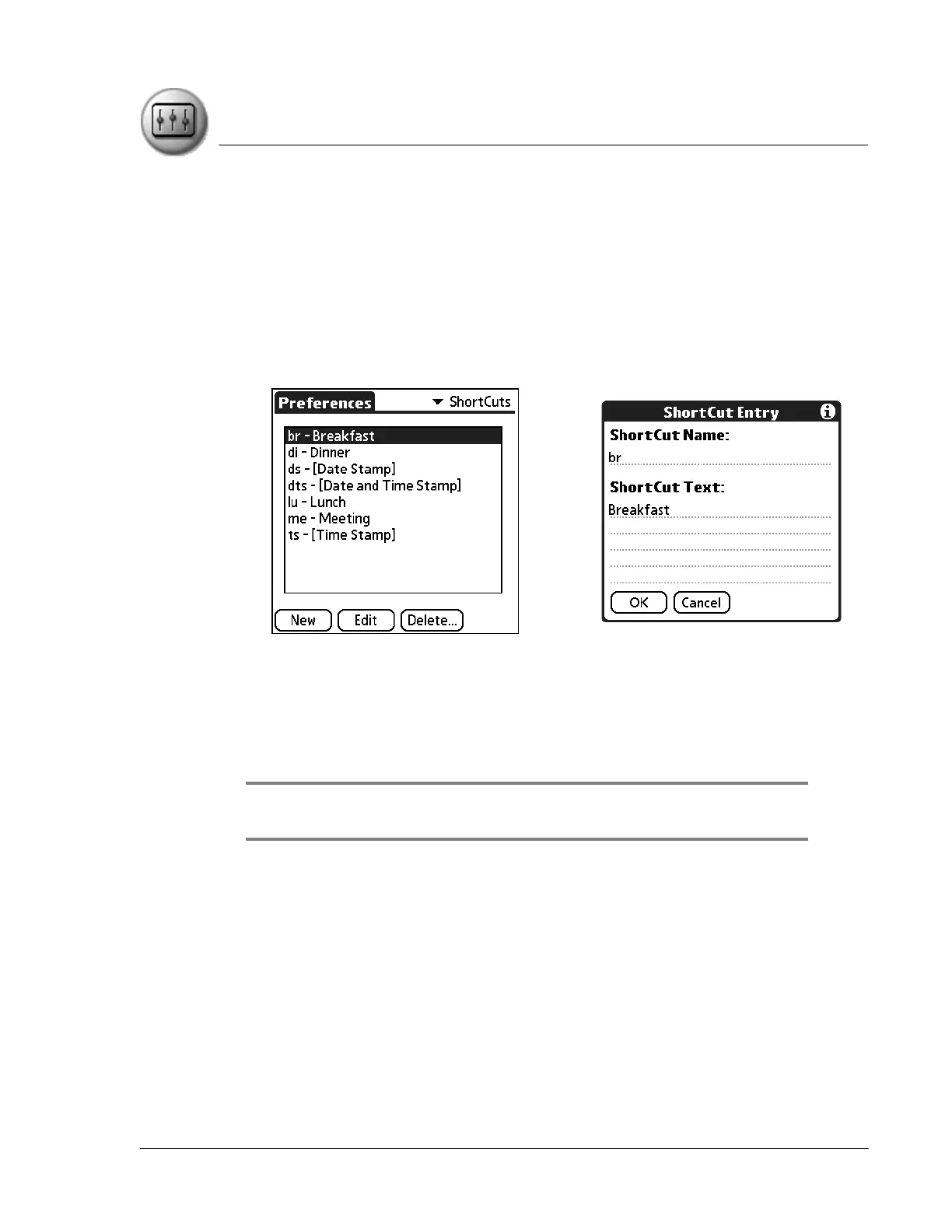
ShortCut Preferences enable you to create ShortCuts for up to 45 characters.
For example, you could create a ShortCut for your name or for the header of a
memo. All ShortCuts you create appear on the list in the ShortCut Preferences
screen, are available in any of your handheld applications, and are backed up
on your computer when you perform a HotSync operation.
The ShortCuts Preferences screen includes the following options:
• New. Define a new shortcut.
– ShortCut Name. Enter the letters you want to use to activate the
ShortCut.
– ShortCut Text. Enter the text that you want to appear when you
write the ShortCut characters.
TIP: You can add a space character after the last word in your ShortCut text so
that a space automatically follows the ShortCut text.
• Edit. Modify an existing ShortCut. From the ShortCut Preferences
screen, tap the ShortCut you want to edit, tap Edit, and then enter your
changes.
• Delete. Remove a ShortCut. From the ShortCut Preferences screen, tap
the ShortCut you want to delete and then tap Delete.



 To Next Page