Using Date Book
Scheduling events
Using Your Zodiac Handheld 87
Scheduling timed events for the current date
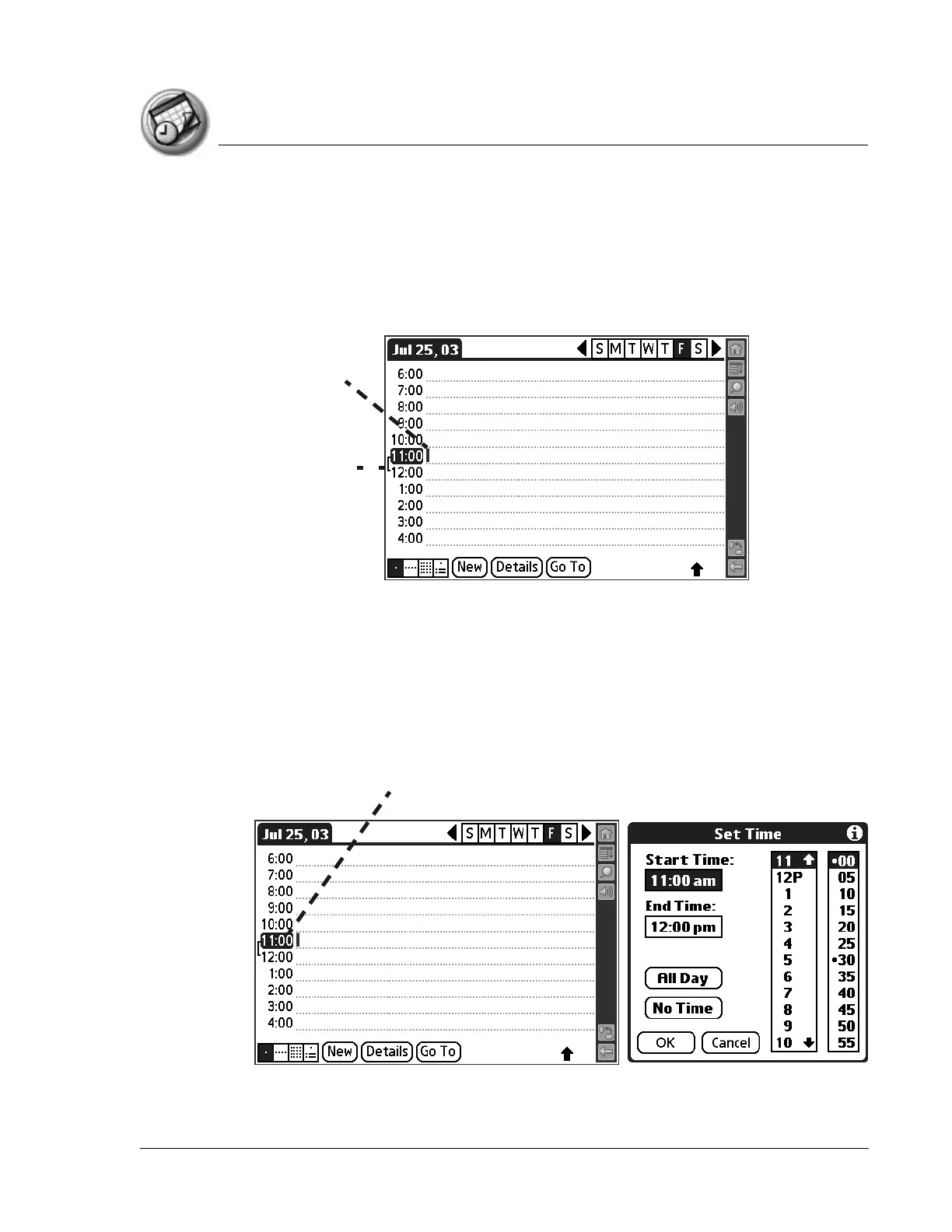
1. Open Date Book to today’s schedule. The Day view displays the current
date and a list of times for a normal day.
2. With the current day selected, tap the line next to the time that
corresponds to the start of the event.
3. Enter a description of the event, up to 255 characters in length.
4. Set the event’s duration:
• If the event is 1-hour long, skip to the end of this procedure.
• If the event is longer or shorter than an hour, tap directly on the time to
open the Set Time dialog box.
Time bar shows
default duration.
Enter text next
to event time
Tap the time to
display the Set
Time dialog box



 To Next Page