Security
Locking your handheld
Using Your Zodiac Handheld 150
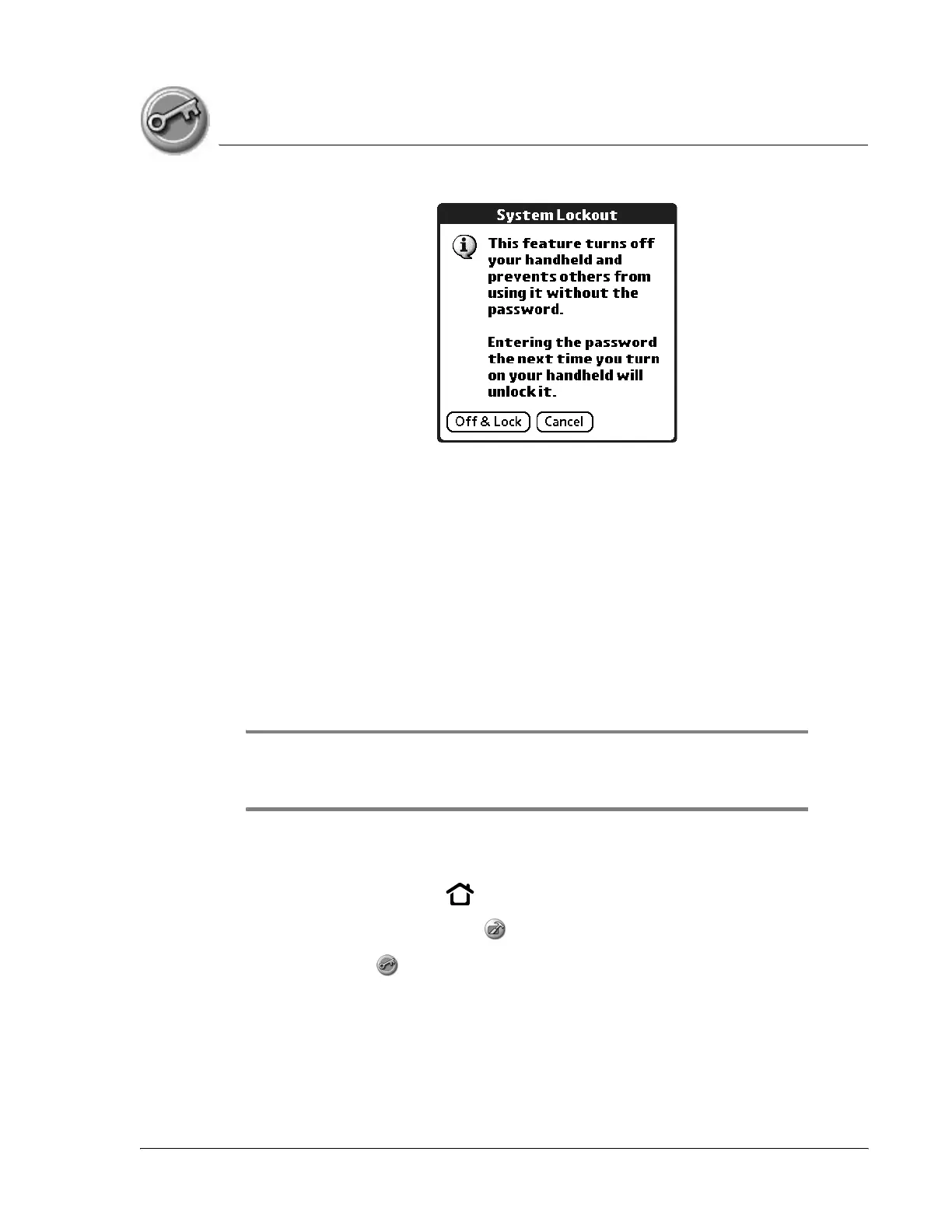
3. Tap Off & Lock. Your handheld turns off and locks.
Turning on and unlocking your handheld
1. Turn on your handheld.
2. Enter your password at the prompt, and then tap OK.
Recovering from a forgotten password
If the Off & Lock option is not active, and you forget your password, you can
delete the forgotten password from your handheld. Deleting a forgotten
password also deletes all entries and files marked as Private.
IMPORTANT: If you synchronize with your computer before deleting a forgotten
password, your handheld restores private entries the next time you perform a
HotSync operation, but does not restore the forgotten password.
Deleting a forgotten password
1. Press the Home button .
2. Select the Utilities category .
3. Select Security .
4. Tap the password box.
5. Tap Lost Password.
6. A message appears; tap Yes to delete the forgotten password.



 To Next Page