Using Expansion Cards
Deleting applications from an expansion card
Using Your Zodiac Handheld 160
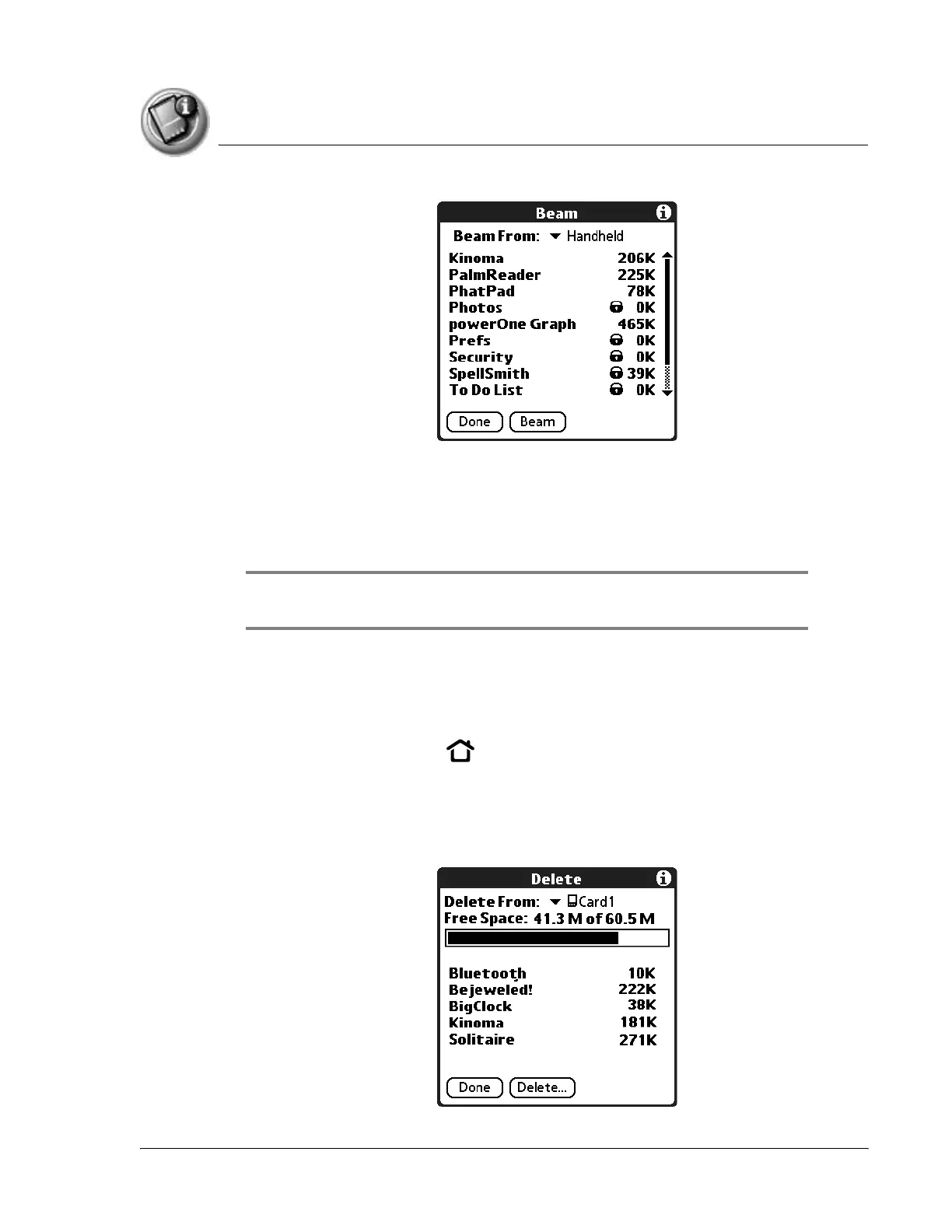
6. From the Beam From (or Send From) pick list, select the card name.
7. Select the application you want to beam or send, then tap Beam or tap
Send.
The application is beamed or sent to the other handheld.
TIP: Some applications and databases are copy-protected and cannot be
beamed. These appear with a lock icon next to them.
Deleting applications from an expansion card
1. Insert an expansion card into an expansion slot.
2. Press the Home button .
3. Select the card name, such as Card 1.
4. Tap your user name in the title bar to open the menus.
5. From the App menu, select Delete.



 To Next Page