Using To Do List
Sorting To Do items
Using Your Zodiac Handheld 111
Sorting To Do items
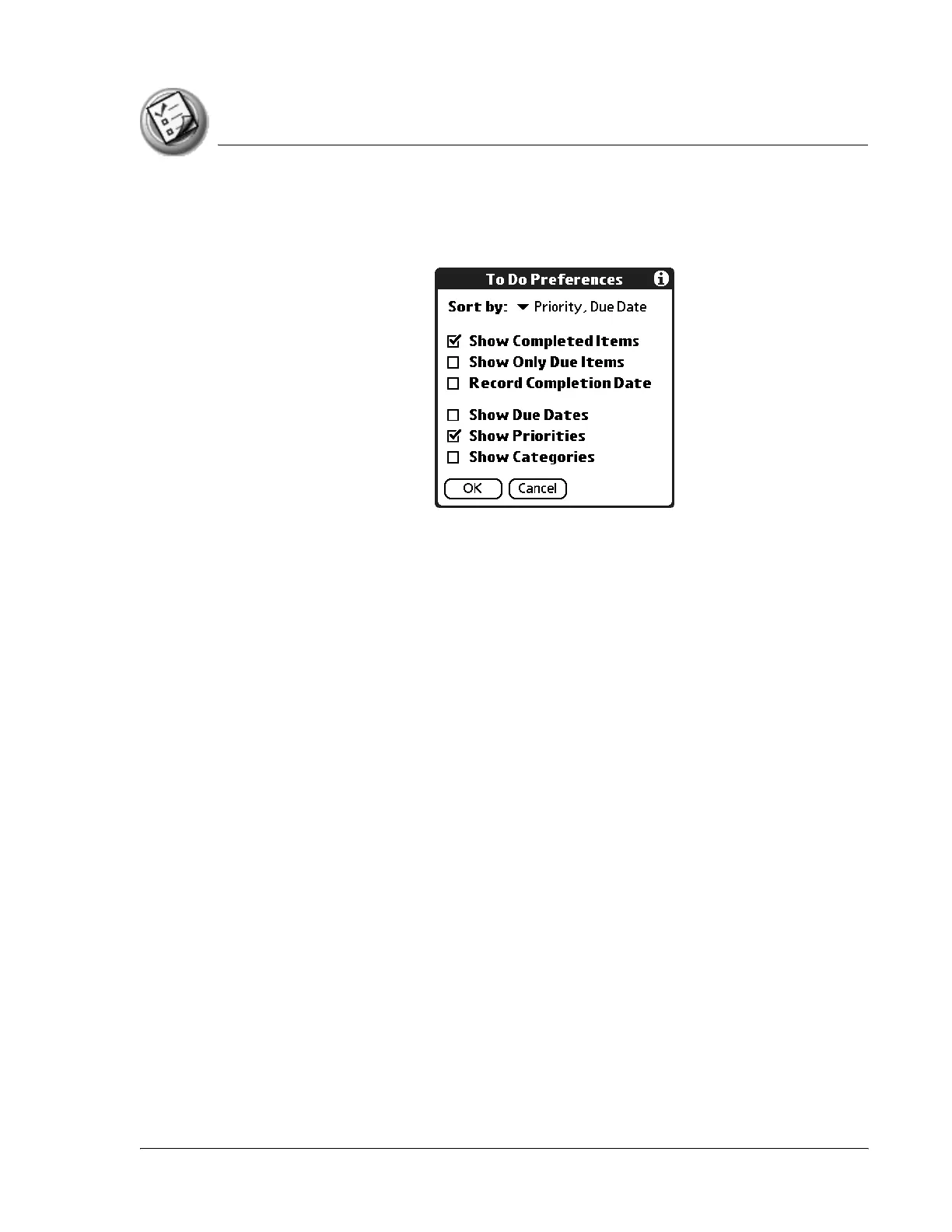
1. In To Do List, tap Show.
2. From the Sort By pick list, select an option:
• Priority, Due Date. Sort items by priority first, and then due date.
• Due Date, Priority. Sort items by due date first, and then priority.
• Category, Priority. Sort items by category first, and then priority.
• Priority, Category. Sort items by priority first, and then category.
3. Tap OK.
Setting To Do List preferences
You can have To Do List display completed items and their completion dates,
as well as due items and their due dates.



 To Next Page