Introduction to your Zodiac Handheld
Learning to navigate
Using Your Zodiac Handheld 26
Entering data
You can enter text, numbers, and symbols into your Zodiac in four ways:
• Using Graffiti 2 (see page 30)
• Using the onscreen keyboard (see page 37)
• Using an external keyboard (see page 39)
• Entering or importing data in Palm Desktop software, and then
synchronizing with your handheld (see page 38)
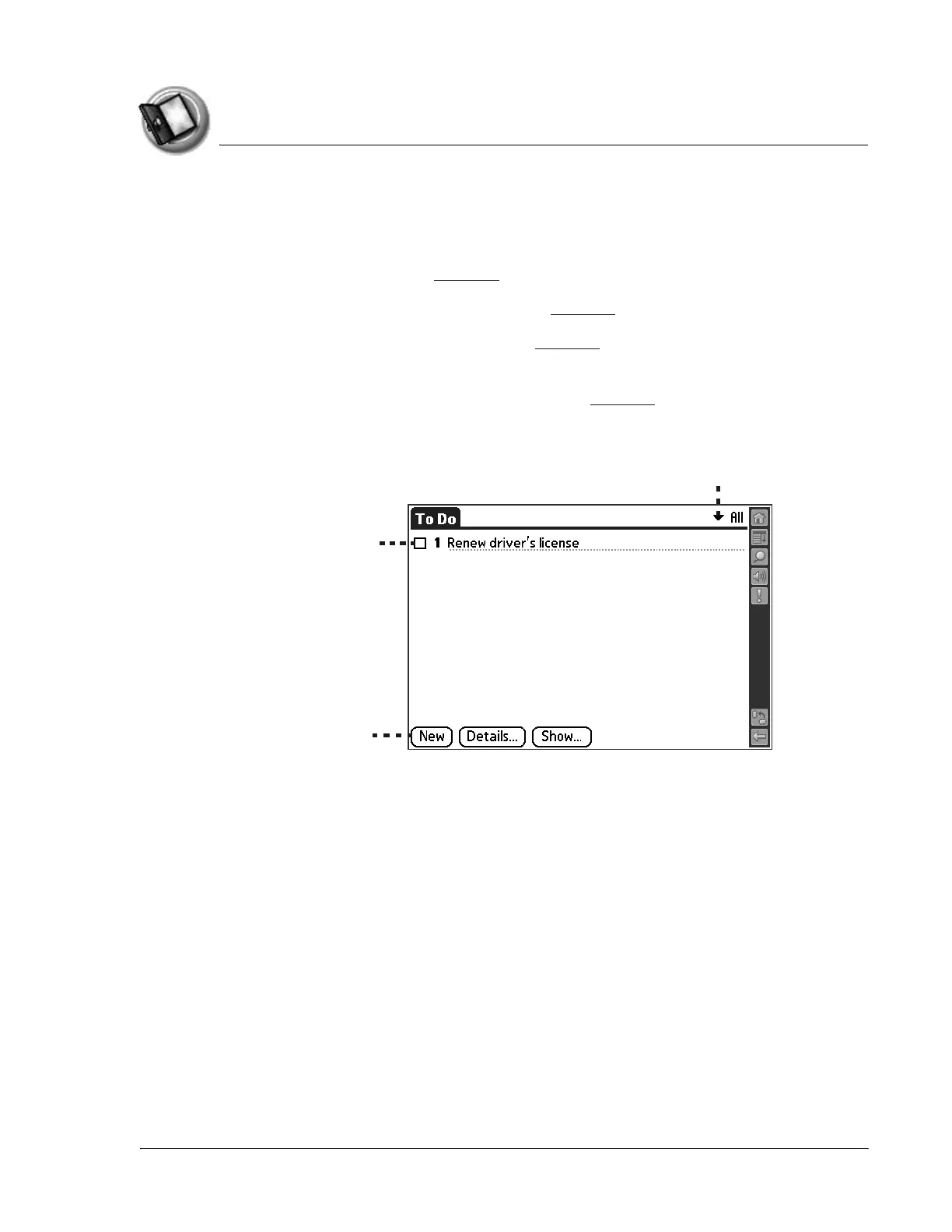
There are also onscreen controls that enable you to enter data by selecting
options:
• Pick list. Displays a list of choices. Tap the black triangle next to the
pick list name to display a list of choices, and then tap an item in the list
to select it.
• Box. Indicates the state of the corresponding option. A check mark in a
box means the option is active. If a box is empty, tapping it inserts a
check mark. If a box is checked, tapping it removes the check mark.
• Button. Initiates a command when tapped. Buttons, such as New or
Done, appear in dialog boxes and at the bottom of application screens.
Pick list
Box
Button



 To Next Page