73
Chapter 6
Customize Your Network Settings
4. When the LED is on, the client device has successfully connected to the mesh
device.
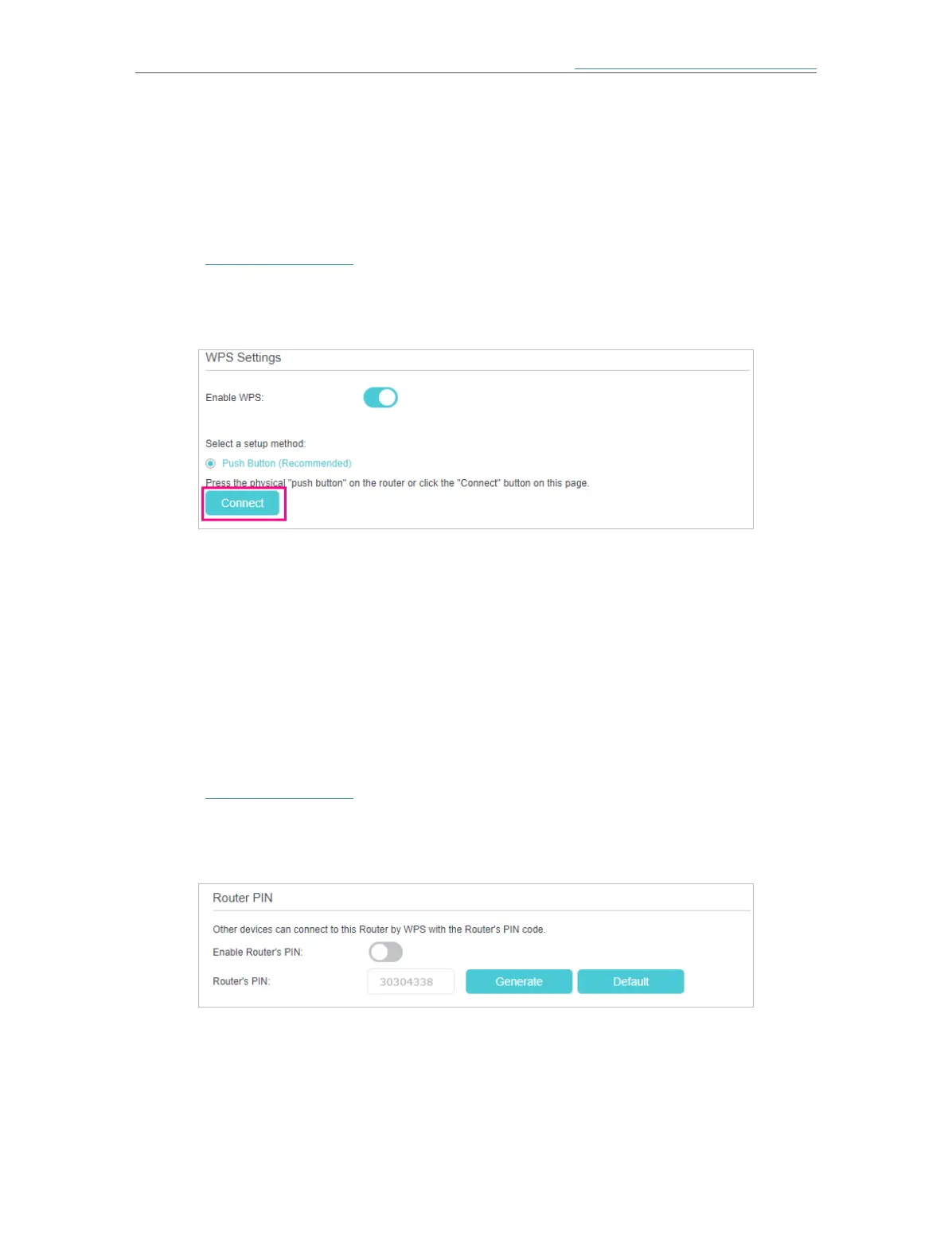
Method 2: Use the “Connect” button on the web management page
Use this method if your client device has a WPS button.
1. Visit http://tplinkwifi.net and log in with the password you set for the mesh device.
2. Go to Setting > Wireless > WPS (AP Mode) or Advanced > Wireless > WPS (Router
Mode) page, and enable WPS function.
3. Click Connect on the page.
4. Press the WPS button of the client device directly.
5. The LED of the mesh device flashes for about 2 minutes during the WPS process.
6. When the LED is on, the client device has successfully connected to the mesh
device.
Method 3: Enter the mesh device’s PIN on your client device
Use this method if your client device asks for the mesh device’s PIN.
1. Visit http://tplinkwifi.net and log in with the password you set for the mesh device.
2. Go to Setting > Wireless > WPS (AP Mode) or Advanced > Wireless > WPS (Router
Mode), and enable Mesh Device’s PIN.
3. Take a note of the current PIN of the mesh device. You can also click the Generate
button to get a new PIN.
4. Enter the mesh device’s PIN on the client device. (The default PIN is also printed on
the label of the mesh device.)
5. The LED flashes for about 2 minutes during the WPS process.







 To Next Page