- 287 -
DX-120 Programming Manual BASIC CALL HANDLING PROGRAMMING TASKS
Setting the Daylight Savings Time Feature
The Daylight Saving Time feature allows you to instruct the DX-120 to automatically switch the system clock to coincide
with Daylight Savings Time changes.
When enabled, the DX-120 automatically changes the system time at the start
and end of the Daylight Saving Time period (i.e., the spring and fall).
When turned off, the system does not make a
time change to correspond to Daylight Savings Time.
NOTE
The DX-120 uses information provided by Astronomical Application Department of
U.S. Naval Observatory to determine when to make these time changes.
SETTING THE DAYLIGHT SAVINGS TIME FEATURE VIA PC-DBA
From the PC-DBA main screen:
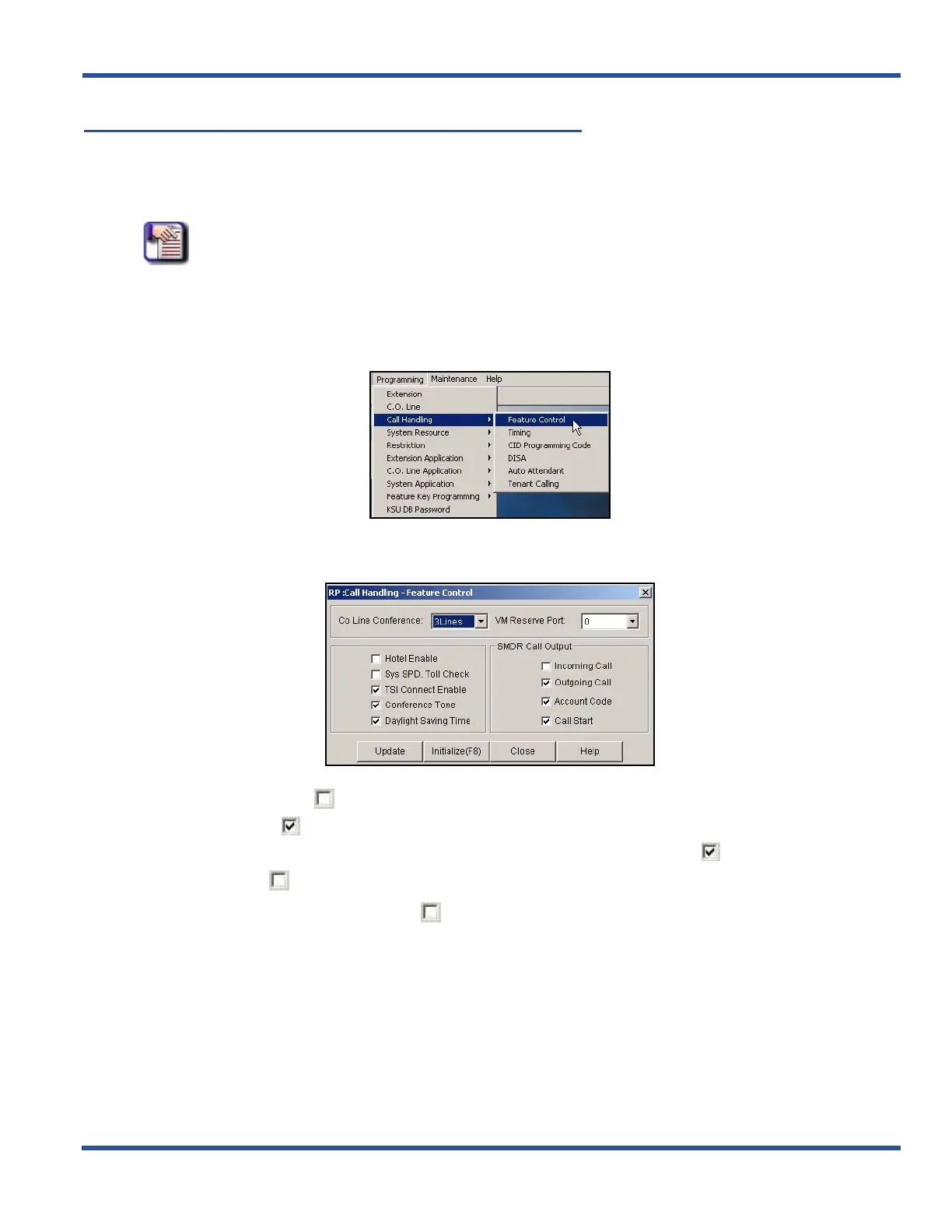
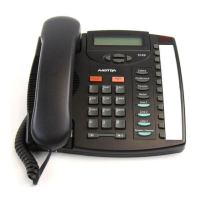
1) Go to ProgrammingXCall HandlingXFeature Control to display the Call Handling—Feature Control
screen.
2) Click the checkbox ( ) next to Daylight Savings Time to place a check mark there to enable the Daylight
Savings Time ( ).
• Clicking on this box toggles the setting between yes/enable (a checkmark ) and no/disable (no
checkmark ).
• The default is off (no check mark ).
3) Click the Update button to store the settings into the database on the local disk.
4) Click the Close button to exit the current screen and return to the PC-DBA main screen.
When you have finished all programming changes:
5) Perform a SEND to copy the database changes to the DX-120 switch system memory.
Setting the Daylight Savings Time Feature (continued on next page)


 To Next Page