Security
Access Authorizations (access areas)
Password Handling
Password Entry at the Panel
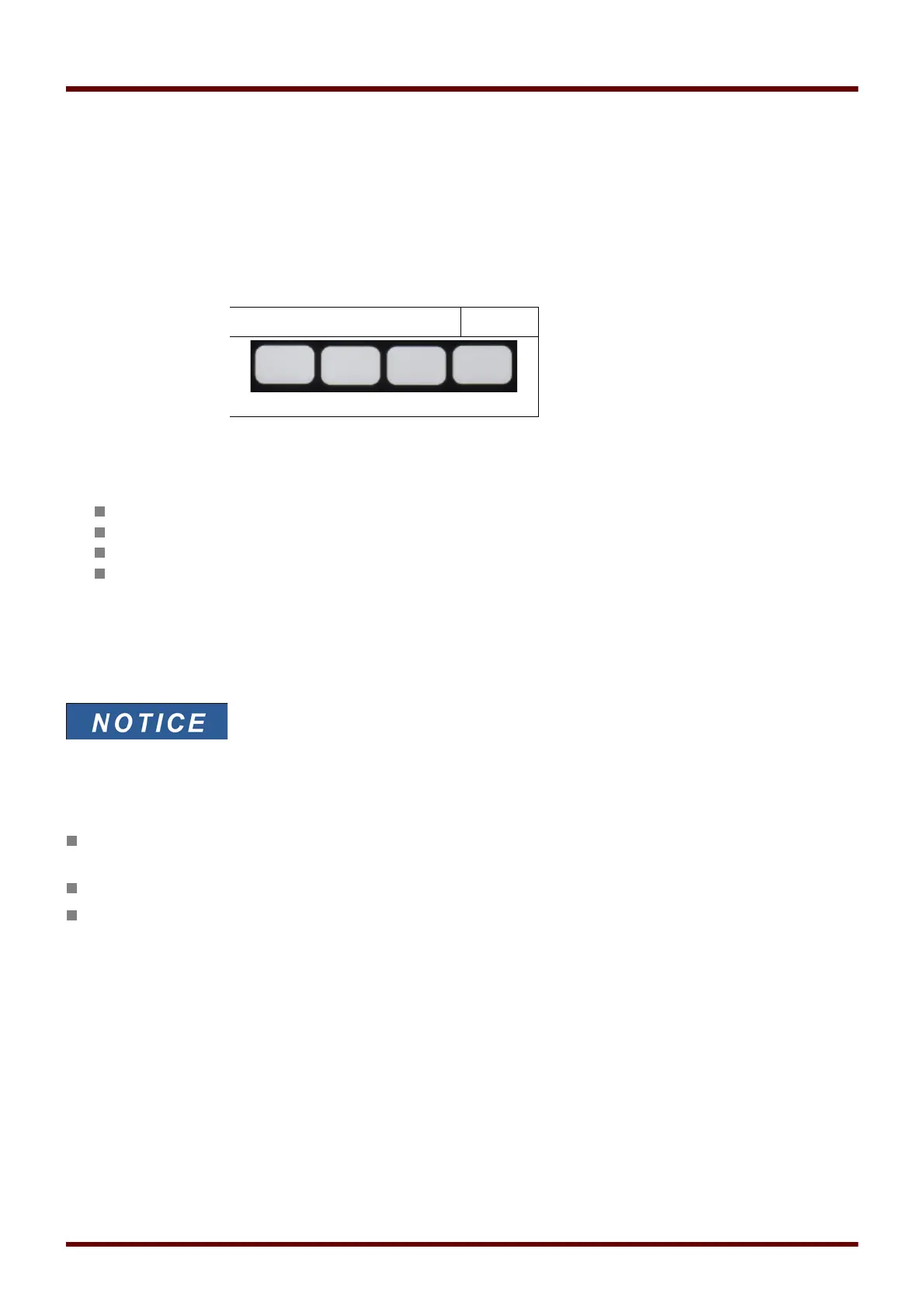
Passwords can be entered by way of the Softkeys.
1 2 3 4
Example: For password (3244) press successively:
Softkey 3
Softkey 2
Softkey 4
Softkey 4
Changing Passwords
Passwords can be changed at the device in menu [Device Para/Passwords] or by means of the
Smart view
software.
A password must be a user-defined combination of the numerics
1, 2, 3 and 4. All other characters and keys won't be accepted.
When you want to change a password, the existing one has to be entered firstly. The new password (up to 8 digits)
is then to be confirmed twice. Please proceed as follows:
In order to change the password please enter your old password by means of the Softkeys followed by pressing
the »OK«-key.
Enter the new password by means of the Softkeys and press the »OK«-key.
Afterwards enter the new password once again by means of the Softkeys and press the »OK«-key.
Acknowledge without Entering a Password
If there is the need to be able to acknowledge without entering any password set an empty password for the level
»Prot-Lv1«. For general information about acknowledgments see Chapter “Acknowledgments“. Information about
access areas / levels can be found below („Passwords – Areas”).
221 MCDGV4 DOK-HB-MCDGV4-2E


 To Next Page