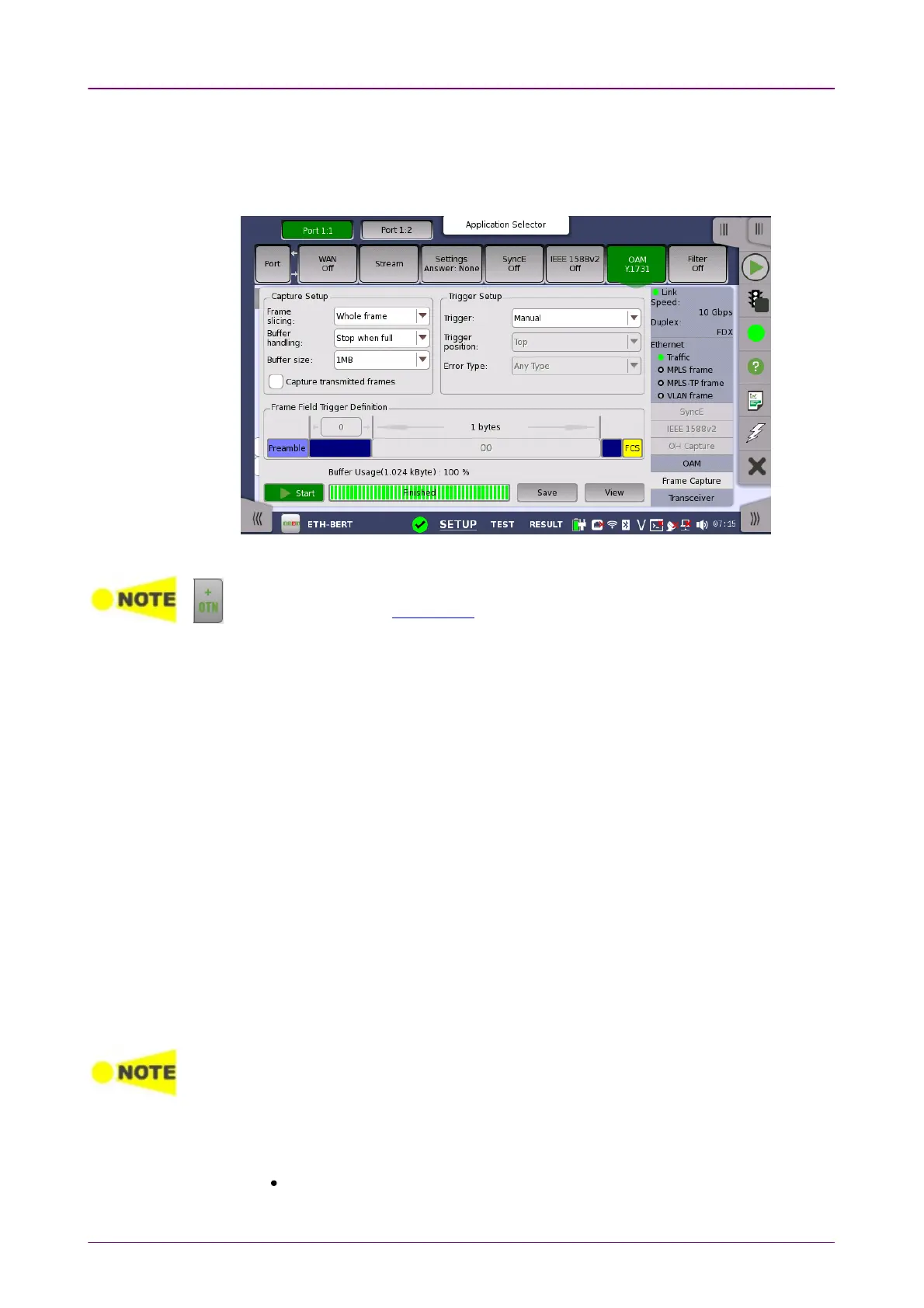
Capture SetupCapture Setup
Trigger SetupTrigger Setup
66..11..33..88 Frame CaptureFrame Capture
Touching the Frame CaptureFrame Capture button in the status area of the Ports SetupPorts Setup screen
launches the screen shown below.
This screen allows you to set up and execute capture of transmitted frames.
On Ethernet application over OTN, Frame CaptureFrame Capture button in the status area may be
disabled depending on Client signal settings.
Frame slicingFrame slicing
Use the Frame slicingFrame slicing drop-down menu to specify which part of the frame will
be captured. The available options are: Whole frameWhole frame, Top 64 ByteTop 64 Byte, Top 128Top 128
ByteByte.
Buffer handlingBuffer handling
Use the Buffer handlingBuffer handling drop-down menu to choose either Stop when fullStop when full or
OverwriteOverwrite.
Buffer sizeBuffer size
Use the Buffer sizeBuffer size drop-down menu to specify the size of the buffer. The
specified size will be reflected in the Buffer UsageBuffer Usage indicator at the bottom of the
screen.
Capture transmitted framesCapture transmitted frames
Select the check box if capturing the transmitted frames.
Clear the check box to capture the incoming frames.
This can be set when the interface bitrate is 100Gbps or lower.
During the 10 Gbit/s rate state, transmitted streams the traffic generator sends can't be
captured.
Transmitted protocol frames can be captured. 'Protocol frames' are the frames which
used for information such as ARP, SyncE, IEEE1588v2, OAM.
This is the same for 10GbE over OTN (OTU2e - 10GbE mapping).
TriggerTrigger
Manual


 To Next Page