Modifying columnsModifying columns
Merging channelsMerging channels
Selecting notationSelecting notation
This screen presents the results of the Channel Statistics test. The screen
contains two lists, one which lists the created channels and another which
shows the results for each channel. Each channel is shown as a row in the two
lists.
The lists can be shown either above each other (with the channels list on top)
or beside each other (with the channels list to the left). Use the button in the
top row of fields and buttons to switch between the two layouts.
To get a better overview of a certain aspect of the received traffic, you can
combine channels using the
Merge
functionality.
Open the MergeMerge drop-down menu to combine all channels where one specific
definition value (e.g. the source MAC address) is identical. The drop-down
menu contains all currently active definitions.
When the test results are shown in merged mode, definitions that are not
uniquely defined will be hidden, so that only the merge criterion, channel
number, and protocol information will be visible. The protocol information
field, which shows which protocols are detected in a channel, will in merged
mode show all protocols present in the frames contained in the merged
channel.
Unlike the setup of active definitions, the merge setting works on already
collected channels - that is, it does not affect how the system separates
channels, and it will work on both running, stopped and loaded tests.
Select the required notation for the results from the notation drop-down menu.
UnformattedUnformatted - e.g. 71892
SI prefixSI prefix - e.g. 71.892 k (k means "kilo")
EngineeringEngineering - e.g. 71.892E3
ScientificScientific - e.g. 7.1892E4
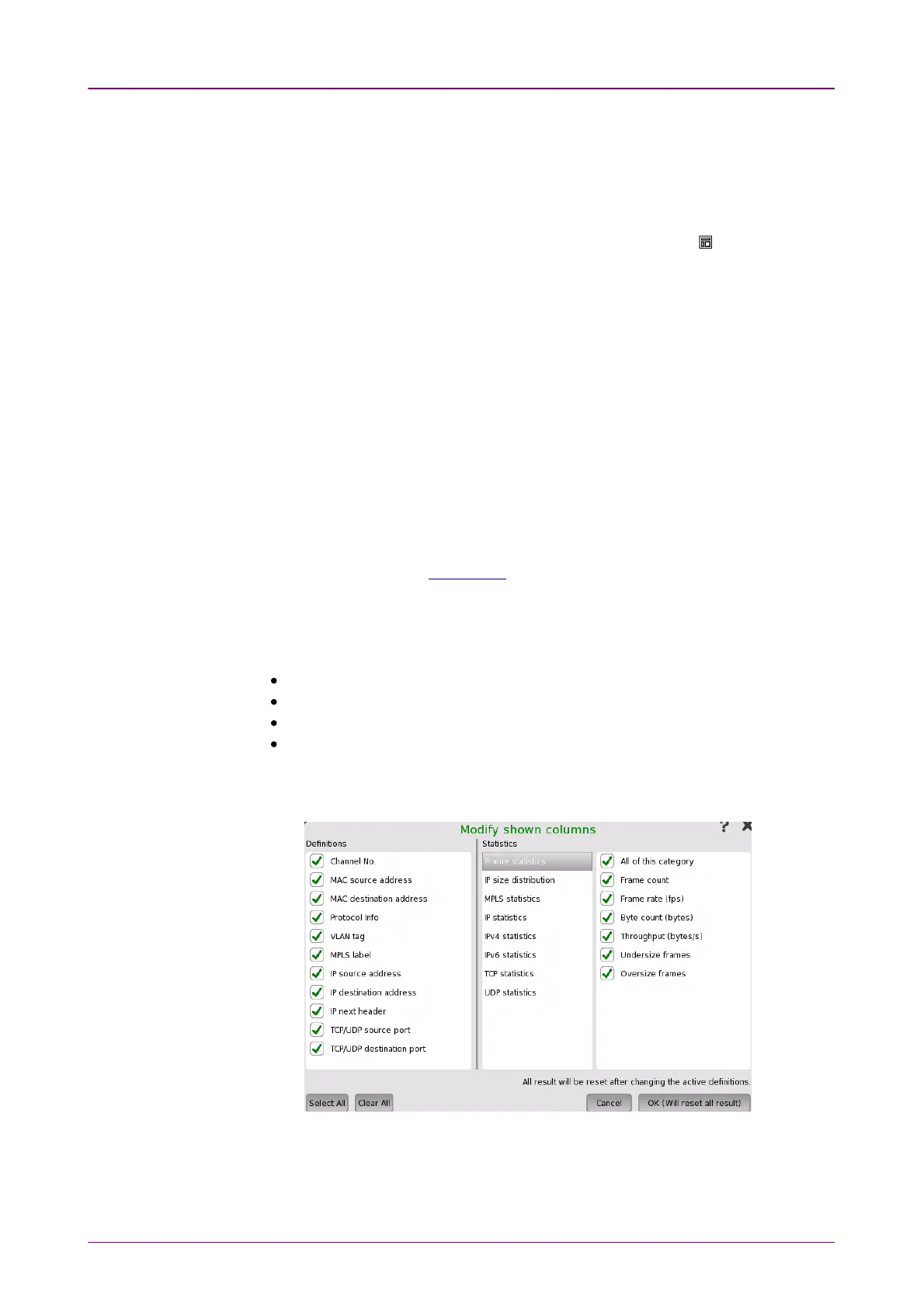
To select which columns are shown in the two lists, touch the Modify columnsModify columns
button. This will launch the Modify shown columnsModify shown columns dialog box.
DefinitionsDefinitions
The selected check boxes correspond to the columns currently shown in the
channels list on the SummarySummary screen.


 To Next Page