10-3 Web Remote Control Interface Web Remote Control
10-4 PN: 10580-00318 Rev. P S412E UG
10-3 Web Remote Control Interface
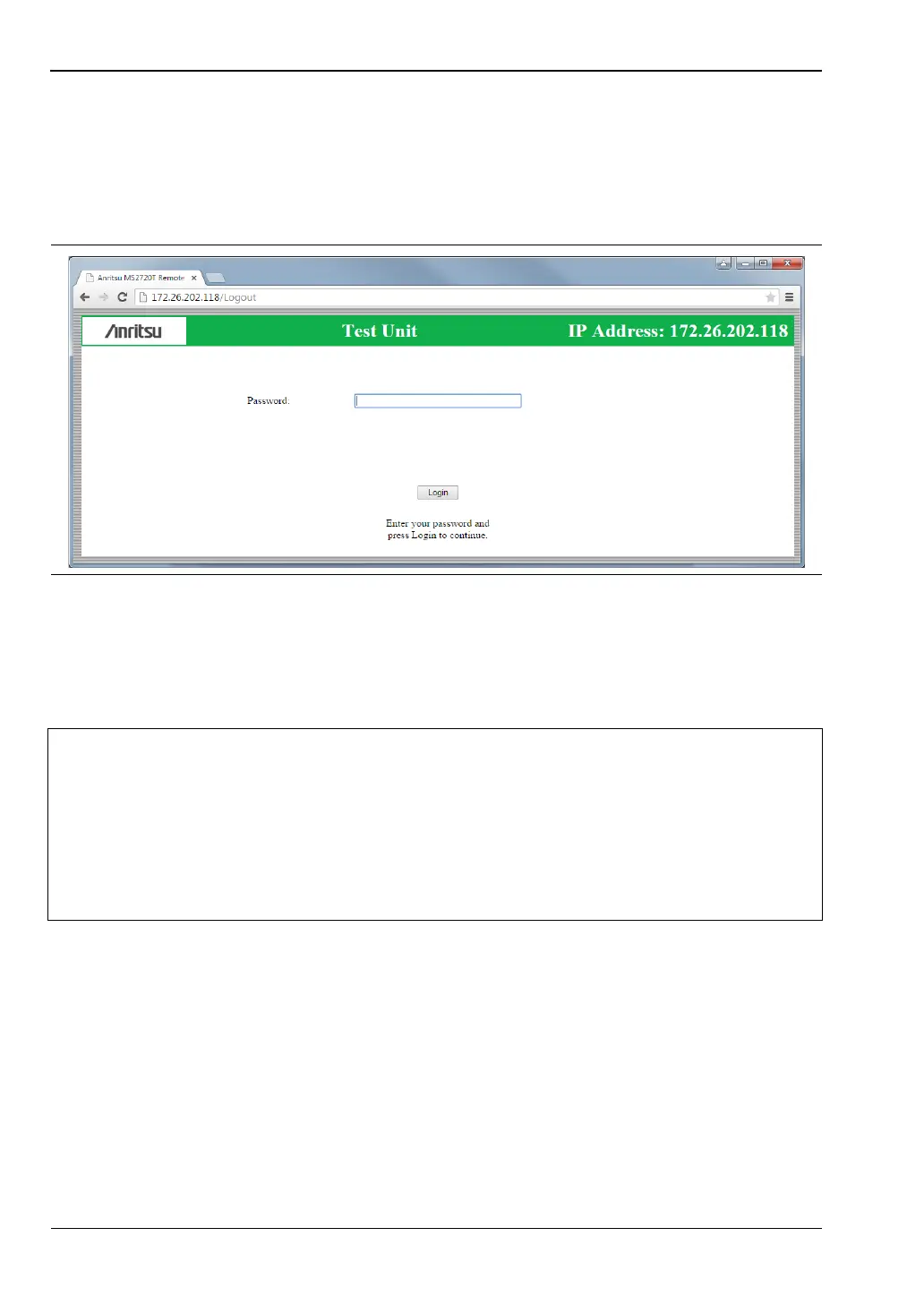
After you have entered the instrument IP address in a Web browser’s address bar, the Web
Remote Control login page opens if this is the first time you are connecting to the instrument,
or if a password is required and you previously logged out. Enter the instrument password or
leave the field blank if no password has been set, then click Login. See Figure 10-2.
Only one user at a time can connect to the instrument. If you attempt to connect after another
user, a message is displayed on the login page, indicating the instrument is currently being
used by another client. If you try again after one minute, the current user’s session will be
terminated and you will then have control of the instrument.
Upon successful connection, the Web Remote Control Home page displays on your PC or
mobile device, as illustrated in Figure 10-3 on page 10-5. Information displayed on the Home
page is the same as the System Status window on the instrument.
Figure 10-2. Login Page
Notes
• There may be a period of a few minutes from the time a user logs out until
the instrument is released. During this time, connection attempts by other
users will fail.
• Closing the Web Remote Control browser window without logging out also
releases the instrument after a period of a few minutes.
• If you have previously connected to this instrument, the login page is
skipped and the Web Remote Control Home page opens, provided no other
user is currently connected to the same instrument.


 To Next Page