Patient monitor User’s manual
Chapter 19-10
Enter the main menu, Select 【 System Setup 】 → 【 Display Setup 】 →
【Color Setup】to enter the setup window.
Enter the main menu, select 【 System Setup 】 → 【 Display Setup 】 →
【Custom Screen Setup】 , the Custom Screen Setup window appears. Move
the cursor up and down to choose the parameters and waveforms you want to
display on Custom Screen .
19.4.3 Alarm Message Area
Alarm information is displayed in the upper part of the screen, including
technical alarm zone (left) and physiological alarm zone (right). Note: Prompt
information and technical alarm are displayed in the same zone.
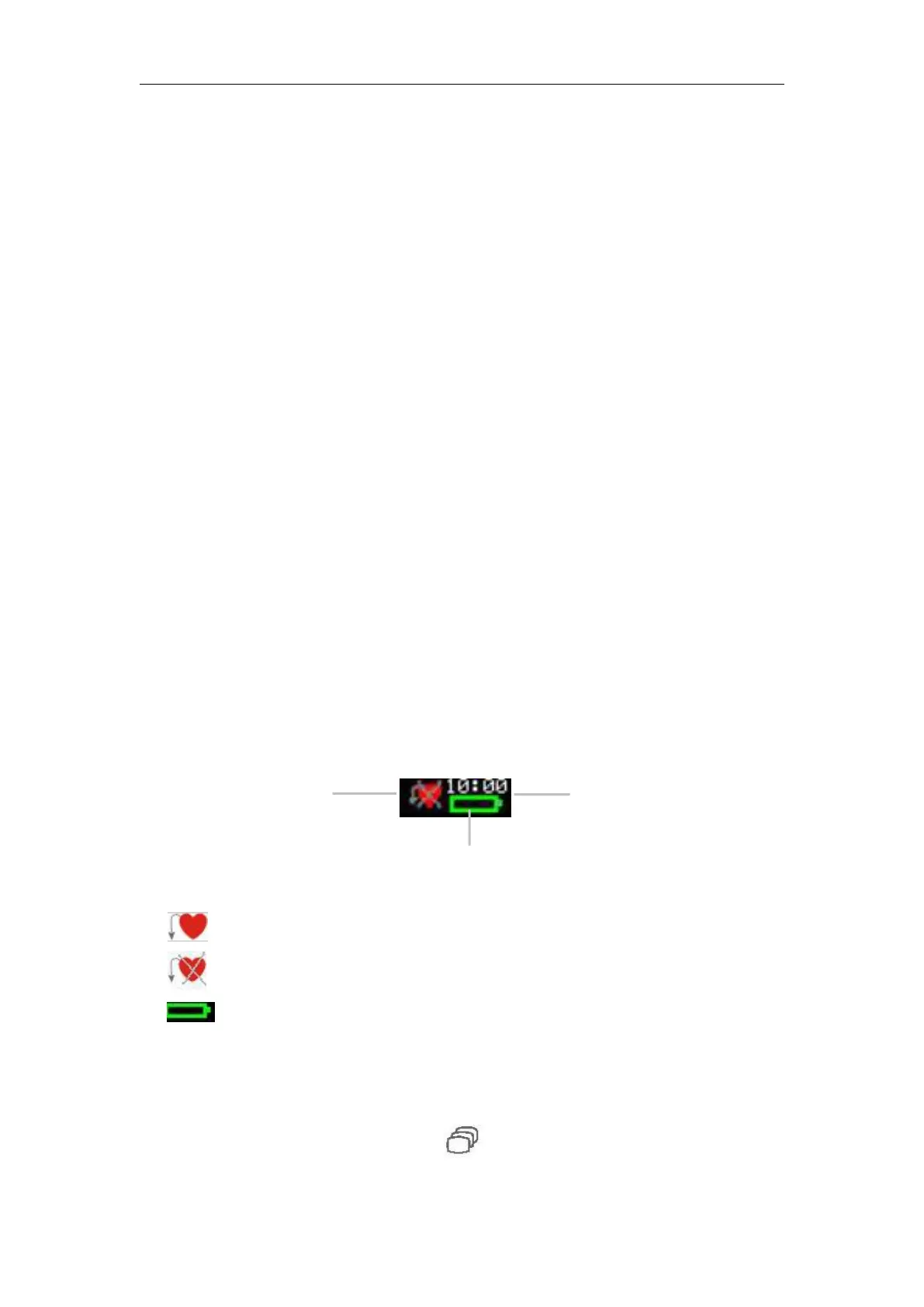
19.4.4 System Information Area
The system information of the monitor is displayed in the upper right
corner of the screen, including alarm sound status icon , battery status icon
and system time from left to right in order.
Shows the patient is paced one.
Shows the patient is not paced one.
Shows battery status.(Details refer to Battery)
Enter the main menu by pressing , select【Main Screen】to change


 To Next Page