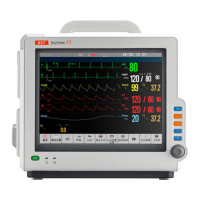
Patient monitor User’s manual
Chapter 3-4
If the user intends to connect the monitor to the central monitoring system,
plug its connecting electrical cable into the network connector at the back of
When the central monitoring system is connected through Wifi, make sure
that the network line interface of the Wifi module is well connected to the
network interface of the host machine of the monitor. Meanwhile, the
connection of the power supply interface of the WIFI module with the USB
interface of the host is ensured.
Note: This monitor can only be connected to the central monitoring
system provided by manufacturer, do not attempt to connect
this monitor to other central monitoring system.
Press the power switch after the monitor connecting to the power supply
and the monitor will switch on in the “monitor mode”.
If you want to change the operation mode, you can select【Work Mode】
of the【Main Menu】smartkey. Then select the operation mode you need.
There are four kinds of operation mode for this monitor:
Monitor Mode (Monitor): The normally operation mode to monitor
the patient.
Demo Mode (Demo): To give some demo screens. You should input
the password to enter the mode.
Configuration Mode (Config): You need to input password to enter
the mode. The mode is for the special configuration personnel in
hospital or the senior users to configure the monitor.
Service Mode (Mainten.): You need to input password to enter the
mode. This mode is only for the service personnel.
(The setting information under the config mode and service mode
refer to Service manual)


 To Next Page