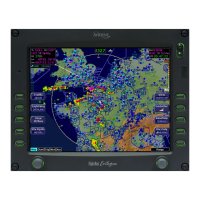
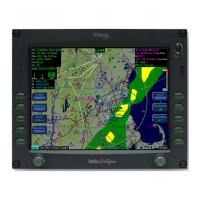
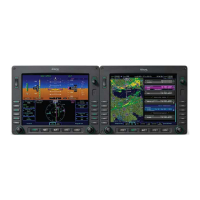
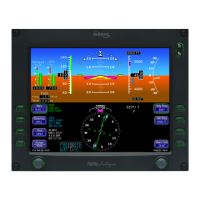
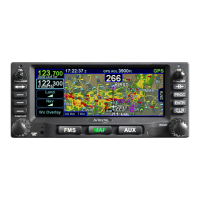
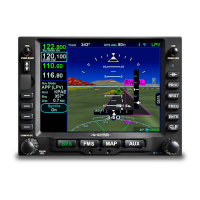
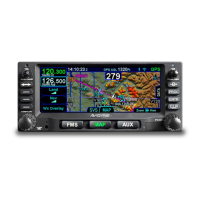
Using the Envision EX5000 MFD
600-00151-001 Rev 01 -3- Envision EX5000
3) Data Port—Provides a front panel access point for loading
database updates.
4) Buttons—Used to select modes or change the display as
indicated. Buttons are active when a label appears on the screen
adjacent to the key.
5) Page Control knob—The left knob provides quick access to the
main EX5000 pages, including the Map page, Trip page, and Aux
page, as well as the main pages for any optional features. The
current page is highlighted in the page Bar on the lower left
corner of screen.
6) Selection & Range Control knob—Depending on the page you
are viewing, the right knob controls functions such as selecting
items on the page or changing the view range. The label on right
knob changes as appropriate.
7) Message Bar—The message bar keeps you informed about
critical as well as routine information from the EX5000. When
information needs to be conveyed the message bar appears next
to the bottom right button.
Note: When removing the rubber cap from the data port, pull the cap gently
from the top until it pops out. Make sure the cap is out of the way (but not
removed) before plugging anything into the USB port.
Do not tug on the tab at the bottom of the cap; this can cause the loss of the
protective cap.
Note: The message bar displays one message at a time. If more than one
message is available, the message bar will display the highest priority
message first. Press the ACK button to clear the current message and view
those underneath.


 To Next Page