Aux Page – Configuring the EX5000
Envision EX5000 -72- 600-00151-001 Rev 01
3) Label—A check in the label box indicates that the item name will
be displayed along with the symbol.
4) Range Dots—The circles represent the seventeen available map
scales. A cyan-colored circle indicates that the item is displayed
at that range. The vertical dash line indicates the map current
scale.
5) Save—Saves settings and returns to the Aux Main page.
6) Cancel—Cancels any changes and returns to the Aux Main
page.
7) Change knob—The left knob changes the value or status of the
selected field.
8) Select knob—The right knob moves the blue field selector.
Note: The 1000NM and 1500NM columns are not displayed
because this data is never displayed at these ranges.
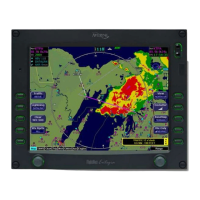
Note: If all display elements are forced on via the Declutter Setup page, the
quick declutter setting on Map page is set to maximum, and the Map Range
is set greater than 400NM, Map performance may be slow, and in some
cases, may cease to operate. If this occurs, you will need to recycle the
EX5000 power to restore functionality.
To avoid this situation, Avidyne suggests that you select the IFR or VFR
Default declutter setting.


 To Next Page