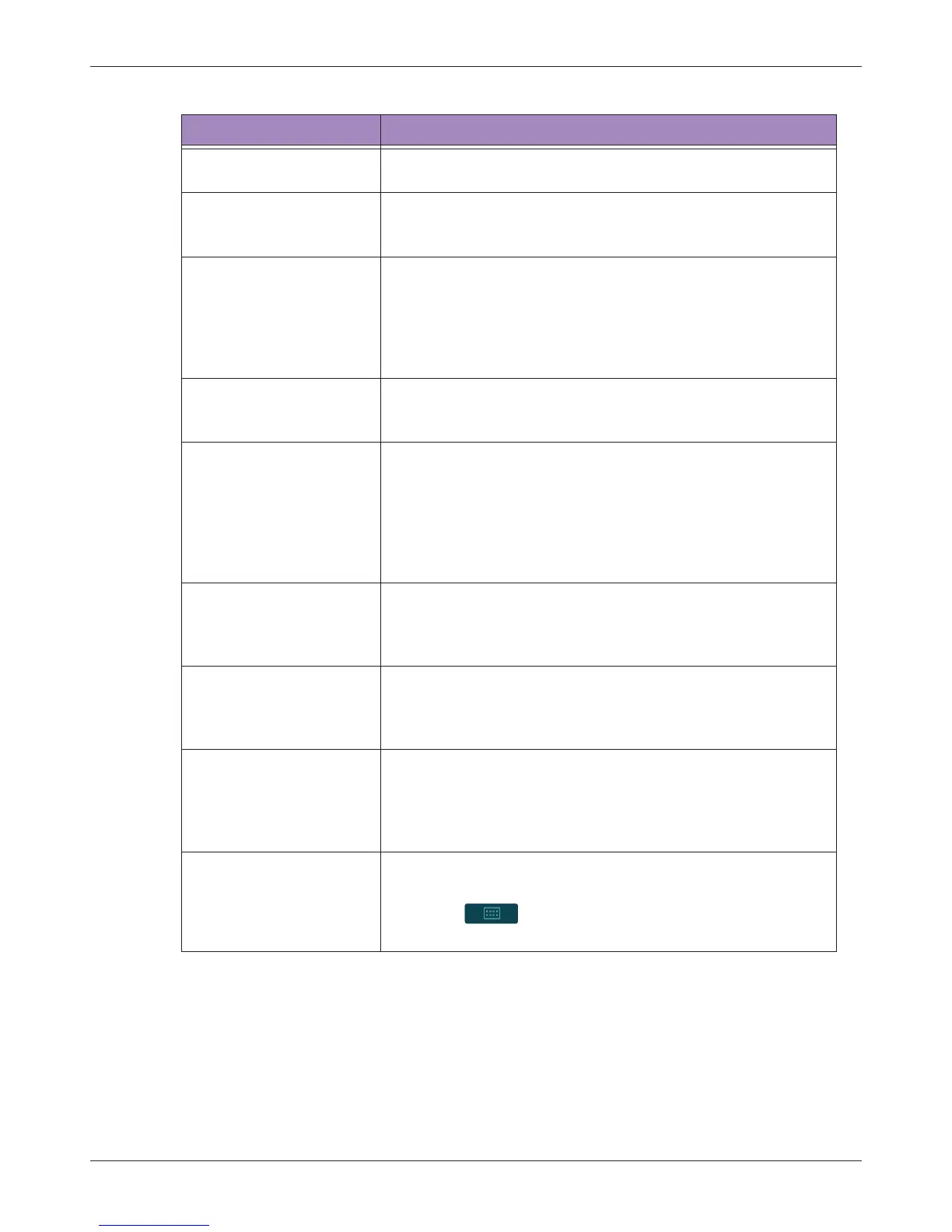
Troubleshooting
T3300 Diagnostic Ultrasound System | 105 | B00601-010 4/10/17
Software installation failed
Check if the USB flash drives or the system’s USB ports are
damaged.
The Power button does
not function
The system power reaches a critically low state and is not
connected to power.
> Connect the system to power.
The system is overheating
• The system’s fans are not functioning.
> Contact technical support.
• Ventilation slots are blocked.
> Place the system in a well-ventilated area.
> Remove any dust particles or stains found on or nearby the
ventilation slots.
The system encounters
unexpected shutdowns
several times
A system disk error occurred.
> Reinstall the software (See "Reinstalling Software" on
page 91). This requires assistance from technical support.
Touch screen is
unresponsive or
misconfigured
• Touch screen is damaged.
> Inspect the panel surface carefully for cracks, cuts or any
other damages.
• Software malfunctions.
> Connect a pointing device to the system through the USB
port, and check if the pointer is displayed correctly on the
screen.
No audio or noise comes
from the system speakers
• The system is muted.
> Open the Quick Setup menu and adjust the volume.
• The speakers are damaged.
> Contact technical support.
HDMI does not function
The HDMI cable/port is damaged.
> Use another HDMI cable for connection.
> Connect the system to a computer through HDMI
connection for inspection.
Bluetooth connection
failed
• The Bluetooth settings are not correct.
> Turn off the Bluetooth function, then turn it back on.
• The Bluetooth module is not functioning.
> Connect another Bluetooth device to the system for
inspection.
DICOM connection failed
The DICOM server is not responding or the DICOM
settings are not correct.
> Go to > Settings > DICOM > Storage SCP and
touch Edit > Test for verification.
Table 1 Troubleshooting
Symptom Possible cause and corrective action


 To Next Page