Bosch eBike
Diagnostic
Software
23
1.11 How to Operate Nyon 1.11 How to Operate Nyon
Installation of map material
* If the free memory on Nyon is insufficient: delete maps that are not required.
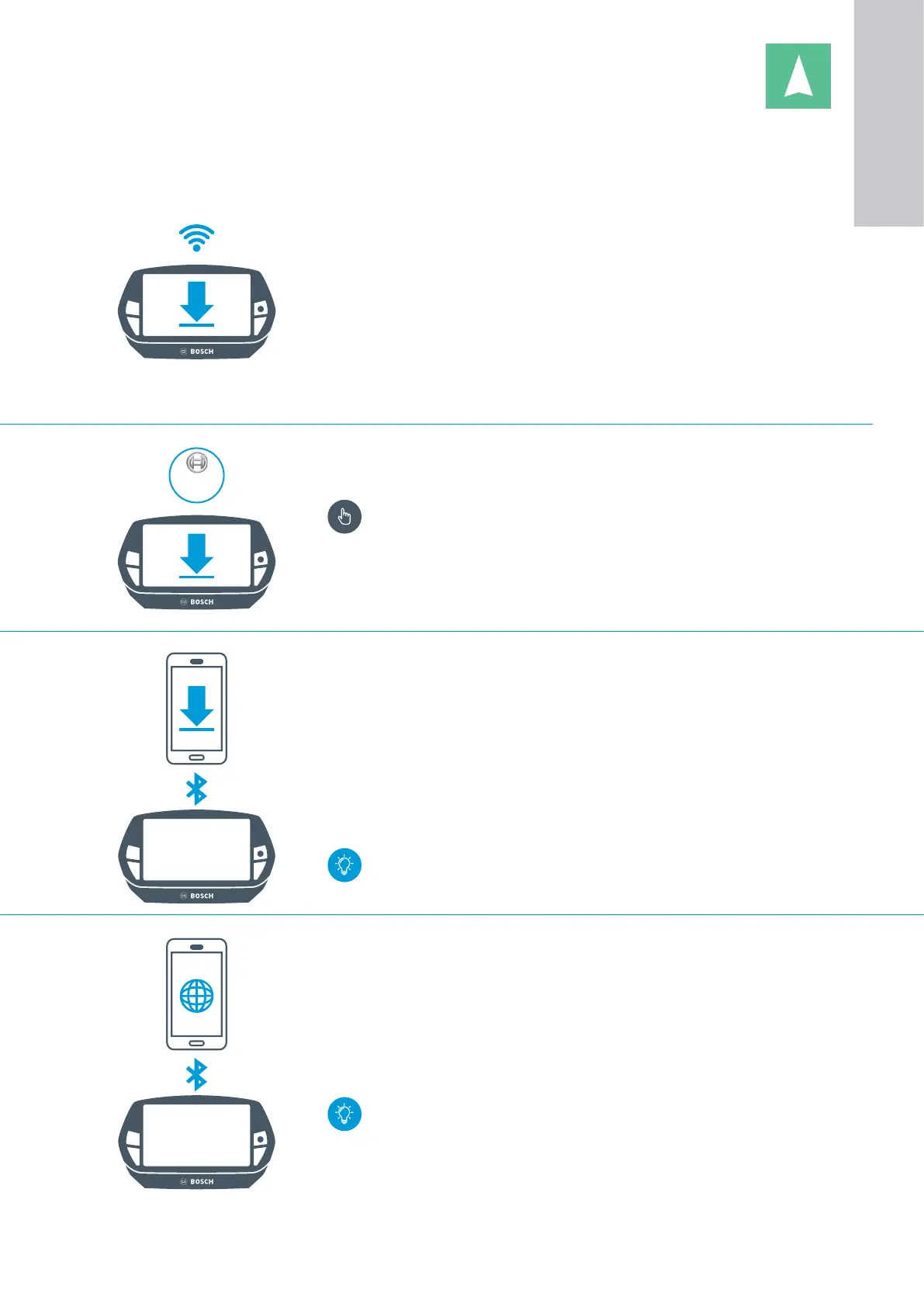
Installation of maps by the dealer using DiagnosticTool
X see chapter "Diagnostics", page 113
When transferring the maps, all maps previously saved on Nyon are
overwritten!
Download of map materials to the smartphone
Registration via smartphone app eBike Connect required, see p. 18
1. Start the smartphone app eBike Connect.
2. Select "Settings", then "Map manager".
3. Select country or region.
4. Select "Download map data".
5. Nyon uses the map material saved on the smartphone for navigation if
Bluetooth is activated.
– Maps are not saved on Nyon.
– Ideally, download maps via Wi-Fi in order to save data download
volume.
Download of map materials to Nyon
1. Connect Nyon via a USB A - Micro B cable to a power source.
2. Activate the Wi-Fi connection.
3. "Settings" → select "Map & Navigation"
4. Select "Map Manager".
5. Select country or region*.
6. Select "Download" and start downloading.
7. Switch off Nyon and then switch it back on again. Map material can be
used after GPS positioning.
Streaming of map materials from the Internet during the
trip
Registration via smartphone app eBike Connect required, see p. 18
If a Bluetooth connection with the smartphone is enabled, Nyon uses map
materials for navigation from the Internet. However, maps are not saved on
either Nyon or the smartphone.
– Additional roaming costs may be charged if you are outside the
EU. – Usage of maps from the Internet requires data download
volume of the smartphone.
1
ON-BOARD
COMPUTER





 To Next Page