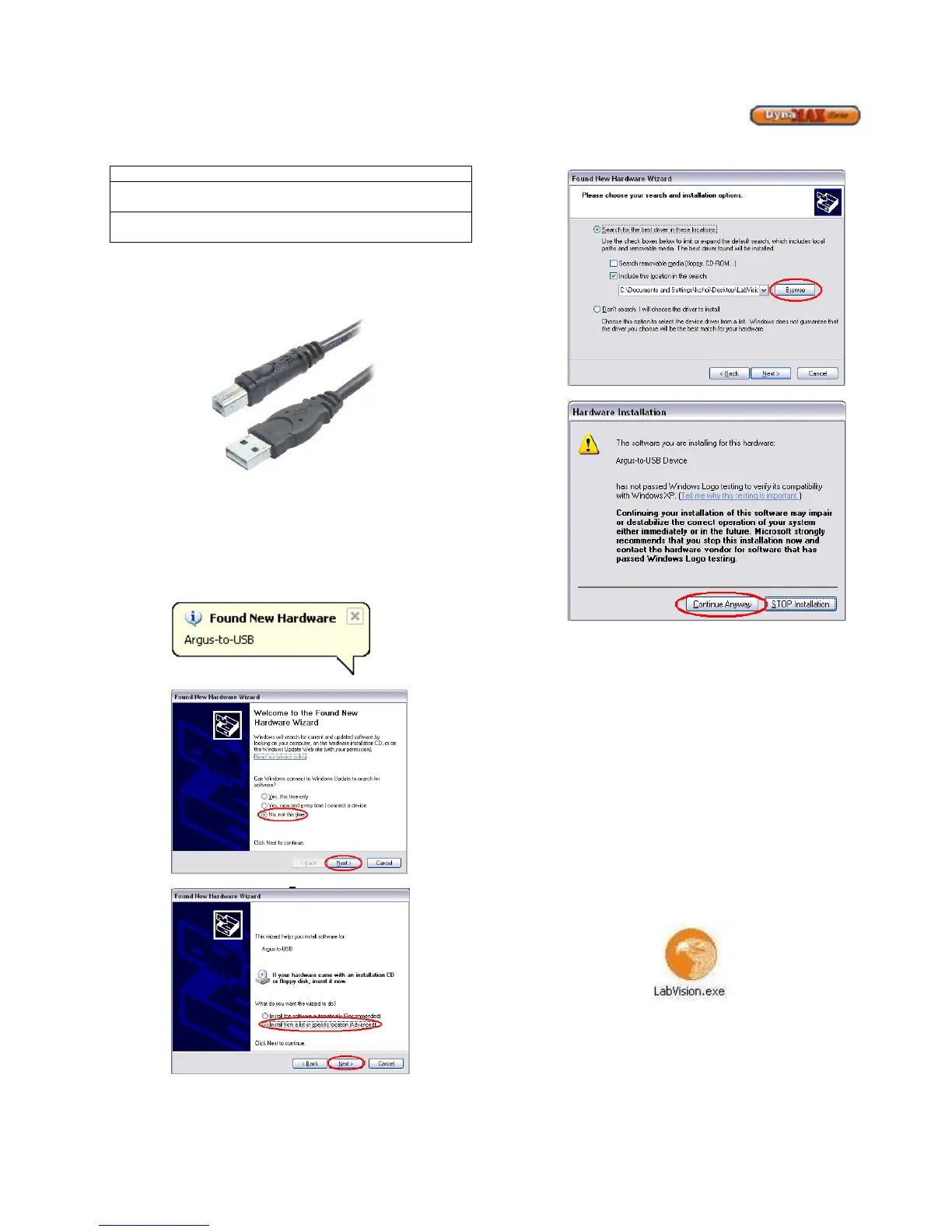
To operate LabVision software a Laptop and a USB A-to-B
connection cable are needed, as shown.
Figure 26: USB A-to-B Cable
8.1 INSTALLING LABVISION DRIVER ON
WINDOWS XP
1) Extract/Unzip D2XX driver file on to your computer
(preferably your desktop)
2) Plug in the USB A-to-B cable to your laptop and
your DynaMax. The following ballon will appear on
your desktop.
3) Select “No, not this time”, press [Next]
4) Select “Install from a specific location (Advanced)
5) Press [Browse] and locate the D2XX file on your
computer and press [Next>]
6) Press [Continue Anyway]
8.2 INSTALLING LABVISION DRIVER ON
WINDOWS 7
1) Extract/Unzip D2XX driver file on to your computer
(preferably your desktop)
2) Plug in the USB A-to-B cable to your laptop and
your DynaMax.
3) Click on Start > Control Panel > Device Manger >
Universal Serial Bus Controllers
4) Locate Argus-to-USB Drivers > Update Driver
5) Browse > 053US (test driver v3 - Windows 7) >
OK
6) Follow steps 3 through 6 in Section 8.1 Installing
LabVision Driver on Windows XP.
8.3 STARTING UP LAB VISION
Locate the file named LabVision.exe, the appearance of the
icon is shown:
Figure 27: LabVision Icon
When a connection between LabVision and the DynaMax
boiler is established the blue status bar on the bottom-right
will scroll from right-to-left and back again.
If a connection is not established between LabVision and the
DynaMax boiler, a proper connection will need to be
established before advancing to the next steps.



 To Next Page