LPOD Outdoor Amplifier / Block Up Converter (BUC) Revision 9
Updating Firmware MN-LPOD
3–9
• Type “dir” to list the files extracted to the temporary directory from the
downloaded archive file.
The firmware files have been successfully downloaded and are now
available for transfer to the LPOD.
3.4 Performing the FTP Upload Procedure
To proceed with the firmware update procedure, assumptions are made that:
• The LPOD is connected to a user-supplied, Windows-based PC, and:
o The PC serial port is connected
to the LPOD’s ‘J6 |COM1’ port using the
appropriate adaptive cabling,
– OR –
o The PC Ethernet port is connected to the LPOD’s ‘J6 |COM1’ port with a
user-supplied hub, switch, or a direct adaptive Ethernet cable connection.
o The PC is runn
ing a terminal emulation program (for operation of the
LPOD
Serial or Telnet interfaces) and a compatible Web browser (for
operation of the LPOD Web Server Interface).
• The latest firmware files have been downloaded or otherwise received from
Comtech EF Data and are available on the user PC in an accessible temporary
folder.
1. Use Command-Line to send a ‘PING’ command to confirm proper connection and
communication between the user PC and the LPOD:
• Obtain the IP Address of the unit using serial remote control or the LPOD Web Server
Interface:
o Using Serial Remote Control – Type the “<0/IPA?” remote query (without quotes)
at the command prompt. The unit returns the configured IP Address.
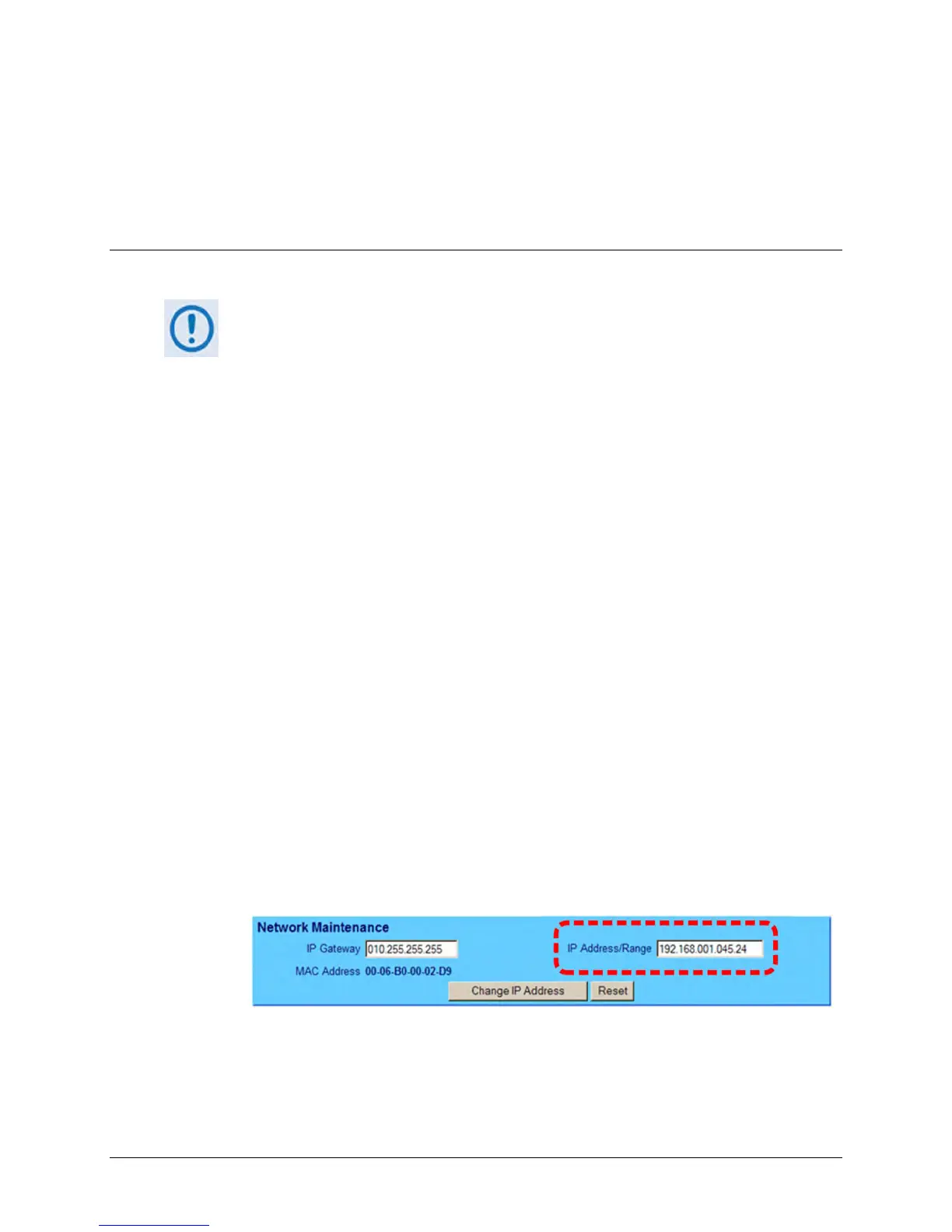
o Using the LPOD Web Server Interface – View the entry for IP Address/Range in the
Network Maintenance section of the ‘Admin | Access’ page:
• Once the IP Address is known – use Command-line to PING: Type “ping
xxx.xxx.xxx.xxx” at the Command-line prompt (where ‘xxx.xxx.xxx.xxx’ is the unit IP
Address).


 To Next Page