GE Voluson E10 Training Manual
© 2017 Conquest Imaging
3. On the right side of the screen select Backup and then click the
System Configuration tab.
4. Click the Save button of the "Full System Configuration" group.
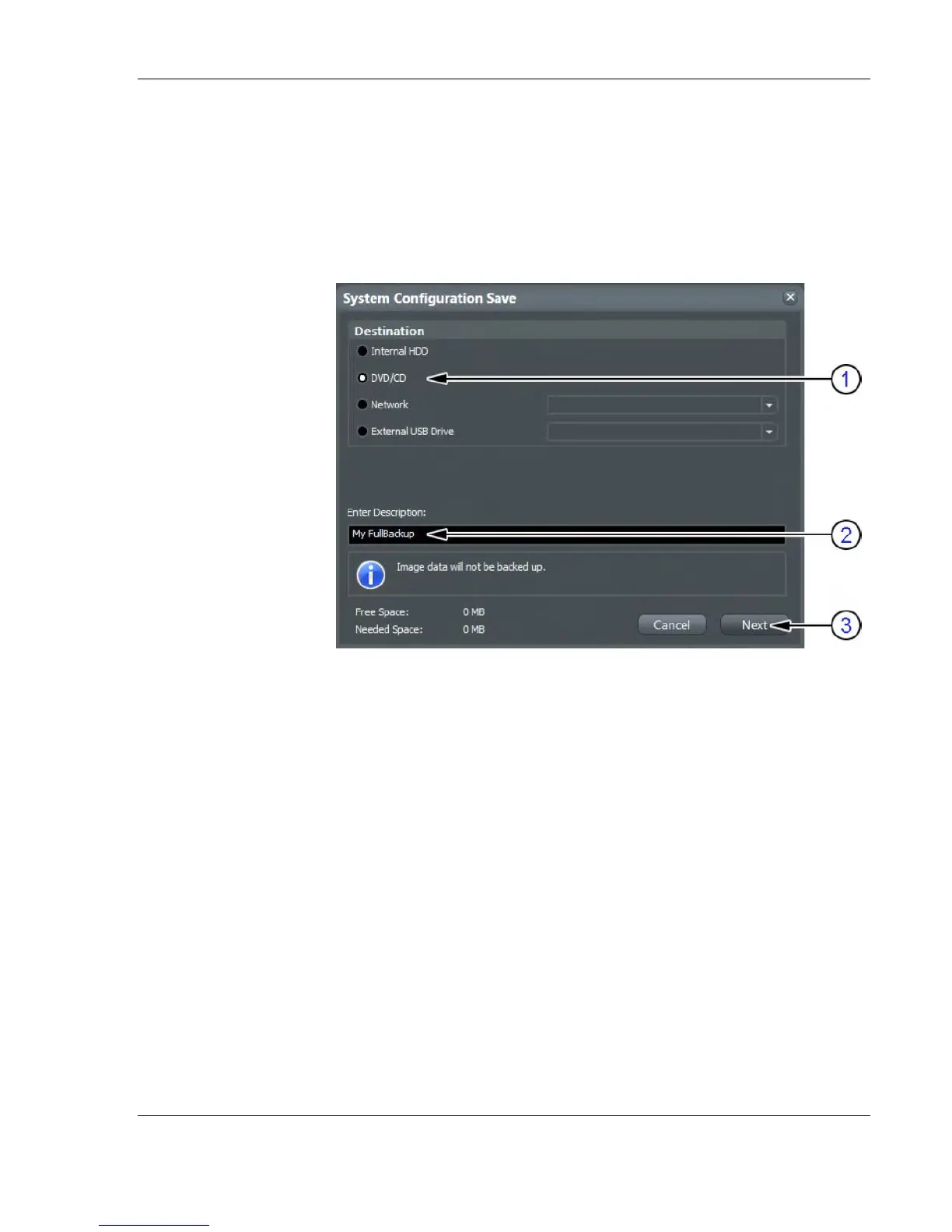
5. Choose the destination (1).
6. Enter the description of the Full Backup (2).
Note Image data will not be backed up! To backup the Image Archive,
refer to Section 4.4.6 on page 4-20 .
7. Click the Next button (3).
8. To start the backup process click Yes.
After copying the data, the Voluson E-Series reboots and the
application starts again.
When the “Full Backup” is saved on a network drive it may be
desirable to move the data (e.g., for backup or maintenance). To map
a network drive see Section 3.13.7 on page 3-70 .
The backups reside in sub folders of the main “fullbackup” -folder
found at the root of the drive. For Example: Backups on the mapped
Network Drive are below path Z:\fullbackup.


 To Next Page