GE Voluson E10 Training Manual
© 2017 Conquest Imaging
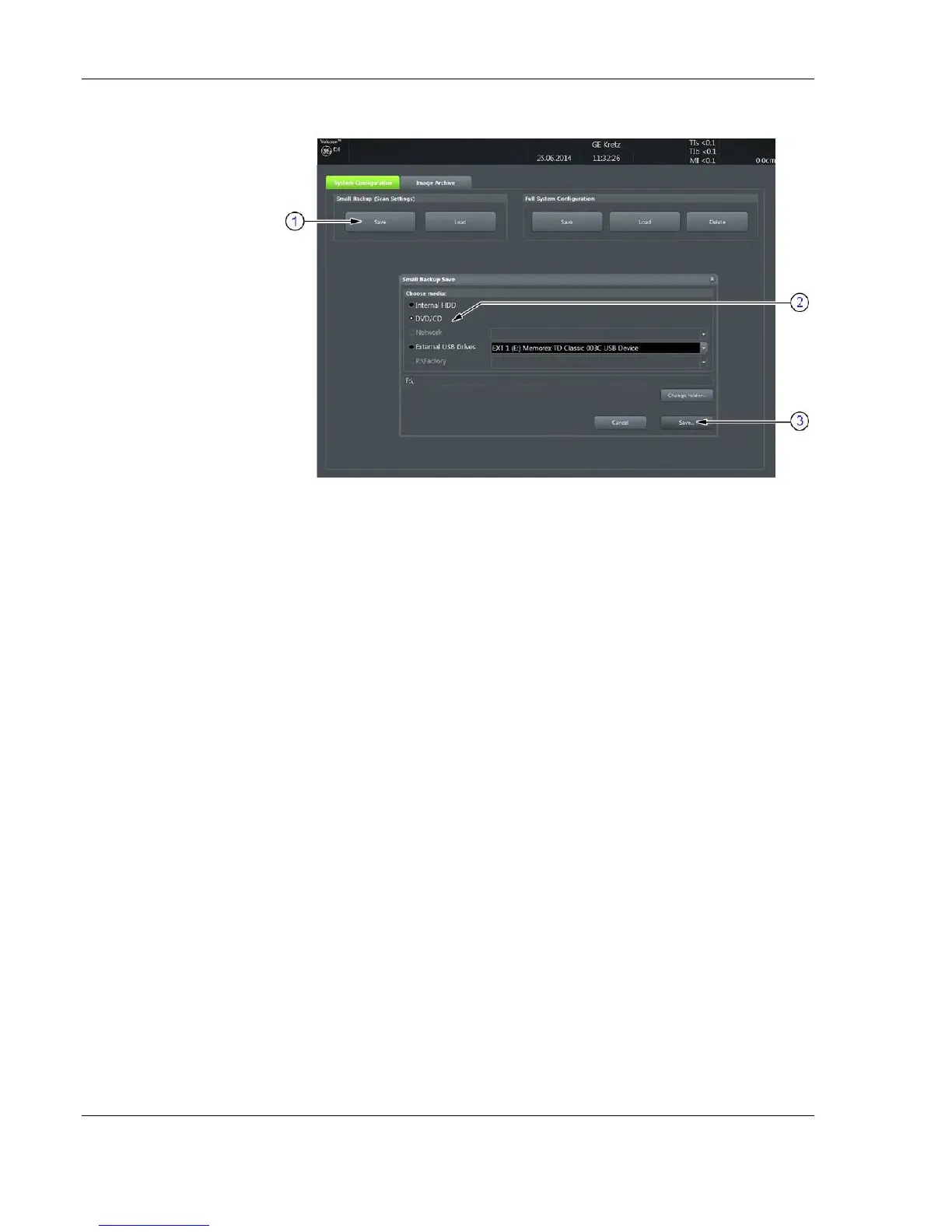
6. Select the desired media (2) and click the Save button (3).
7. Select the New File... key and enter a file name (without
extension).
8. Click the OK key to start the process. When the saving has been
completed, click OK.
Load Backups
Make sure to insert the correct System DVD. Additionally you can
load the image settings from “D:\usersettings”.
1. Insert a DVD/CD+R/RW into the drive or connect an external USB
device.
2. Press the Utilities key on the control console.
3. In the “Utilities” menu touch the Setup button to invoke the setup
desktop on the screen.
4. On the right side of the screen select Backup and then click the
System Configuration tab.
Load Small Backup (Scan Settings)
5. Click the Load button (1) of the "Small Backup (Scan Settings)"
The loading procedure
overwrites existing
image/scan settings on
the local hard drive.


 To Next Page