GE Voluson E10 Training Manual
© 2017 Conquest Imaging
Turn System ON
Switch ON the Mains power circuit breaker at the rear of the unit. The
control panel ON/OFF button should become amber. You should also
hear a “click” sound from the relays in the AC Power supply and the
unit is ready to boot. The ON/OFFbutton will remain amber.
Press once on the ON/OFF button on the Operator Panel to boot the
unit. The ON/OFF button turns green when it is pressed.
During a normal boot sequence, you will notice that:
The unit’s ventilation fan starts on full speed, but slows down
after a few seconds.
Power is distributed to the peripherals, Operator Panel (Console),
Monitor, FEP and BEP.
Back end processor is turned ON and begins to load the software.
The Start Screen displays on the monitor.
A start-up bar indicating the time used for software loading, is
displayed on the monitor.
The software initiates and sets up the front end electronics.
The backlight in the keyboard is lit.
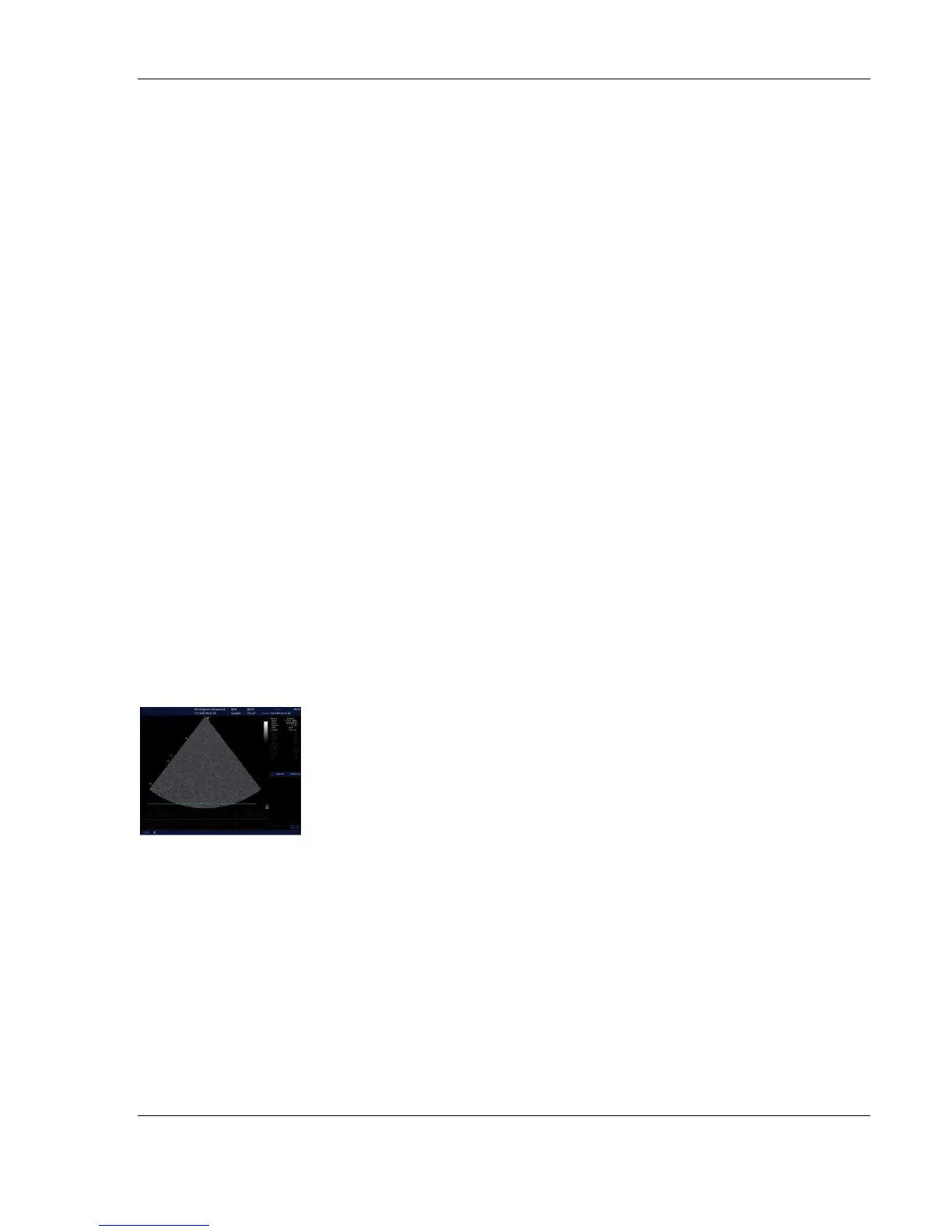
When the software load is complete the 2D screen is displayed
on the screen, as long as a probe has been connected, or a No
Mode screen is displayed, indicating that no probe has been
connected.
Sleep Mode
Sleep Mode is intended to reduce the boot up time (is less than 120
seconds) on portable studies. Sleep mode saves all memory content
in the hard drive and shuts down. When booting up, memory content
is then restored from the HDD.
Sleep mode is not a
substitute for a regular
shutdown. Shutdown the
system completely at least
once a day to prevent
performance issues.


 To Next Page