GE Voluson E10 Training Manual
© 2017 Conquest Imaging
When an external USB-storage device (such as an USB-memory stick
or an external hard disk) is connected to the Voluson E-Series, the
operating system detects the device and automatically installs a
driver. During this process, several dialogs may pop up, starting with
the “Found New Hardware“ dialog box.
The device is then accessible using the drive letter the system
assigned to it.
Disconnection of External USB-Devices
Before an external USB-device such as a memory stick can be
disconnected, the system has to be prepared the removal of the
device!
Before removing any device, you must press the Eject key on the
keyboard.
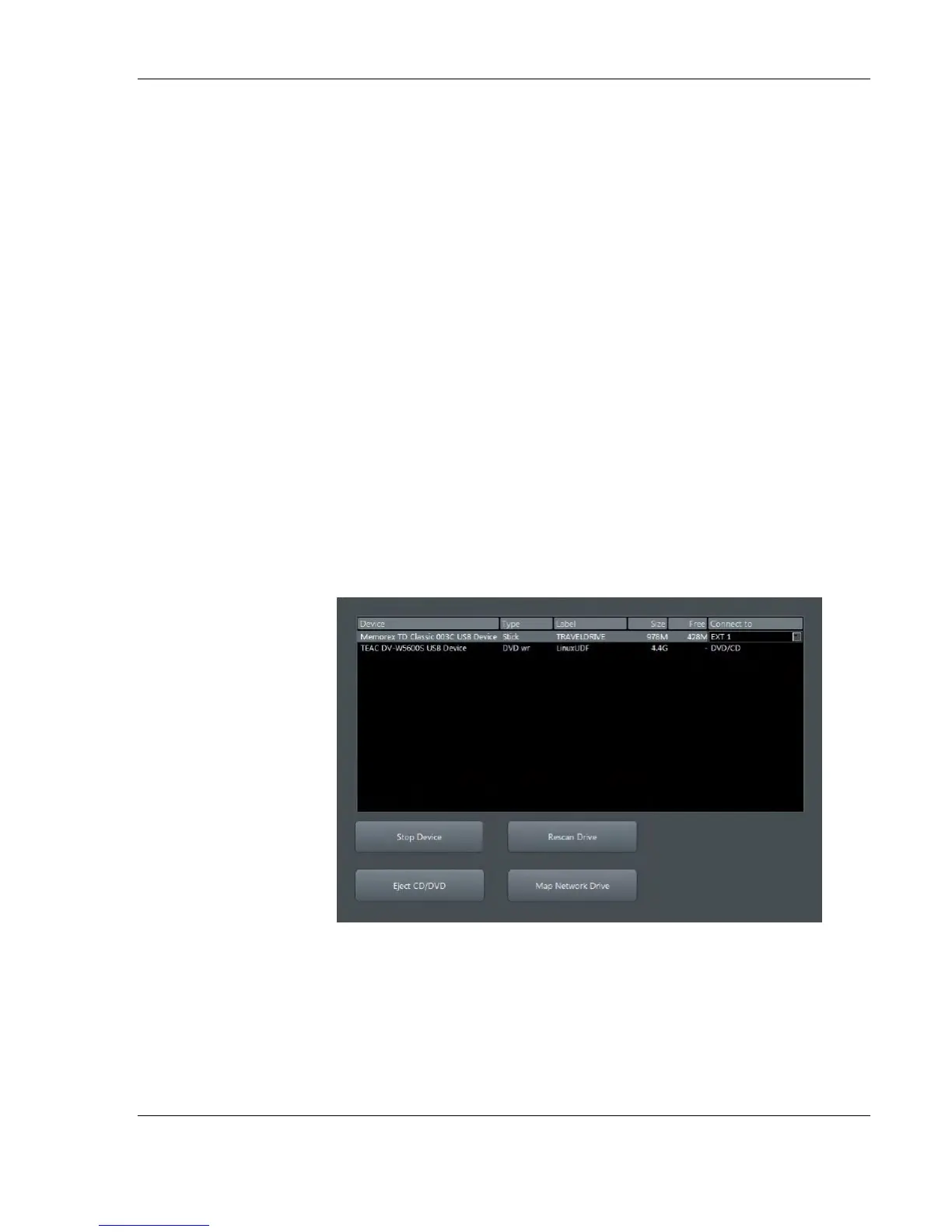
When you press the Eject key on the keyboard, the following dialog
window will be displayed:
The “Connect USB and Network Drives” window shows all USB and
Network drives that are connected to the system. Use this dialog, to
stop the USB-devices before they are physically disconnected.
To stop the external device, select it and then click the Stop Device
button.
Note When connecting
external USB devices, be
sure to execute Safety
Directions found in the
Voluson E-Series Basic
User Manual.
Note If an external drive
was not recognized
automatically after
connecting it, click Rescan
Drive.
Caution: Unplugging or
ejecting USB devices
without first stopping
them can cause the
system to crash and
possibly result in loss of
important data!!!
Connect USB and
Network Drives


 To Next Page